Blog

  • How to Encrypt Sensitive Client Files Before Sending Them Online and Prevent Costly Data Breaches

    How to Encrypt Sensitive Client Files Before Sending Them Online and Prevent Costly Data Breaches

    Protect Client Data Before It Leaves Your Network: How to Encrypt Sensitive Client Files Before Sending Them Online

    Secure sensitive client files with encryption and protect your business from data breaches, phishing, and ransomware threats in 2026.

    In today’s digital-first business environment, sharing files online has become a daily necessity. Whether you’re sending contracts, financial records, legal documents, medical information, design files, or confidential business reports, sensitive data is constantly moving between organizations, employees, contractors, and clients.

    Unfortunately, cybercriminals know this.

    In 2026, businesses face increasingly sophisticated threats from AI-powered phishing campaigns, ransomware gangs, cloud account compromises, insider threats, and data interception attacks. Small businesses are especially attractive targets because attackers often assume security controls are weaker than those found in larger enterprises.

    One of the most effective ways to reduce risk is understanding how to encrypt sensitive client files before sending them online.

    Encryption transforms readable information into unreadable data that can only be accessed by authorized individuals who possess the correct decryption key or password. Even if files are intercepted during transmission, encryption prevents attackers from viewing their contents.

    At locknet.site, we help entrepreneurs and growing businesses build a bulletproof digital presence through practical cybersecurity strategies. This guide explains how file encryption works, why it matters, and how to implement secure file-sharing practices that protect both your business and your clients.
    Why File Encryption Matters More Than Ever in 2026

    The way businesses exchange information has changed dramatically.

    Today, sensitive files are routinely shared through:

    • Email
    • Cloud storage platforms
    • Client portals
    • Collaboration tools
    • Messaging applications
    • Remote work environments

    Every transfer creates potential exposure.

    Cybercriminals increasingly target file-sharing workflows because they often contain:

    • Customer records
    • Financial statements
    • Tax documents
    • Intellectual property
    • Legal agreements
    • Healthcare information

    Without encryption, intercepted files may be viewed immediately.

    With encryption, stolen files remain unreadable.
    What Is File Encryption?

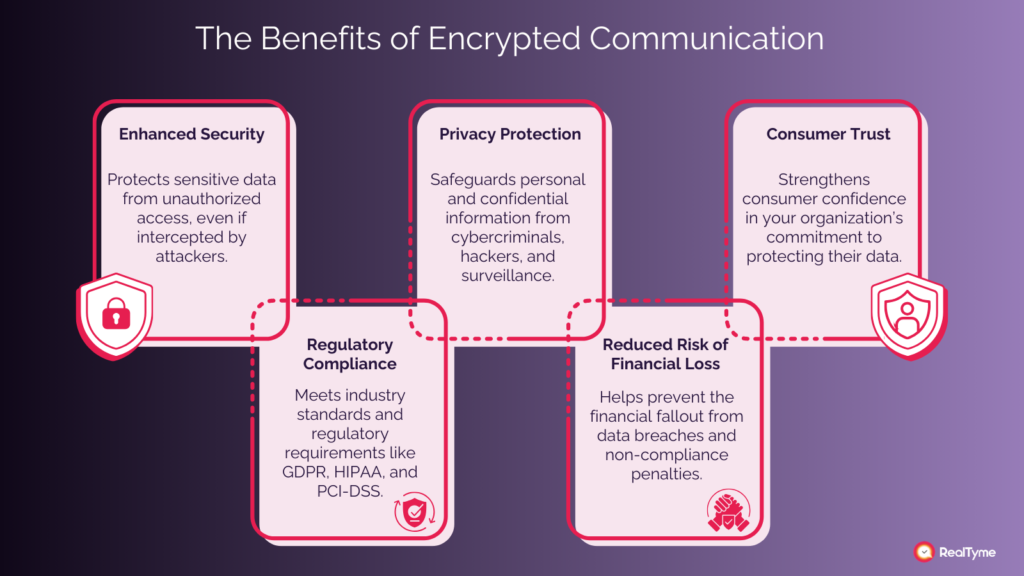
    Encryption is the process of converting data into a coded format that can only be unlocked with a specific key, password, or authentication method.

    When properly implemented:

    • Unauthorized users cannot read the contents.
    • Intercepted files remain protected.
    • Data confidentiality is preserved.
    • Compliance requirements are easier to meet.

    Encryption acts as a final safety net when other security controls fail.

    Common Threats to Sensitive File Transfers

    Many businesses underestimate the number of risks involved in online file sharing.

    AI-Driven Phishing Attacks

    Attackers increasingly use artificial intelligence to create convincing messages that trick employees into sharing files.

    Email Account Compromise

    A compromised email account can expose confidential attachments.

    Cloud Storage Breaches

    Misconfigured cloud environments remain a leading cause of accidental data exposure.

    Public Wi-Fi Interception

    Unsecured networks may increase the risk of unauthorized monitoring.

    Ransomware Campaigns

    Many ransomware groups steal files before encrypting systems.

    Insider Threats

    Employees or contractors with excessive access can misuse sensitive information.

    Vulnerability Assessment: Is Your Business at Risk?

    Your organization may face elevated risk if:

    Files Are Sent as Standard Email Attachments

    Traditional email was not designed for highly sensitive information.

    Passwords Are Shared in the Same Message

    Sending both the encrypted file and password together defeats the purpose of encryption.

    Employees Use Personal Accounts

    Personal email services often lack enterprise-grade controls.

    Cloud Permissions Are Too Broad

    Overly permissive sharing settings expose data unnecessarily.

    No Encryption Policy Exists

    Without formal guidelines, security practices become inconsistent.

    Comparison Table: Common File Sharing Methods

    MethodSecurity LevelSuitable for Sensitive FilesRisk Level
    Standard Email AttachmentLowNoHigh
    Shared Public LinkLowNoHigh
    Password-Protected ZIP FileMediumYesModerate
    Encrypted Cloud TransferHighYesLow
    Secure Client PortalVery HighYesVery Low
    End-to-End Encrypted PlatformVery HighYesVery Low

    This comparison demonstrates why encrypted transfer methods are essential for modern businesses.

    How Encryption Protects Client Information

    Encryption provides multiple security benefits.

    Data Confidentiality

    Only authorized recipients can access file contents.

    Regulatory Compliance

    Encryption supports compliance with many privacy and data protection frameworks.

    Reduced Breach Impact

    Stolen encrypted files are far less valuable to attackers.

    Enhanced Client Trust

    Customers increasingly expect businesses to protect sensitive information.

    Step-by-Step Guide: How to Encrypt Sensitive Client Files Before Sending Them Online

    Following a structured process greatly improves security.

    Step 1: Classify the Data

    Determine the sensitivity level of the file.

    Examples include:

    • Financial records
    • Client contracts
    • Employee information
    • Medical records
    • Legal documents

    The more sensitive the data, the stronger the protection required.

    Step 2: Choose an Encryption Method

    Common options include:

    • Password-protected encrypted archives
    • Encrypted PDF documents
    • Secure file-sharing platforms
    • Encrypted cloud storage

    Choose a solution appropriate for the sensitivity level.

    Step 3: Create a Strong Password

    Use:

    • Long passphrases
    • Random characters
    • Unique credentials

    Avoid predictable passwords.

    Here is the real talk about why your current password isn’t enough.

    Many breaches occur because attackers successfully guess or reuse weak passwords associated with encrypted files.

    Step 4: Encrypt the File

    Apply encryption before uploading or transmitting the document.

    Verify encryption settings carefully.

    Step 5: Send the File Securely

    Use trusted communication channels.

    Avoid public sharing links whenever possible.

    Step 6: Deliver the Password Separately

    Never send the password in the same email as the encrypted file.

    Use:

    • Phone calls
    • Secure messaging
    • Separate communication channels

    Step 7: Confirm Receipt

    Verify that the intended recipient successfully received and accessed the file.

    Step 8: Remove Unnecessary Copies

    Delete temporary files after transfer to reduce exposure.

    Step-by-Step Guide: Securing Cloud-Based File Sharing

    Many businesses rely on cloud platforms for collaboration.

    Follow this proccess to improve security.

    Step 1: Enable Multi-Factor Authentication

    Require MFA for all cloud accounts.

    Step 2: Restrict Sharing Permissions

    Limit access to authorized users only.

    Step 3: Use Expiring Links

    Configure links to expire automatically.

    Step 4: Monitor Access Logs

    Review:

    • File downloads
    • Sharing activity
    • Login attempts

    Step 5: Enable Encryption at Rest and in Transit

    Ensure data remains protected throughout its lifecycle.

    Step 6: Review User Access Quarterly

    Remove unnecessary permissions regularly.

    Step 7: Apply Least Privilege Principles

    Users should only access files required for their roles.

    Defense Layers for Secure File Transfers

    Encryption works best when combined with additional security controls.

    Multi-Factor Authentication

    Protects cloud accounts from unauthorized access.

    Endpoint Security

    Secure devices reduce the likelihood of credential theft.

    Install:

    • Antivirus software
    • Device encryption
    • Threat detection tools

    Secure Client Portals

    Dedicated portals often provide stronger protection than email attachments.

    Data Loss Prevention Controls

    DLP solutions help prevent accidental disclosures.

    Security Awareness Training

    Employees should recognize:

    • AI-generated phishing emails
    • Fake file-sharing requests
    • Credential harvesting attacks

    Look, I get it, cybersecurity sounds like a headache, but most file-sharing breaches begin with simple human mistakes that can be prevented through awareness and training.

    Recovery Plan After a Sensitive File Exposure Incident

    Despite strong defenses, incidents can still occur.

    Immediate Actions

    If exposure is suspected:

    1. Revoke access immediately.
    2. Disable shared links.
    3. Change credentials.
    4. Investigate affected systems.

    Determine Scope

    Identify:

    • Which files were exposed
    • Who accessed them
    • How the incident occurred

    Notify Stakeholders

    Depending on legal obligations and risk levels, notification may be required.

    Strengthen Security Controls

    Use lessons learned to improve future protections.

    Security Checklist for Encrypted File Sharing

    Security ControlRequired
    Sensitive Files ClassifiedYes
    Encryption Applied Before TransferYes
    MFA EnabledYes
    Strong Passwords UsedYes
    Password Shared SeparatelyYes
    Cloud Permissions RestrictedYes
    Access Logs ReviewedRecommended
    Secure Client Portal AvailableRecommended
    Employee Training ConductedRecommended
    Incident Response Plan DocumentedRecommended

    Common Mistakes Businesses Make

    Sending Passwords with the File

    This eliminates much of the protection encryption provides.

    Using Weak Passwords

    Weak passwords undermine strong encryption.

    Over-Sharing Cloud Links

    Public links often expose data unintentionally.

    Ignoring Access Reviews

    Former employees may retain access longer than necessary.

    Relying Solely on Email Security

    Email security alone cannot fully protect sensitive attachments.

    Skipping Endpoint Protection

    Compromised devices can expose encrypted files before transmission.

    A poorly configured firewal, outdated device, or weak access policy can create security gaps that encryption alone cannot solve.

    How Encryption Supports Ransomware Defense

    Encryption is not only about privacy.

    It also strengthens resilience against ransomware.

    If attackers steal encrypted files but cannot obtain decryption credentials, the value of stolen information decreases significantly.

    Combined with:

    • Backups
    • MFA
    • Endpoint security
    • Zero Trust access controls

    encryption becomes an important part of a broader ransomware defense strategy.

    Final Thoughts

    Understanding how to encrypt sensitive client files before sending them online is one of the most valuable cybersecurity practices a business can adopt in 2026. As AI-powered phishing attacks, ransomware operations, cloud security incidents, and credential theft campaigns continue to evolve, protecting client information must remain a top priority.

    Encryption provides a powerful safeguard by ensuring that sensitive files remain unreadable to unauthorized users, even if they are intercepted or stolen. When paired with strong passwords, multi-factor authentication, secure cloud management, endpoint protection, and employee training, encryption significantly reduces the risk of data breaches and compliance failures.

    At locknet.site, we help entrepreneurs and small businesses build secure digital operations that inspire trust and withstand modern cyber threats. Protecting client data is not just a technical requirement—it is a business responsibility.

    Ready to strengthen your file-sharing security? Conduct a data protection audit, subscribe to the latest cybersecurity insights from locknet.site, and consult a security specialist today to ensure your sensitive client information remains protected wherever it travels.
  • How to Secure Your Cloud Storage (Google Drive/Dropbox) Settings Before a Small Misconfiguration Becomes a Major Breach

    How to Secure Your Cloud Storage (Google Drive/Dropbox) Settings Before a Small Misconfiguration Becomes a Major Breach

    Protect Your Business Data Before It’s Exposed: How to Secure Your Cloud Storage (Google Drive/Dropbox) Settings in 2026

    Secure your cloud storage settings to protect sensitive business data from cyberattacks, ransomware, and unauthorized access.

    Cloud storage has become the backbone of modern business operations. Whether you’re sharing client files, managing remote teams, storing financial documents, or collaborating on projects, platforms like Google Drive and Dropbox make work faster and more efficient.

    But convenience comes with risk.

    In 2026, cybercriminals are increasingly targeting cloud storage environments because they often contain an organization’s most valuable assets. A single misconfigured sharing setting, weak password, or compromised account can expose thousands of sensitive files in seconds.

    For small businesses, the consequences can be devastating. Data breaches, ransomware attacks, client trust issues, regulatory penalties, and operational disruptions frequently begin with cloud storage weaknesses that could have been prevented.

    Understanding how to secure your cloud storage (Google Drive/Dropbox) settings is now a critical component of business cybersecurity.

    At locknet.site, we help entrepreneurs build a bulletproof digital presence by securing the tools they rely on every day. This guide explains the risks, best practices, and step-by-step actions needed to protect cloud-based business data in today’s evolving threat landscape.

    Why Cloud Storage Security Matters More Than Ever in 2026

    Cloud adoption continues to grow across every industry.

    Businesses now store:

    • Client records
    • Contracts
    • Financial reports
    • Marketing assets
    • Employee information
    • Intellectual property
    • Operational documents

    Unfortunately, attackers have adapted.

    Modern threats include:

    • AI-driven phishing campaigns
    • Cloud account takeovers
    • Credential stuffing attacks
    • Ransomware targeting cloud environments
    • Insider threats
    • Third-party application abuse

    Cloud storage is no longer just a convenience platform—it is a primary security battleground.

    Understanding Cloud Storage Risks

    Many business owners assume that because cloud providers invest heavily in security, their files are automatically safe.

    This assumption can be dangerous.

    Cloud providers secure the infrastructure, but customers remain responsible for how data is configured, shared, and accessed.

    This is commonly known as the shared responsibility model.

    Common Cloud Storage Threats

    Misconfigured Sharing Permissions

    Files accidentally shared publicly remain one of the most common causes of cloud data exposure.

    Compromised User Accounts

    Stolen credentials can provide attackers with immediate access to sensitive files.

    Malware and Ransomware

    Cloud synchronization can spread malicious files across devices and storage locations.

    Shadow IT

    Employees may connect unauthorized applications that increase risk.

    Insider Threats

    Users with excessive permissions can intentionally or unintentionally expose sensitive information.

    Vulnerability Assessment: Is Your Cloud Storage Secure?

    Ask yourself the following questions:

    • Are all accounts protected by MFA?
    • Do employees use unique passwords?
    • Are public sharing links restricted?
    • Is file activity monitored?
    • Are access permissions reviewed regularly?
    • Are unused accounts removed promptly?

    If the answer to any of these questions is “no,” your organization may have unnecessary exposure.

    Comparison Table: Secure vs Insecure Cloud Storage Practices

    Security AreaInsecure PracticeSecure Practice
    AuthenticationPassword OnlyMFA Enabled
    File SharingPublic LinksRestricted Access
    User PermissionsBroad AccessLeast Privilege
    MonitoringNo Activity ReviewsContinuous Monitoring
    Third-Party AppsUnrestrictedApproved Applications Only
    BackupsNo Backup StrategyAutomated Secure Backups

    This comparison highlights how small configuration changes can dramatically improve security.

    Why AI-Powered Threats Increase Cloud Risks

    Artificial intelligence has changed the cybersecurity landscape.

    Attackers now use AI to:

    • Create convincing phishing emails
    • Impersonate trusted contacts
    • Automate credential theft campaigns
    • Identify cloud configuration weaknesses

    Remote teams are especially vulnerable because employees often access cloud storage from multiple devices and locations.

    This makes strong cloud security controls essential.

    Step-by-Step Guide: How to Secure Your Google Drive Settings

    Google Drive is widely used by businesses of all sizes.

    Follow this proccess to strengthen protection.

    Step 1: Enable Multi-Factor Authentication

    Protect every Google account with MFA.

    Preferred options include:

    • Authenticator applications
    • Security keys
    • Passkeys

    Avoid relying solely on SMS authentication.

    Step 2: Review Shared Files

    Audit existing sharing settings.

    Look for:

    • Public links
    • External users
    • Unknown collaborators

    Remove unnecessary access immediately.

    Step 3: Restrict Link Sharing

    Configure sharing permissions to:

    • Specific users
    • Internal team members
    • Approved collaborators

    Avoid “Anyone with the link” whenever possible.

    Step 4: Review Third-Party App Access

    Connected applications often gain significant permissions.

    Remove apps that are:

    • Unused
    • Unverified
    • Unnecessary

    Step 5: Enable Security Alerts

    Activate notifications for:

    • Suspicious logins
    • New devices
    • Account recovery attempts

    Step 6: Audit User Permissions

    Apply least-privilege access principles.

    Users should only access information necessary for their roles.

    Step 7: Secure Administrative Accounts

    Administrator accounts require stronger protections than standard users.

    Use:

    • Unique credentials
    • MFA
    • Restricted access

    Step-by-Step Guide: How to Secure Dropbox Settings

    Dropbox remains a popular cloud collaboration platform.

    Step 1: Enable Two-Factor Authentication

    Require MFA for all team members.

    Step 2: Review Team Sharing Policies

    Restrict external sharing where possible.

    Step 3: Configure Device Management

    Remove unauthorized devices promptly.

    Step 4: Enable Activity Monitoring

    Track:

    • File access
    • Downloads
    • Sharing events
    • Login activity

    Step 5: Limit Folder Access

    Separate sensitive information into controlled folders.

    Step 6: Review Linked Applications

    Disconnect applications that are no longer required.

    Step 7: Enable Account Recovery Controls

    Secure recovery options to prevent account takeover attempts.

    Defense Layers for Cloud Storage Security

    Cloud security should never depend on a single control.

    Strong Authentication

    MFA remains one of the most effective protections available.

    Password Managers

    Here is the real talk about why your current password isn’t enough.

    Even strong passwords become vulnerable if reused across multiple accounts.

    Password managers generate and store unique credentials securely.

    Endpoint Protection

    Devices accessing cloud storage should include:

    • Antivirus protection
    • Device encryption
    • Security monitoring

    Data Classification

    Identify:

    • Public information
    • Internal information
    • Confidential information

    Apply appropriate protections to each category.

    Cloud Backups

    Maintain independent backups to support recovery after ransomware incidents.

    Recovery Plan After a Cloud Security Incident

    Preparation reduces damage and recovery time.

    Immediate Actions

    If suspicious activity is detected:

    1. Disable affected accounts.
    2. Reset credentials.
    3. Revoke active sessions.
    4. Investigate file activity.

    Assess the Impact

    Determine:

    • What files were accessed
    • Whether data was downloaded
    • Which accounts were involved

    Strengthen Security Controls

    Review:

    • Sharing settings
    • User permissions
    • Authentication controls

    Notify Stakeholders

    Depending on the situation, customers, employees, or partners may require notification.

    Security Checklist for Cloud Storage Protection

    Security ControlRequired
    MFA Enabled for All AccountsYes
    Public Sharing RestrictedYes
    User Permissions ReviewedYes
    Security Alerts EnabledYes
    Third-Party Apps AuditedYes
    Password Manager ImplementedYes
    Endpoint Protection InstalledYes
    Activity Monitoring ActiveYes
    Cloud Backup Strategy ImplementedYes
    Quarterly Security Reviews ConductedRecommended

    Common Mistakes Businesses Make

    Leaving Public Links Active

    Old sharing links often remain accessible longer than intended.

    Reusing Passwords

    Credential reuse remains one of the most common causes of account compromise.

    Ignoring Security Alerts

    Alerts often provide early warning signs of attacks.

    Excessive User Permissions

    Too much access creates unnecessary risk.

    Neglecting Former Employee Accounts

    Inactive accounts should be removed promptly.

    Assuming Cloud Providers Handle Everything

    The provider secures the platform, but your organization remains responsible for access controls and data protection.

    A poorly configured firewal, weak cloud permission setting, or forgotten account can create vulnerabilities that attackers actively seek.

    Look, I get it, cybersecurity sounds like a headache, but most cloud breaches occur because of preventable mistakes rather than sophisticated hacking techniques.

    How Cloud Storage Security Supports Ransomware Defense

    Modern ransomware groups frequently target cloud environments.

    Attackers often attempt to:

    • Encrypt synchronized files
    • Delete backups
    • Steal sensitive documents

    Strong cloud security reduces these risks through:

    • Access controls
    • Monitoring
    • Backup strategies
    • Authentication protections

    The stronger your cloud security posture, the harder it becomes for attackers to succeed.

    Cloud Security and Remote Teams

    Remote work has permanently changed business operations.

    Employees access cloud storage from:

    • Home offices
    • Mobile devices
    • Shared workspaces
    • Multiple geographic locations

    Organizations must secure both users and devices.

    Zero Trust principles are particularly valuable because they continuously verify identity and access requests rather than assuming trust.

    Final Thoughts

    Learning how to secure your cloud storage (Google Drive/Dropbox) settings is one of the most important cybersecurity investments a business can make in 2026. As AI-driven phishing attacks, ransomware campaigns, cloud account takeovers, and data theft incidents continue to rise, organizations must take proactive steps to protect their most valuable digital assets.

    By implementing multi-factor authentication, restricting sharing permissions, monitoring activity, auditing third-party applications, securing endpoints, and maintaining reliable backups, businesses can significantly reduce the risk of cloud-related security incidents.

    At locknet.site, we help entrepreneurs and small businesses create resilient digital environments capable of resisting modern cyber threats. Cloud storage security is not just about protecting files—it is about protecting your reputation, client trust, and long-term business success.

    Ready to strengthen your cloud security? Conduct a full cloud storage audit, subscribe to the latest cybersecurity insights from locknet.site, and consult a security specialist today before a simple cloud misconfiguration turns into a costly business breach.

  • How to Create a Secure Disaster Recovery Plan on a Budget Without Sacrificing Business Security

    How to Create a Secure Disaster Recovery Plan on a Budget Without Sacrificing Business Security

    Protect Your Business Before Disaster Strikes: How to Create a Secure Disaster Recovery Plan on a Budget

    Learn how to create a secure disaster recovery plan on a budget and keep your business running during cyberattacks, outages, and emergencies.

    Every business owner believes disaster won’t happen to them—until it does.

    A ransomware attack encrypts critical files. A cloud account gets compromised. An employee accidentally deletes important data. A server fails unexpectedly. A natural disaster interrupts operations. Suddenly, a thriving business finds itself scrambling to recover.

    In 2026, disaster recovery is no longer a concern reserved for large enterprises. Small businesses face increasing threats from AI-powered phishing attacks, ransomware campaigns, cloud service disruptions, insider threats, and infrastructure failures. Unfortunately, many organizations assume disaster recovery requires massive budgets and dedicated IT departments.

    That assumption is costly.

    The reality is that every small business can build an effective and secure disaster recovery strategy without spending a fortune.

    Understanding how to create a secure disaster recovery plan on a budget is one of the smartest investments a business can make. A well-designed plan reduces downtime, protects revenue, preserves customer trust, and ensures business continuity when unexpected events occur.

    At locknet.site, we help entrepreneurs build a bulletproof digital presence that can withstand modern cyber threats and operational disruptions. This guide explains how to create a practical, affordable disaster recovery plan designed for today’s digital business environment.

    What Is a Disaster Recovery Plan?

    A disaster recovery plan (DRP) is a documented strategy that helps an organization restore systems, data, and operations after an unexpected disruption.

    The goal is simple:

    Restore critical business functions as quickly and safely as possible.

    Disasters can include:

    • Ransomware attacks
    • Data breaches
    • Hardware failures
    • Cloud outages
    • Human error
    • Natural disasters
    • Power failures
    • Network disruptions

    A disaster recovery plan ensures your business can continue operating even when things go wrong.

    Why Disaster Recovery Matters More in 2026

    Cybersecurity risks continue to evolve.

    Today’s attackers use:

    • AI-generated phishing campaigns
    • Automated credential theft
    • Cloud infrastructure targeting
    • Supply chain attacks
    • Ransomware-as-a-Service platforms

    At the same time, businesses increasingly rely on:

    • Cloud storage
    • Remote teams
    • SaaS applications
    • Digital communications

    This creates more opportunities for disruptions.

    Without preparation, recovery can become expensive, chaotic, and time-consuming.

    Common Misconceptions About Disaster Recovery

    Many small businesses delay planning because of common myths.

    “We Are Too Small to Be Targeted”

    Cybercriminals frequently target small businesses because security controls are often weaker.

    “Cloud Services Handle Everything”

    Cloud providers secure infrastructure, but businesses remain responsible for protecting their own data and access controls.

    “Backups Are Enough”

    Backups are important, but recovery planning involves much more than storing copies of files.

    “Disaster Recovery Is Expensive”

    Effective planning can be achieved with affordable tools and disciplined processes.

    Vulnerability Assessment: What Could Disrupt Your Business?

    Before building a plan, identify potential risks.

    Cyberattacks

    Examples include:

    • Ransomware
    • Credential theft
    • Malware infections
    • Business email compromise

    Human Error

    Employees may accidentally:

    • Delete files
    • Misconfigure systems
    • Share sensitive data

    Hardware Failures

    Computers, storage devices, and networking equipment eventually fail.

    Cloud Service Interruptions

    Even major cloud providers experience outages.

    Natural Events

    Floods, storms, fires, and power failures can impact operations.

    Understanding these risks helps prioritize recovery efforts.

    Comparison Table: Businesses With vs Without Disaster Recovery Plans

    AreaWithout Recovery PlanWith Recovery Plan
    DowntimeExtendedReduced
    Data LossSignificant RiskMinimized
    Customer TrustEasily DamagedBetter Protected
    Recovery CostsHigherLower
    Business ContinuityUncertainStructured
    Regulatory ComplianceDifficultEasier

    This comparison illustrates why preparation matters.

    Key Components of a Budget-Friendly Disaster Recovery Plan

    Even small organizations should include several essential elements.

    Asset Inventory

    Document:

    • Devices
    • Servers
    • Applications
    • Cloud services
    • Critical files

    You cannot recover assets you haven’t identified.

    Backup Strategy

    Create reliable backups for:

    • Business documents
    • Databases
    • Customer information
    • Financial records

    Recovery Priorities

    Not all systems are equally important.

    Determine which resources must be restored first.

    Incident Response Procedures

    Define who performs specific recovery tasks.

    Communication Plans

    Prepare communication methods for:

    • Employees
    • Customers
    • Vendors

    Security Controls

    Recovery efforts should not introduce new vulnerabilities.

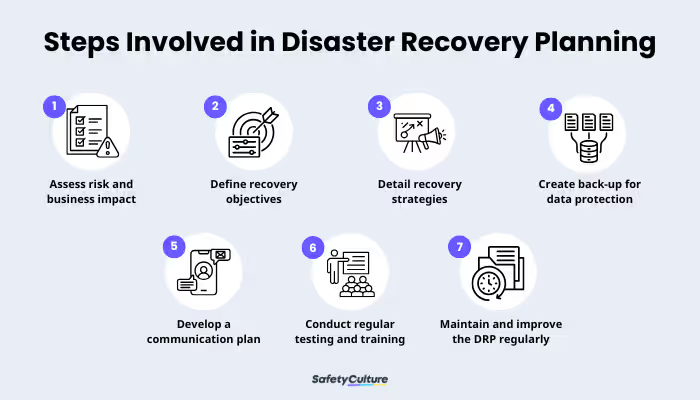
    Step-by-Step Guide: How to Create a Secure Disaster Recovery Plan on a Budget

    The following framework works for most small businesses.

    Step 1: Identify Critical Business Functions

    Ask:

    • What systems generate revenue?
    • Which applications are essential?
    • Which files are irreplaceable?

    Focus on protecting the most important assets first.

    Step 2: Define Recovery Objectives

    Establish:

    • Recovery Time Objective (RTO)
    • Recovery Point Objective (RPO)

    These metrics determine how quickly systems must be restored and how much data loss is acceptable.

    Step 3: Create an Asset Inventory

    Document:

    • Devices
    • Software
    • Cloud platforms
    • User accounts

    Maintain this inventory regularly.

    Step 4: Implement the 3-2-1 Backup Strategy

    Store:

    • 3 copies of important data
    • On 2 different media types
    • With 1 copy stored offsite

    This remains one of the most effective recovery strategies.

    Step 5: Protect Backup Systems

    Backup repositories should include:

    • Encryption
    • MFA
    • Access restrictions

    Attackers increasingly target backups during ransomware incidents.

    Step 6: Document Recovery Procedures

    Create step-by-step instructions for restoring:

    • Files
    • Systems
    • User access
    • Cloud services

    Clear documentation reduces confusion.

    Step 7: Assign Responsibilities

    Every recovery task should have an owner.

    Avoid assumptions.

    Step 8: Test the Plan

    A recovery plan that has never been tested is simply a document.

    Conduct regular exercises.

    Step-by-Step Guide: Securing Cloud-Based Backups

    Many small businesses rely on cloud backup solutions.

    Follow this proccess to strengthen security.

    Step 1: Enable Multi-Factor Authentication

    Require MFA for backup accounts.

    Step 2: Encrypt Backup Data

    Protect backups both in transit and at rest.

    Step 3: Restrict Administrative Access

    Limit privileges to authorized personnel.

    Step 4: Monitor Backup Activity

    Review:

    • Login attempts
    • Configuration changes
    • Restore requests

    Step 5: Test Restorations Regularly

    Verify that backups can actually be restored.

    Many organizations discover backup failures too late.

    Step 6: Store Offline Copies

    Offline backups provide additional ransomware protection.

    Step 7: Audit Access Quarterly

    Remove unnecessary permissions promptly.

    Defense Layers for Modern Disaster Recovery

    Recovery planning should incorporate multiple security layers.

    Strong Authentication

    Enable:

    • MFA
    • Passkeys
    • Password managers

    Here is the real talk about why your current password isn’t enough.

    A strong password alone cannot stop many modern credential theft attacks.

    Endpoint Protection

    Protect recovery devices with:

    • Antivirus software
    • Device encryption
    • Threat detection systems

    Cloud Security Controls

    Apply:

    • Least-privilege access
    • Activity monitoring
    • Security alerts

    Network Security

    A properly configured firewal helps prevent unauthorized access during normal operations and recovery activities.

    Security Awareness Training

    Employees should recognize:

    • Phishing attempts
    • Fake recovery emails
    • Social engineering attacks

    Look, I get it, cybersecurity sounds like a headache, but many disasters begin with a single employee clicking the wrong link.

    Recovery Plan Template for Small Businesses

    A simple disaster recovery framework should answer:

    What Happened?

    Identify the nature of the incident.

    What Systems Are Affected?

    Determine impacted resources.

    What Must Be Restored First?

    Prioritize essential operations.

    Who Is Responsible?

    Assign clear ownership.

    How Will Recovery Be Performed?

    Follow documented procedures.

    How Will Stakeholders Be Informed?

    Maintain communication throughout recovery.

    Security Checklist for Budget-Friendly Disaster Recovery

    Security ControlRequired
    Asset Inventory CreatedYes
    Critical Systems IdentifiedYes
    Backup Strategy ImplementedYes
    Offsite Backup AvailableYes
    MFA EnabledYes
    Backup Encryption EnabledYes
    Recovery Procedures DocumentedYes
    Recovery Testing ConductedYes
    Security Monitoring ActiveRecommended
    Employee Training CompletedRecommended

    Common Disaster Recovery Mistakes

    Not Testing Backups

    Many businesses assume backups work without verification.

    Storing All Backups in One Location

    A single failure can affect all copies.

    Ignoring Cloud Security

    Cloud services require proper configuration and monitoring.

    Failing to Document Procedures

    Recovery becomes slower when knowledge exists only in employees’ heads.

    Overlooking Remote Workers

    Remote teams must be included in recovery planning.

    Delaying Security Improvements

    Recovery planning should evolve alongside business growth.

    Your disaster recovery strategy is only as effective as its weakest component.

    How Disaster Recovery Supports Ransomware Defense

    Modern ransomware attacks often target:

    • Production systems
    • Backup repositories
    • Cloud environments

    A secure recovery plan reduces leverage for attackers.

    Organizations with strong backups and tested recovery procedures are less likely to pay ransom demands.

    This significantly improves resilience.

    Final Thoughts

    Understanding how to create a secure disaster recovery plan on a budget is one of the most valuable investments a small business can make in 2026. As AI-powered phishing attacks, ransomware campaigns, cloud disruptions, and operational failures continue to increase, organizations must prepare for the unexpected.

    The good news is that effective disaster recovery does not require enterprise-sized budgets. By identifying critical assets, implementing secure backups, documenting recovery procedures, testing systems regularly, and strengthening cybersecurity controls, businesses can dramatically improve resilience while controlling costs.

    At locknet.site, we help entrepreneurs and growing organizations build secure digital foundations capable of surviving modern cyber threats and operational disruptions. A disaster recovery plan is not merely a technical document—it is a business survival strategy.

    Ready to strengthen your resilience? Conduct a disaster recovery audit, subscribe to the latest cybersecurity insights from locknet.site, and consult a security specialist today before the next unexpected disruption puts your business at risk.

  • Best Practices for Disposing of Old Business Hard Drives Safely Before Sensitive Data Becomes a Security Risk

    Best Practices for Disposing of Old Business Hard Drives Safely Before Sensitive Data Becomes a Security Risk

    Protect Your Business Data Before It Ends Up in the Wrong Hands: Best Practices for Disposing of Old Business Hard Drives Safely

    Safely dispose of old business hard drives and prevent data leaks, compliance violations, and cybercriminal access in 2026.

    Most business owners spend significant time protecting their data while it is actively being used. They invest in antivirus software, firewalls, cloud security, multi-factor authentication, and employee training. However, one critical cybersecurity risk is often overlooked: what happens when old hard drives reach the end of their life.

    In 2026, cybercriminals are not only targeting live systems. They are actively searching for discarded storage devices that may still contain valuable information. An improperly disposed hard drive can expose customer records, financial documents, intellectual property, employee information, passwords, and confidential business communications.

    The truth is simple: deleting files is not enough.

    Understanding the best practices for disposing of old business hard drives safely is essential for protecting your organization from data breaches, regulatory penalties, and reputational damage.

    At locknet.site, we help entrepreneurs and small businesses build a bulletproof digital presence from end to end. That includes securing information throughout its entire lifecycle—from creation and storage to final disposal.

    This guide explains how to securely retire hard drives, prevent data recovery, and ensure your business remains protected even after equipment leaves your office.

    Why Hard Drive Disposal Matters in 2026

    Many businesses replace:

    • Desktop computers
    • Laptops
    • Servers
    • Backup systems
    • External drives
    • Network storage devices

    every few years.

    Unfortunately, old devices often contain years of sensitive information.

    Cybercriminals know that discarded hardware may still include:

    • Customer databases
    • Payroll information
    • Tax records
    • Contracts
    • Login credentials
    • Proprietary business data

    Even damaged drives can sometimes be recovered using specialized tools.

    This creates a significant security risk if disposal procedures are inadequate.

    The Hidden Danger of Deleted Files

    One of the biggest misconceptions in cybersecurity is believing that deleted files are permanently gone.

    In reality:

    • Standard deletion removes file references.
    • Formatting often leaves recoverable data behind.
    • Quick erase functions rarely destroy information completely.

    Data recovery software can often restore files from improperly wiped drives.

    This is why secure disposal requires much more than simply emptying the recycle bin.

    Vulnerability Assessment: Is Your Business at Risk?

    Your organization may face elevated risk if:

    Old Equipment Is Stored Indefinitely

    Unused devices often remain forgotten in storage rooms.

    No Formal Disposal Policy Exists

    Without documented procedures, employees may dispose of drives inconsistently.

    Third-Party Disposal Vendors Are Unverified

    Improper handling by vendors can expose sensitive information.

    Drives Are Donated Without Sanitization

    Many businesses donate equipment without securely removing data.

    Backup Devices Are Overlooked

    External drives and backup media frequently contain highly sensitive records.

    If any of these scenarios apply, your business may have unnecessary exposure.

    Common Types of Storage Devices Requiring Secure Disposal

    Organizations often focus only on desktop hard drives.

    However, many storage devices contain business information.

    Examples include:

    Traditional Hard Disk Drives (HDDs)

    Magnetic storage devices commonly found in older computers and servers.

    Solid-State Drives (SSDs)

    Modern storage devices that require specialized sanitization techniques.

    External Hard Drives

    Frequently used for backups and file transfers.

    USB Storage Devices

    Small but often overlooked repositories of sensitive data.

    Network Attached Storage (NAS)

    Shared storage systems commonly used by businesses.

    Backup Media

    Archived backups can contain years of valuable information.

    Comparison Table: Disposal Methods and Security Effectiveness

    Disposal MethodSecurity LevelData Recovery Risk
    Delete Files OnlyVery LowVery High
    Quick FormatLowHigh
    Factory ResetModerateModerate
    Secure Data WipingHighLow
    Cryptographic ErasureVery HighVery Low
    Physical DestructionMaximumExtremely Low

    This comparison highlights why proper sanitization is essential before disposal.

    Why AI-Powered Cybercrime Increases Disposal Risks

    Artificial intelligence has transformed cybercrime.

    Attackers now use AI to:

    • Analyze recovered data faster
    • Automate credential harvesting
    • Correlate leaked business records
    • Identify valuable information at scale

    A single discarded hard drive can provide attackers with enough information to launch phishing campaigns, ransomware attacks, or account takeover attempts.

    This makes secure disposal more important than ever.

    Step-by-Step Guide: Best Practices for Disposing of Old Business Hard Drives Safely

    Following a structured disposal process significantly reduces risk.

    Step 1: Inventory Storage Devices

    Identify all storage media scheduled for retirement.

    Document:

    • Device type
    • Serial number
    • Owner
    • Data classification

    Maintaining records improves accountability.

    Step 2: Determine Data Sensitivity

    Assess the information stored on each device.

    Examples include:

    • Financial records
    • Client information
    • Employee data
    • Intellectual property

    More sensitive information requires stronger disposal methods.

    Step 3: Backup Required Data

    Before destruction or sanitization:

    • Verify business data has been migrated.
    • Confirm backups are functional.
    • Test restoration procedures.

    Never dispose of drives until data retention requirements are satisfied.

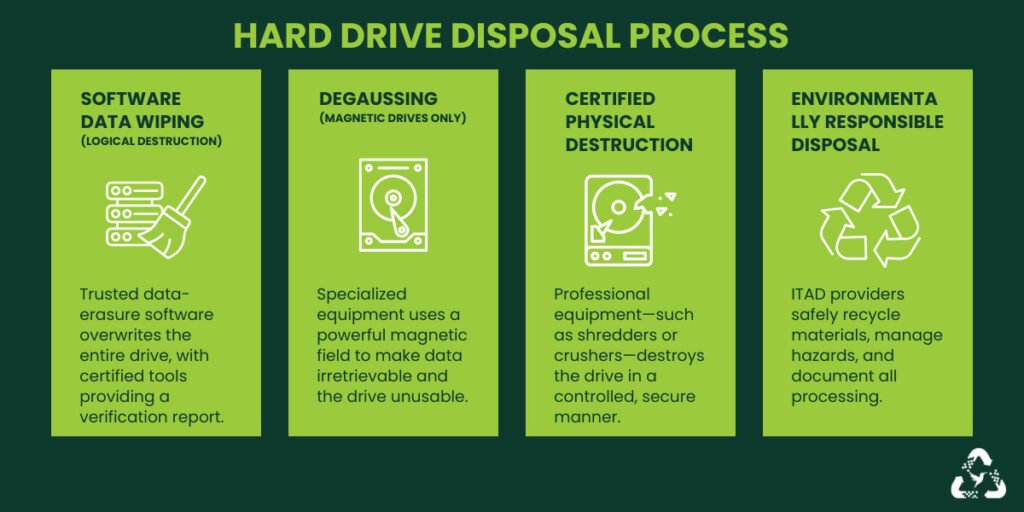
    Step 4: Select an Appropriate Sanitization Method

    Options include:

    • Secure overwrite procedures
    • Cryptographic erasure
    • Physical destruction

    The appropriate method depends on device type and data sensitivity.

    Step 5: Verify Sanitization

    Confirm data removal was successful.

    Verification is a critical step that many organizations skip.

    Step 6: Document the Process

    Maintain records showing:

    • Disposal date
    • Sanitization method
    • Responsible personnel

    Documentation supports compliance efforts.

    Step 7: Destroy High-Risk Devices

    For highly sensitive information, physical destruction may be appropriate after sanitization.

    Step-by-Step Guide: Securing SSD and HDD Disposal

    Different storage technologies require different approaches.

    For Traditional HDDs

    Step 1: Perform Secure Overwriting

    Overwrite the entire drive using approved sanitization tools.

    Step 2: Verify Erasure

    Confirm no recoverable data remains.

    Step 3: Consider Physical Destruction

    Particularly for highly sensitive information.

    For SSDs

    Step 1: Use Cryptographic Erasure

    Many SSDs support secure erase functions.

    Step 2: Reset Encryption Keys

    Destroying encryption keys can render stored data unreadable.

    Step 3: Verify Results

    Ensure sanitization completed successfully.

    Step 4: Destroy if Necessary

    High-risk environments may require physical destruction.

    Defense Layers for End-of-Life Data Protection

    Secure disposal should be part of a broader cybersecurity strategy.

    Full-Disk Encryption

    Encrypting drives during their operational life reduces exposure if devices are lost or stolen.

    Asset Management

    Track devices from acquisition to disposal.

    Vendor Due Diligence

    Only use trusted disposal providers.

    Request proof of destruction when applicable.

    Access Controls

    Restrict who can handle retired equipment.

    Employee Training

    Employees should understand proper disposal procedures.

    Look, I get it, cybersecurity sounds like a headache, but many data breaches happen because old equipment is treated as harmless when it still contains valuable information.

    Recovery Plan After Improper Disposal

    Despite best efforts, mistakes can occur.

    Immediate Actions

    If a device is lost or improperly disposed of:

    1. Determine what data was stored.
    2. Assess exposure risks.
    3. Review access logs.
    4. Notify appropriate stakeholders.

    Conduct a Security Investigation

    Determine:

    • Whether data was recoverable
    • Who may have accessed it
    • What information was exposed

    Strengthen Disposal Procedures

    Update policies to prevent future incidents.

    Security Checklist for Safe Hard Drive Disposal

    Security ControlRequired
    Asset Inventory MaintainedYes
    Data Sensitivity AssessedYes
    Backup Verification CompletedYes
    Secure Erasure PerformedYes
    Disposal DocumentedYes
    Vendor Verification ConductedYes
    Access Controls AppliedYes
    Encryption Used During Device LifeRecommended
    Employee Training CompletedRecommended
    Disposal Policy Reviewed AnnuallyRecommended

    Common Disposal Mistakes Businesses Make

    Deleting Files Instead of Sanitizing Drives

    Deleted data can often be recovered.

    Forgetting Backup Devices

    Backup media frequently contains the most sensitive information.

    Ignoring SSD-Specific Requirements

    SSDs require different sanitization techniques than HDDs.

    Failing to Verify Erasure

    Assuming data is gone without testing can be risky.

    Using Unverified Disposal Vendors

    Not all providers follow secure practices.

    Lack of Documentation

    Missing records create compliance and auditing challenges.

    A poorly configured firewal may expose active systems, but improperly disposed storage devices can expose years of historical business information.

    How Secure Disposal Supports Ransomware Defense

    Modern ransomware groups often seek historical data.

    Improperly disposed devices can reveal:

    • Network architecture
    • Credentials
    • Customer information
    • Backup locations

    These details may help attackers plan future intrusions.

    Secure disposal reduces the amount of intelligence available to cybercriminals.

    The Role of Secure Disposal in Regulatory Compliance

    Many industries require protection of sensitive information even after systems are retired.

    Proper disposal practices help support:

    • Privacy requirements
    • Data protection obligations
    • Industry security standards
    • Client confidentiality commitments

    Failure to dispose of devices securely can lead to legal and financial consequences.

    Final Thoughts

    Understanding the best practices for disposing of old business hard drives safely is an essential part of modern cybersecurity. In 2026, businesses face threats not only from active cyberattacks but also from information left behind on retired equipment. A discarded drive containing customer records, employee information, financial documents, or login credentials can become a valuable asset for cybercriminals.

    By implementing secure data sanitization procedures, maintaining accurate asset inventories, using encryption, verifying erasure results, documenting disposal activities, and training employees, organizations can significantly reduce the risk of data exposure.

    Here is the real talk about why your current password isn’t enough: even the strongest password cannot protect information stored on a discarded hard drive if proper disposal procedures are ignored. Your security strategy must protect data from creation to destruction.

    At locknet.site, we help entrepreneurs and small businesses create resilient security programs that address every stage of the data lifecycle. Safe hard drive disposal is not just an IT task—it is a critical business protection strategy.

    Ready to strengthen your data protection program? Conduct a hardware disposal audit, subscribe to the latest cybersecurity insights from locknet.site, and consult a security specialist today to ensure retired storage devices never become tomorrow’s security breach.

  • How to Set Up an Automated Data Breach Alert System to Detect Threats Before They Damage Your Business

    How to Set Up an Automated Data Breach Alert System to Detect Threats Before They Damage Your Business

    Protect Your Business Before the Next Breach: How to Set Up an Automated Data Breach Alert System

    Learn how to set up an automated data breach alert system and detect cyber threats before they become costly security incidents.

    In 2026, the average small business faces a cybersecurity landscape that is more dangerous and fast-moving than ever before. Cybercriminals are using artificial intelligence to automate phishing campaigns, ransomware groups are targeting smaller organizations with precision, and cloud-based attacks continue to grow in sophistication.

    The harsh reality is that many businesses don’t discover a breach immediately.

    In some cases, attackers remain inside networks for weeks or even months before being detected. During that time, they may steal customer information, access financial records, compromise employee accounts, deploy malware, or prepare ransomware attacks.

    This is why proactive detection has become just as important as prevention.

    Understanding how to set up an automated data breach alert system allows businesses to identify suspicious activity early, minimize damage, and respond quickly before a security incident escalates into a crisis.

    At locknet.site, we help entrepreneurs and small business owners build a bulletproof digital presence through practical cybersecurity strategies. This guide explains how automated breach monitoring works, why it matters, and how to implement a cost-effective alerting system that protects your organization around the clock.

    Why Automated Data Breach Alerts Matter in 2026

    Traditional security approaches focused primarily on prevention.

    Today, prevention alone is no longer enough.

    Even organizations with:

    • Firewalls
    • Antivirus software
    • Multi-factor authentication
    • Employee training

    can still experience security incidents.

    The key difference between a minor incident and a major disaster often comes down to detection speed.

    An automated data breach alert system helps identify:

    • Unauthorized access attempts
    • Credential exposure
    • Suspicious account activity
    • Malware infections
    • Cloud security incidents
    • Insider threats
    • Unusual network behavior

    The sooner you know something is wrong, the faster you can respond.

    What Is an Automated Data Breach Alert System?

    A data breach alert system continuously monitors digital assets and generates notifications when suspicious activity occurs.

    Rather than relying on manual reviews, automated monitoring tools work 24/7.

    These systems can monitor:

    • User accounts
    • Email addresses
    • Cloud environments
    • Websites
    • Business domains
    • Authentication events
    • Security logs
    • Network activity

    Alerts are triggered when predefined risk indicators are detected.

    Common Threats That Automated Monitoring Can Detect

    Credential Exposure

    Stolen usernames and passwords often appear in breach databases before businesses realize they have been compromised.

    Account Takeovers

    Attackers frequently attempt unauthorized access to cloud platforms and business applications.

    AI-Driven Phishing Campaigns

    Artificial intelligence enables highly convincing phishing attacks that target employees and executives.

    Ransomware Activity

    Early warning signs may appear before ransomware deployment.

    Suspicious Login Behavior

    Examples include:

    • New locations
    • Unusual devices
    • Impossible travel events

    Cloud Security Incidents

    Unauthorized file sharing or privilege changes often generate detectable indicators.

    Vulnerability Assessment: Does Your Business Need Automated Alerts?

    The answer is almost always yes.

    You face elevated risk if:

    Employees Use Multiple Cloud Services

    More accounts create more attack surfaces.

    Remote Work Is Common

    Distributed teams increase visibility challenges.

    Sensitive Data Is Stored Digitally

    Customer records and financial information are attractive targets.

    Security Monitoring Is Manual

    Manual monitoring often misses early warning signs.

    No Formal Incident Detection Process Exists

    Without automated alerts, attacks may remain undetected for extended periods.

    Comparison Table: Manual Monitoring vs Automated Breach Detection

    Security AreaManual MonitoringAutomated Alert System
    Monitoring HoursLimited24/7
    Detection SpeedSlowImmediate
    Human Error RiskHighLower
    ScalabilityLimitedHigh
    Threat VisibilityPartialComprehensive
    Incident ResponseReactiveProactive

    This comparison highlights why automated detection has become a critical cybersecurity capability.

    Core Components of an Automated Data Breach Alert System

    An effective system includes multiple monitoring layers.

    Credential Monitoring

    Tracks whether employee credentials appear in known breach datasets.

    Email Security Monitoring

    Identifies suspicious email-related activity.

    Endpoint Monitoring

    Detects malware, ransomware indicators, and unauthorized software.

    Cloud Security Monitoring

    Monitors file access, account activity, and permission changes.

    Log Analysis

    Collects and analyzes security logs from multiple sources.

    Alerting Mechanisms

    Provides notifications through:

    • Email
    • SMS
    • Mobile applications
    • Collaboration platforms

    Step-by-Step Guide: How to Set Up an Automated Data Breach Alert System

    The following framework is designed for small businesses with limited budgets.

    Step 1: Identify Critical Assets

    Determine which assets require monitoring.

    Examples include:

    • Business email accounts
    • Customer databases
    • Cloud storage platforms
    • Websites
    • Employee accounts

    Focus on protecting your highest-value resources first.

    Step 2: Inventory User Accounts

    Create a complete list of:

    • Employee accounts
    • Administrator accounts
    • Shared accounts
    • Service accounts

    Visibility is essential for effective monitoring.

    Step 3: Enable Security Notifications

    Most cloud providers offer built-in alerts.

    Configure notifications for:

    • Failed login attempts
    • New devices
    • Password changes
    • Privilege escalations

    Step 4: Monitor Credential Exposure

    Track whether employee email addresses appear in public breach records.

    Early detection reduces account takeover risk.

    Step 5: Centralize Security Logs

    Collect logs from:

    • Cloud platforms
    • Endpoints
    • Network devices
    • Business applications

    Centralized monitoring improves visibility.

    Step 6: Define Alert Thresholds

    Not every event requires an emergency response.

    Prioritize alerts based on risk levels.

    Examples include:

    • Critical
    • High
    • Medium
    • Low

    Step 7: Assign Alert Ownership

    Determine who receives and responds to alerts.

    Clear ownership reduces confusion during incidents.

    Step 8: Test Alert Workflows

    Generate test alerts to verify functionality.

    A system that has never been tested may fail during a real incident.

    Step-by-Step Guide: Securing Cloud-Based Alerting Systems

    Many businesses rely on cloud environments for operations.

    Follow this proccess to improve monitoring security.

    Step 1: Enable Multi-Factor Authentication

    Protect monitoring accounts with MFA.

    Step 2: Restrict Administrative Access

    Only authorized personnel should manage alert configurations.

    Step 3: Configure Audit Logging

    Record:

    • User activity
    • Configuration changes
    • Authentication events

    Step 4: Enable Security Event Monitoring

    Track:

    • Login attempts
    • Data access
    • File sharing activities

    Step 5: Review Alerts Regularly

    Even automated systems require oversight.

    Step 6: Protect Notification Channels

    Ensure email and messaging systems used for alerts are secure.

    Step 7: Backup Monitoring Configurations

    Preserve settings in case of accidental changes or system failures.

    Defense Layers That Strengthen Breach Detection

    Automated alerts should be part of a broader cybersecurity strategy.

    Multi-Factor Authentication

    MFA helps prevent unauthorized access even if credentials are exposed.

    Password Managers

    Here is the real talk about why your current password isn’t enough.

    Strong passwords remain important, but attackers increasingly steal credentials through phishing and malware rather than brute-force attacks.

    Password managers improve credential security significantly.

    Endpoint Detection and Response

    EDR tools help identify suspicious device behavior.

    Cloud Security Controls

    Monitor:

    • Sharing permissions
    • Account activity
    • User behavior

    Security Awareness Training

    Employees remain a critical defense layer.

    Look, I get it, cybersecurity sounds like a headache, but many breaches begin with a single click on a malicious email.

    Training helps employees recognize threats before damage occurs.

    Recovery Plan After a Breach Alert

    Receiving an alert is only the beginning.

    Immediate Actions

    When a high-risk alert occurs:

    1. Verify the event.
    2. Isolate affected systems.
    3. Reset compromised credentials.
    4. Investigate activity.

    Determine Scope

    Identify:

    • Affected accounts
    • Accessed data
    • Potential impact

    Strengthen Security Controls

    Address any weaknesses discovered during the investigation.

    Notify Stakeholders

    Depending on regulations and business requirements, notification obligations may apply.

    Security Checklist for Automated Breach Monitoring

    Security ControlRequired
    Critical Assets IdentifiedYes
    Security Notifications EnabledYes
    Credential Monitoring ActiveYes
    Security Logs CentralizedYes
    MFA EnabledYes
    Alert Ownership AssignedYes
    Cloud Monitoring EnabledYes
    Alert Testing ConductedYes
    Incident Response Plan DocumentedYes
    Employee Security Training CompletedRecommended

    Common Mistakes Businesses Make

    Ignoring Low-Level Alerts

    Small warning signs often precede larger incidents.

    Alert Fatigue

    Too many notifications can overwhelm teams.

    Failing to Test Alert Systems

    Untested systems may not function correctly during emergencies.

    Lack of Incident Response Planning

    Detection without response planning limits effectiveness.

    Unsecured Administrative Accounts

    Monitoring systems themselves must be protected.

    Relying on a Single Detection Method

    Effective monitoring requires multiple data sources.

    A poorly configured firewal can create security gaps, but failing to detect suspicious activity quickly can turn a minor issue into a major breach.

    How Automated Alerts Support Ransomware Defense

    Modern ransomware attacks rarely happen instantly.

    Attackers often spend time:

    • Gathering credentials
    • Escalating privileges
    • Exploring systems
    • Disabling protections

    Automated alerting can identify these activities early.

    This provides valuable time to contain threats before ransomware deployment occurs.

    Automated Monitoring and Remote Teams

    Remote work introduces additional security challenges.

    Employees access resources from:

    • Home networks
    • Mobile devices
    • Shared workspaces

    Automated monitoring improves visibility across distributed environments.

    This is especially important for organizations managing remote teams and cloud-based workflows.

    Final Thoughts

    Learning how to set up an automated data breach alert system is one of the most valuable cybersecurity investments a small business can make in 2026. Cybercriminals are moving faster, AI-powered attacks are becoming more sophisticated, and organizations can no longer rely solely on preventive controls.

    Automated breach monitoring provides continuous visibility into suspicious activity, helping businesses identify threats before they escalate into costly security incidents. By monitoring credentials, accounts, cloud environments, endpoints, and authentication events, organizations can dramatically improve detection speed and reduce overall risk.

    At locknet.site, we help entrepreneurs and growing businesses build resilient security programs that combine prevention, detection, and response. A strong alerting system gives you the visibility needed to defend against modern cyber threats and maintain customer trust.

    Ready to strengthen your security posture? Conduct a monitoring audit, subscribe to the latest cybersecurity insights from locknet.site, and consult a security specialist today to build an automated breach detection strategy that keeps your business protected around the clock.

  • Troubleshooting “IP Address Blacklisted” Issues for Business Emails: A Complete Guide for Small Businesses in 2026

    Troubleshooting “IP Address Blacklisted” Issues for Business Emails: A Complete Guide for Small Businesses in 2026

    Protect Your Business Email Reputation Before It’s Too Late: Troubleshooting “IP Address Blacklisted” Issues for Business Emails

    Resolve IP address blacklist problems, restore email deliverability, and protect your business communications from costly disruptions.

    Email remains one of the most important communication tools for modern businesses. Whether you’re sending invoices, customer support responses, marketing campaigns, sales proposals, or internal updates, email is the backbone of daily operations.

    But what happens when your emails suddenly stop reaching customers?

    You start receiving bounce-back messages. Clients report missing emails. Marketing campaigns experience unusually low engagement. Important business communications disappear into spam folders.

    In many cases, the culprit is an IP address blacklist.

    For small businesses, being blacklisted can have serious consequences. Lost sales opportunities, damaged reputation, reduced customer trust, and disrupted operations can quickly become costly problems.

    Understanding and troubleshooting “IP Address Blacklisted” issues for business emails is now a critical part of maintaining a secure and reliable digital presence.

    At locknet.site, we help entrepreneurs build a bulletproof digital presence capable of withstanding modern cybersecurity threats and communication challenges. This guide explains why blacklisting occurs, how to fix it, and how to prevent it from happening again.

    What Does “IP Address Blacklisted” Mean?

    Every email server sends messages from a specific IP address.

    Email providers such as Gmail, Outlook, Yahoo, and corporate mail systems evaluate the reputation of those IP addresses before deciding whether to deliver messages.

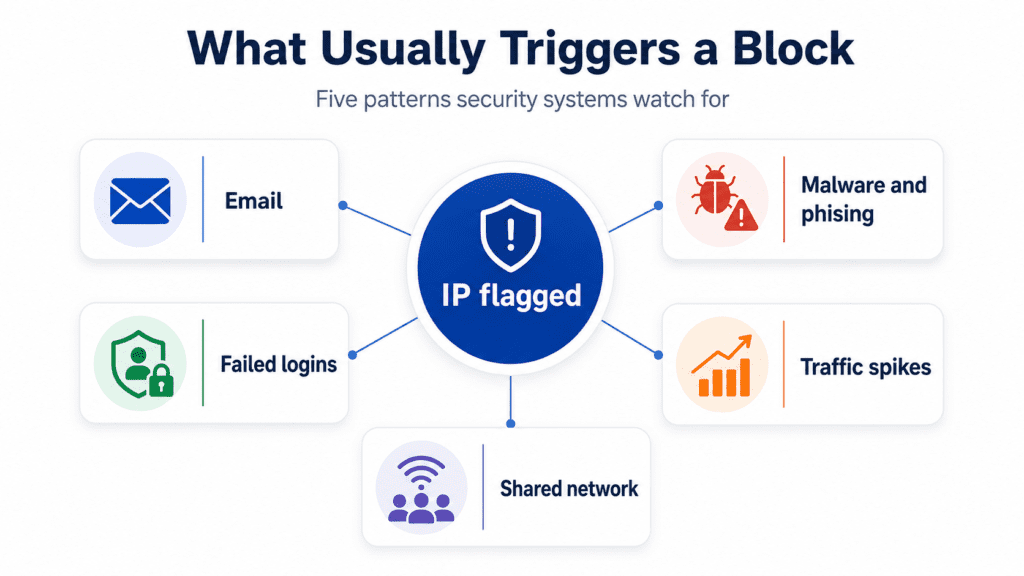
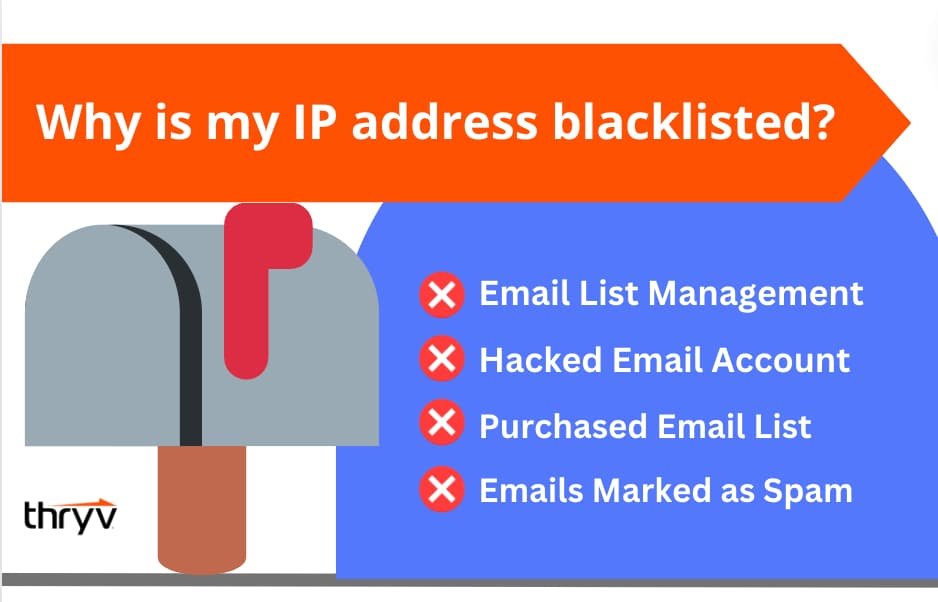
    When suspicious behavior is detected, the IP address may be added to a blacklist.

    Once listed, emails sent from that IP address may be:

    • Rejected entirely
    • Sent to spam folders
    • Delayed significantly
    • Flagged as suspicious

    The result is reduced email deliverability and damaged business communications.

    Why Email Blacklisting Is a Growing Problem in 2026

    The email threat landscape has evolved dramatically.

    Today’s attackers use:

    • AI-generated phishing campaigns
    • Automated spam distribution
    • Credential theft attacks
    • Compromised business accounts
    • Malware-infected mail servers

    To combat these threats, email providers continuously monitor sending behavior and aggressively block suspicious sources.

    Unfortunately, legitimate businesses can also become victims.

    A compromised account, misconfigured server, or infected device can trigger blacklist placement.

    Common Signs Your Business IP Address Has Been Blacklisted

    Many businesses do not immediately realize they have a problem.

    Watch for these warning signs:

    Increased Bounce Messages

    Messages may include:

    • Blocked sender errors
    • Reputation failures
    • Spam-related rejection notices

    Sudden Drop in Email Deliverability

    Customers stop receiving emails despite successful sending attempts.

    Marketing Campaign Performance Declines

    Open rates and engagement metrics decrease unexpectedly.

    Customer Complaints

    Clients report missing communications.

    Emails Landing in Spam Folders

    Even legitimate messages may be filtered.

    If multiple symptoms appear simultaneously, blacklist investigation should begin immediately.

    Vulnerability Assessment: Why Did Your IP Get Blacklisted?

    Understanding the cause is essential before attempting remediation.

    Compromised Email Accounts

    Attackers may gain access to accounts and send spam.

    Malware Infections

    Infected devices can generate unauthorized email traffic.

    Misconfigured Mail Servers

    Improper authentication settings frequently trigger reputation issues.

    Bulk Email Abuse

    Excessive outbound messaging can appear suspicious.

    Shared Hosting Risks

    Businesses using shared infrastructure may be affected by other users’ behavior.

    Weak Security Controls

    Poor authentication practices increase the likelihood of abuse.

    Look, I get it, cybersecurity sounds like a headache, but most blacklist incidents begin with preventable security weaknesses.

    Comparison Table: Healthy Email Reputation vs Blacklisted Email Environment

    Security FactorHealthy Email ReputationBlacklisted Environment
    Email DeliveryConsistentFrequently Blocked
    Customer CommunicationReliableDisrupted
    Spam ComplaintsLowElevated
    Authentication RecordsProperly ConfiguredMissing or Incorrect
    Server SecurityStrongWeak
    Business ReputationProtectedDamaged

    This comparison highlights the importance of proactive email security.

    Understanding Major Email Blacklists

    Various reputation services track suspicious IP addresses.

    Common blacklist categories include:

    Spam Blacklists

    Identify sources associated with spam activity.

    Malware Blacklists

    Track systems linked to malware distribution.

    Botnet Blacklists

    Monitor compromised devices participating in malicious campaigns.

    Domain Reputation Lists

    Evaluate the trustworthiness of sending domains.

    A single listing can significantly impact email deliverability.

    Step-by-Step Guide: Troubleshooting “IP Address Blacklisted” Issues for Business Emails

    Follow this structured recovery process.

    Step 1: Confirm the Blacklist Status

    Review bounce-back messages carefully.

    Identify:

    • Which blacklist is involved
    • Which IP address is affected
    • When the issue started

    Accurate diagnosis prevents wasted effort.

    Step 2: Investigate Account Activity

    Review:

    • Login history
    • Authentication logs
    • User activity

    Look for:

    • Unknown devices
    • Suspicious locations
    • Unusual sending patterns

    Step 3: Scan for Malware

    Perform comprehensive endpoint scans.

    Check:

    • Workstations
    • Mail servers
    • Remote devices

    Malware infections often trigger blacklist events.

    Step 4: Review Outbound Email Traffic

    Analyze:

    • Email volumes
    • Sending frequency
    • Recipient lists

    Sudden spikes may indicate compromise.

    Step 5: Verify Email Authentication Records

    Confirm proper implementation of:

    • SPF
    • DKIM
    • DMARC

    Authentication failures frequently contribute to reputation problems.

    Step 6: Secure Compromised Accounts

    Immediately:

    • Reset passwords
    • Enable MFA
    • Revoke suspicious sessions

    Step 7: Request Delisting

    After resolving root causes, submit removal requests to affected blacklist providers.

    Never request removal before fixing the underlying problem.

    Step 8: Monitor Email Reputation

    Continue monitoring after recovery.

    Reputation restoration may take time.

    Step-by-Step Guide: Securing Microsoft 365 and Google Workspace Email Environments

    Most small businesses use cloud email platforms.

    Follow this proccess to improve security.

    Step 1: Enable Multi-Factor Authentication

    Require MFA for every user.

    Step 2: Disable Legacy Authentication

    Older authentication methods create unnecessary risk.

    Step 3: Configure Email Authentication Standards

    Implement:

    • SPF
    • DKIM
    • DMARC

    These controls improve trustworthiness.

    Step 4: Monitor Login Events

    Review:

    • Failed logins
    • New devices
    • Geographic anomalies

    Step 5: Restrict Administrative Privileges

    Limit access to critical settings.

    Step 6: Implement Security Alerts

    Receive notifications for:

    • Suspicious activity
    • Permission changes
    • Account compromises

    Step 7: Train Employees

    Users remain a critical defense layer.

    Defense Layers That Prevent Blacklisting

    Preventing future issues requires multiple security controls.

    Strong Password Policies

    Use:

    • Unique passwords
    • Long passphrases
    • Password managers

    Here is the real talk about why your current password isn’t enough.

    AI-assisted credential attacks make password reuse especially dangerous.

    Multi-Factor Authentication

    MFA dramatically reduces account takeover risk.

    Endpoint Security

    Protect devices with:

    • Antivirus software
    • Endpoint detection tools
    • Regular updates

    Email Authentication Standards

    SPF, DKIM, and DMARC provide essential protection.

    Security Monitoring

    Monitor:

    • Outbound traffic
    • Login activity
    • User behavior

    Employee Awareness Training

    Teach staff to recognize:

    • Phishing attempts
    • Suspicious attachments
    • Credential theft tactics

    Security Checklist for Preventing Email Blacklisting

    Security ControlRequired
    SPF ConfiguredYes
    DKIM EnabledYes
    DMARC ImplementedYes
    MFA EnabledYes
    Malware Protection ActiveYes
    Security Monitoring EnabledYes
    Password Manager UsedRecommended
    User Training ConductedRecommended
    Email Logs Reviewed RegularlyRecommended
    Incident Response Plan CreatedRecommended

    Recovery Plan After a Blacklist Incident

    A blacklist event should trigger a formal response process.

    Immediate Actions

    1. Identify affected systems.
    2. Contain suspicious activity.
    3. Secure compromised accounts.
    4. Stop unauthorized email transmission.

    Root Cause Analysis

    Determine:

    • How the incident occurred
    • What systems were affected
    • What controls failed

    Security Improvements

    Implement corrective actions.

    Reputation Monitoring

    Track deliverability and reputation metrics continuously.

    How AI-Driven Threats Impact Email Reputation

    Artificial intelligence has dramatically increased the sophistication of email-based attacks.

    Attackers now use AI to:

    • Create convincing phishing messages
    • Automate credential theft
    • Generate spam campaigns
    • Bypass traditional defenses

    Compromised accounts may be abused rapidly and at scale.

    This makes early detection essential.

    Email Security, Ransomware, and Business Continuity

    Email often serves as the initial entry point for ransomware attacks.

    A compromised account can:

    • Distribute malicious links
    • Deliver malware
    • Spread phishing campaigns internally

    Strong email security helps prevent both blacklist incidents and ransomware infections.

    A poorly configured firewal can expose network services, but compromised email systems can expose an entire organization.

    Remote Teams and Email Reputation Management

    Remote work environments introduce additional challenges.

    Employees connect from:

    • Home networks
    • Mobile devices
    • Public locations

    Security controls must extend beyond the office.

    Organizations should implement:

    • Device security standards
    • MFA enforcement
    • Continuous monitoring
    • Access controls

    These measures help maintain a positive sending reputation.

    Final Thoughts

    Troubleshooting “IP Address Blacklisted” issues for business emails requires more than simply requesting removal from a blacklist. Successful recovery depends on identifying root causes, securing email systems, implementing authentication standards, and strengthening overall cybersecurity defenses.

    In 2026, AI-driven phishing campaigns, ransomware threats, account takeovers, and cloud-based attacks continue to challenge organizations of all sizes. Businesses that invest in email security, continuous monitoring, employee awareness training, and strong authentication controls are far less likely to experience blacklist-related disruptions.

    At locknet.site, we help entrepreneurs and growing businesses create resilient cybersecurity strategies that protect communications, customer trust, and operational continuity. Your email reputation is a valuable business asset—and protecting it should be a priority.

    Ready to strengthen your email security? Conduct a full email infrastructure audit, subscribe to the latest cybersecurity insights from locknet.site, and consult a security specialist today before a blacklist incident impacts your customers, revenue, and reputation.

  • What to Do If Your Business Facebook Page Is Hacked: A Recovery Guide for Small Businesses in 2026

    What to Do If Your Business Facebook Page Is Hacked: A Recovery Guide for Small Businesses in 2026

    Protect Your Brand Before It’s Taken Over: What to Do If Your Business Facebook Page Is Hacked – A Complete Recovery Guide

    Learn how to recover a hacked business Facebook page, secure your accounts, and prevent future attacks in the evolving 2026 threat landscape.

    For many small businesses, a Facebook page is more than just a social media profile. It serves as a marketing channel, customer support center, advertising platform, lead generation tool, and digital storefront.

    That is exactly why cybercriminals target business Facebook pages.

    A hacked Facebook page can result in lost customers, damaged reputation, fraudulent advertisements, stolen business data, unauthorized financial charges, and even complete loss of page ownership.

    In 2026, attackers are using AI-powered phishing campaigns, credential theft tools, social engineering tactics, and malware to compromise business social media accounts faster than ever before.

    The good news is that a hacked Facebook page does not always mean permanent loss. Acting quickly and following a structured recovery process can significantly improve your chances of regaining control.

    This guide explains exactly what to do if your business Facebook page is hacked, how to recover it, and how to strengthen security afterward.

    At locknet.site, we help entrepreneurs create a bulletproof digital presence capable of resisting modern cyber threats. This recovery guide is designed specifically for small business owners who need practical, actionable advice.

    Why Facebook Pages Are Valuable Targets for Cybercriminals

    Business Facebook pages often contain:

    • Customer interactions
    • Advertising accounts
    • Payment methods
    • Brand reputation
    • Employee information
    • Business communications
    • Marketing assets

    A successful compromise allows attackers to exploit all of these resources.

    Common goals include:

    • Running fraudulent advertisements
    • Scamming followers
    • Distributing malware
    • Stealing payment information
    • Selling page access on underground markets

    The financial and reputational impact can be severe.

    Warning Signs Your Facebook Business Page Has Been Hacked

    Many business owners do not immediately realize their page has been compromised.

    Watch for these indicators:

    Unauthorized Posts

    Unknown content appears on the page.

    Unexpected Administrative Changes

    New administrators are added without authorization.

    Advertising Charges

    Unexpected ad spending appears in billing records.

    Login Alerts

    Facebook reports logins from unknown devices or locations.

    Missing Permissions

    Legitimate administrators lose access.

    Followers Report Suspicious Activity

    Customers notice scams or unusual content.

    If any of these warning signs appear, immediate action is essential.

    Vulnerability Assessment: How Business Facebook Pages Get Hacked

    Understanding the attack method helps prevent future incidents.

    Phishing Attacks

    Employees receive fake Facebook login pages designed to steal credentials.

    Weak Passwords

    Simple or reused passwords remain a major risk.

    Malware Infections

    Malware can capture login credentials.

    Compromised Personal Accounts

    Many business pages are managed through personal Facebook accounts.

    Third-Party App Abuse

    Connected applications sometimes introduce vulnerabilities.

    Social Engineering

    Attackers manipulate employees into revealing sensitive information.

    Look, I get it, cybersecurity sounds like a headache, but one successful phishing email can compromise an entire social media presence within minutes.

    Comparison Table: Secure Facebook Page vs Compromised Facebook Page

    Security AreaSecure PageCompromised Page
    Admin AccessControlledUnauthorized Changes
    Advertising BudgetProtectedFraudulent Spending
    Customer TrustStrongDamaged
    Content IntegrityVerifiedManipulated
    Login SecurityMFA EnabledWeak Authentication
    Brand ReputationProtectedAt Risk

    This comparison demonstrates why strong account protection is critical.

    Immediate Actions After Discovering a Facebook Page Hack

    The first few hours are crucial.

    Do Not Panic

    Quick but careful action improves recovery chances.

    Document Everything

    Capture screenshots of:

    • Unauthorized posts
    • New administrators
    • Billing changes
    • Login alerts

    Documentation helps during recovery and investigations.

    Notify Internal Stakeholders

    Inform employees and administrators immediately.

    Preserve Evidence

    Avoid deleting suspicious activity until records have been collected.

    Step-by-Step Recovery Guide for a Hacked Business Facebook Page

    Follow these steps in order.

    Step 1: Attempt to Access Your Account

    If you still have access:

    • Log in immediately.
    • Review security settings.
    • Check active sessions.

    If access has been removed, proceed with recovery requests.

    Step 2: Change Passwords Immediately

    Update passwords for:

    • Facebook accounts
    • Email accounts
    • Business Manager accounts

    Use unique credentials.

    Step 3: Enable Multi-Factor Authentication

    Activate MFA for all administrators.

    This significantly reduces future compromise risk.

    Step 4: Review Administrator Access

    Check:

    • Page roles
    • Business Manager permissions
    • Linked accounts

    Remove unauthorized users immediately.

    Step 5: Secure Connected Email Accounts

    Many Facebook compromises begin with email account breaches.

    Protect associated email accounts with:

    • Strong passwords
    • MFA
    • Security monitoring

    Step 6: Check Advertising Accounts

    Review:

    • Active campaigns
    • Billing records
    • Payment methods

    Pause suspicious campaigns.

    Step 7: Report the Compromise

    Use Facebook’s account recovery and security reporting procedures.

    Provide:

    • Ownership information
    • Supporting documentation
    • Evidence of compromise

    Step 8: Monitor Recovery Progress

    Continue monitoring all associated accounts.

    Recovery may take time.

    Step-by-Step Guide: Securing Facebook Business Manager

    After recovery, strengthening security is essential.

    Step 1: Audit User Permissions

    Remove:

    • Former employees
    • Unnecessary administrators
    • Unknown accounts

    Step 2: Apply Least Privilege Access

    Only grant required permissions.

    Step 3: Enable Login Alerts

    Receive notifications for:

    • New devices
    • Suspicious logins
    • Account changes

    Step 4: Secure Payment Methods

    Review and update billing information.

    Step 5: Review Third-Party Integrations

    Disconnect unnecessary applications.

    Step 6: Conduct Employee Security Training

    Teach employees to recognize:

    • Phishing attacks
    • Fake login pages
    • Social engineering tactics

    Step 7: Perform Quarterly Security Reviews

    Regular audits reduce long-term risk.

    How AI-Powered Threats Increase Facebook Security Risks

    Cybercriminals increasingly use artificial intelligence to:

    • Create realistic phishing pages
    • Generate convincing messages
    • Automate credential theft campaigns
    • Impersonate trusted contacts

    AI makes attacks more believable and more difficult to identify.

    Businesses must strengthen defenses accordingly.

    Defense Layers for Facebook Page Protection

    Recovery is important, but prevention is even better.

    Multi-Factor Authentication

    MFA remains one of the most effective protections available.

    Password Managers

    Here is the real talk about why your current password isn’t enough.

    Even a strong password can be stolen through phishing.

    Password managers help create unique credentials for every account.

    Endpoint Protection

    Secure administrator devices with:

    • Antivirus software
    • Endpoint detection systems
    • Regular updates

    Security Awareness Training

    Human error remains a leading cause of account compromise.

    Continuous Monitoring

    Review:

    • Login history
    • User permissions
    • Advertising activity

    Regular monitoring helps identify problems early.

    Recovery Plan After Regaining Access

    Successfully recovering the page is only the beginning.

    Conduct a Full Security Review

    Determine:

    • How attackers gained access
    • What actions they performed
    • Which systems were affected

    Rotate Credentials

    Update all related passwords.

    Notify Customers if Necessary

    Transparency may be appropriate if customers were affected.

    Strengthen Policies

    Update account management procedures.

    Document Lessons Learned

    Use the incident to improve future defenses.

    Security Checklist for Facebook Business Pages

    Security ControlRequired
    MFA Enabled for All AdminsYes
    Unique Passwords UsedYes
    Password Manager ImplementedYes
    Login Alerts EnabledYes
    User Permissions ReviewedYes
    Email Accounts SecuredYes
    Advertising Accounts MonitoredYes
    Third-Party Apps AuditedYes
    Employee Security Training ConductedRecommended
    Quarterly Security Reviews CompletedRecommended

    Common Mistakes Businesses Make After a Hack

    Focusing Only on Facebook

    Compromised email accounts may still be vulnerable.

    Failing to Remove Unauthorized Users

    Attackers can regain access later.

    Reusing Passwords

    Credential reuse creates ongoing risk.

    Ignoring Billing Activity

    Fraudulent advertising charges may continue unnoticed.

    Skipping Security Audits

    Recovery without investigation leaves vulnerabilities unresolved.

    A poorly configured firewal can expose network systems, but a compromised Facebook page can expose your brand, customer trust, and marketing investments simultaneously.

    Facebook Security and Ransomware Risks

    Many businesses do not realize social media compromises can contribute to ransomware attacks.

    Attackers often use compromised accounts to:

    • Deliver malicious links
    • Conduct phishing campaigns
    • Harvest employee credentials

    Social media security should be considered part of an organization’s overall cybersecurity strategy.

    Cloud Security and Remote Team Considerations

    Remote work introduces additional risks.

    Employees may access business pages from:

    • Home networks
    • Personal devices
    • Shared computers

    Organizations should implement:

    • Device security standards
    • MFA enforcement
    • Access reviews
    • Cloud security monitoring

    These controls help protect both social media assets and broader business systems.

    Final Thoughts

    Knowing what to do if your business Facebook page is hacked can make the difference between a minor disruption and a major business crisis. In 2026, cybercriminals continue to target social media accounts using AI-powered phishing attacks, credential theft techniques, malware, and social engineering tactics.

    By acting quickly, documenting evidence, securing related accounts, reviewing permissions, enabling multi-factor authentication, and strengthening overall security controls, businesses can significantly improve recovery outcomes and reduce the likelihood of future compromises.

    At locknet.site, we help entrepreneurs and small businesses build resilient cybersecurity strategies that protect their digital presence, customer relationships, and business reputation. Social media security is no longer optional—it is an essential component of modern business protection.

    Ready to strengthen your defenses? Conduct a full social media security audit, subscribe to the latest cybersecurity insights from locknet.site, and consult a security specialist today to ensure your business stays protected against evolving cyber threats.

  • LinkedIn Identity Protection in 2026: How to Secure Your LinkedIn Profile from Professional Identity Theft

    LinkedIn Identity Protection in 2026: How to Secure Your LinkedIn Profile from Professional Identity Theft

    Protect your professional identity on LinkedIn with proven security strategies to prevent impersonation, AI-driven scams, and account takeovers in 2026.

    LinkedIn has evolved far beyond a simple online resume. In 2026, it serves as a digital business card, networking hub, recruiting platform, and professional reputation engine. Unfortunately, cybercriminals know this too.

    Professional identity theft on LinkedIn has become one of the fastest-growing cyber threats targeting entrepreneurs, executives, freelancers, remote workers, and small business owners. Attackers can clone profiles, impersonate company leaders, launch AI-powered phishing campaigns, steal sensitive business information, and damage hard-earned reputations.

    If your LinkedIn account falls into the wrong hands, the consequences can extend beyond personal embarrassment. It can lead to financial fraud, business email compromise, ransomware attacks, client trust issues, and even legal complications.

    This guide explains exactly how to secure your LinkedIn profile from professional identity theft and build a stronger digital defense in today’s increasingly hostile cyber environment.

    Understanding Professional Identity Theft on LinkedIn

    Professional identity theft occurs when cybercriminals use your professional information to impersonate you or exploit your business relationships.

    Common tactics include:

    • Creating fake LinkedIn profiles using your photo and credentials
    • Taking over your actual LinkedIn account
    • Sending fraudulent messages to your contacts
    • Conducting recruitment scams under your name
    • Harvesting employee information for phishing attacks
    • Using AI-generated content to mimic your communication style

    For small businesses, a compromised LinkedIn profile can become an entry point into the organization’s wider digital ecosystem.

    Why LinkedIn Is a Prime Target in 2026

    The cybersecurity landscape has changed dramatically over the last few years.

    Attackers now leverage artificial intelligence to:

    • Generate realistic phishing messages
    • Clone executive communication styles
    • Create convincing fake profile photos
    • Automate social engineering campaigns
    • Analyze public information for targeted attacks

    Unlike traditional social media platforms, LinkedIn contains highly valuable professional data including:

    • Job titles
    • Company structures
    • Employee relationships
    • Vendor information
    • Business email patterns
    • Industry affiliations

    This information makes LinkedIn a goldmine for cybercriminals.

    Look, I get it, cybersecurity sounds like a headache, but ignoring LinkedIn security today is like leaving your office door unlocked overnight.

    Warning Signs Your LinkedIn Identity May Be at Risk

    Watch for these indicators:

    Suspicious Connection Requests

    Attackers often create fake profiles that appear legitimate.

    Red flags include:

    • Very few connections
    • Generic profile descriptions
    • Recently created accounts
    • Unusual employment histories

    Unexpected Login Notifications

    LinkedIn alerts users about new device logins.

    Never ignore notifications regarding:

    • Unknown devices
    • Unfamiliar locations
    • Password reset attempts

    Reports of Strange Messages

    If colleagues mention receiving unusual messages from your account, investigate immediately.

    Duplicate Profiles

    Cybercriminals frequently create cloned versions of legitimate profiles.

    Search your name periodically to identify impersonation attempts.

    Security Checklist for LinkedIn Protection

    Security MeasureRisk Reduction LevelRecommended
    Strong Unique PasswordHighYes
    Multi-Factor AuthenticationVery HighYes
    Profile Visibility ReviewHighYes
    Regular Security AuditsMediumYes
    Third-Party App ReviewHighYes
    Email Security ProtectionVery HighYes
    Connection Request ScreeningMediumYes
    Identity MonitoringHighYes
    Device Security UpdatesHighYes
    Employee Awareness TrainingVery HighYes

    Step-by-Step Guide: Securing Your LinkedIn Profile

    Step 1: Enable Multi-Factor Authentication (MFA)

    This is the single most effective defense against account takeover.

    To enable MFA:

    1. Open LinkedIn Settings.
    2. Navigate to Sign In & Security.
    3. Select Two-Step Verification.
    4. Choose an authentication app.
    5. Complete setup verification.

    Authentication apps are significantly safer than SMS verification.

    Step 2: Create a Truly Unique Password

    Here is the real talk about why your current password isn’t enough.

    Many professionals still reuse passwords across multiple platforms.

    If one service suffers a breach, attackers automatically test the same password on LinkedIn.

    Best practices:

    • Minimum 16 characters
    • Mix letters, symbols, and numbers
    • Never reuse passwords
    • Store credentials in a password manager

    A secure password manager dramatically reduces risk while improving usability.

    Step 3: Review Public Profile Visibility

    LinkedIn encourages visibility, but oversharing creates risk.

    Limit exposure of:

    • Personal phone numbers
    • Email addresses
    • Home location details
    • Internal company information

    Cybercriminals use these details to build sophisticated phishing attacks.

    Step 4: Audit Connected Applications

    Many users forget they have granted access to third-party applications.

    Review:

    • Recruiting tools
    • CRM integrations
    • Analytics software
    • Marketing platforms

    Remove anything you no longer use.

    Every unnecessary connection expands your attack surface.

    Step 5: Monitor Account Activity

    Check account security logs regularly.

    Look for:

    • Unknown login attempts
    • Device changes
    • Suspicious profile modifications

    Early detection can prevent a major breach.

    Step 6: Strengthen Your Recovery Options

    Ensure your recovery email account is also protected.

    If attackers gain access to your email, they can often reset LinkedIn credentials.

    Secure your recovery email with:

    • MFA
    • Strong passwords
    • Device monitoring

    Step 7: Verify Connection Requests Carefully

    Not every professional profile is genuine.

    Before accepting:

    • Examine work history
    • Review mutual connections
    • Check profile activity
    • Verify company affiliation

    A little caution can prevent a major security incident later.

    Protecting Small Businesses Through LinkedIn Security

    LinkedIn security is not just an individual responsibility.

    Business owners should establish policies covering:

    Employee Social Media Security

    Train employees to:

    • Recognize phishing attempts
    • Verify recruiter contacts
    • Report suspicious messages
    • Protect business information

    Executive Protection

    Executives are high-value targets.

    Implement:

    • Enhanced monitoring
    • MFA enforcement
    • Brand impersonation tracking
    • Regular security reviews

    Vendor Verification

    Attackers frequently impersonate vendors or partners.

    Always verify unusual requests through independent communication channels.

    How LinkedIn Identity Theft Leads to Ransomware

    Many small business owners fail to connect LinkedIn attacks with ransomware incidents.

    The pathway often looks like this:

    1. Attacker studies employee profiles.
    2. Personalized phishing emails are created.
    3. Credentials are stolen.
    4. Network access is gained.
    5. Ransomware is deployed.

    Modern ransomware groups increasingly use social engineering rather than purely technical exploits.

    That is why LinkedIn security has become part of ransomware defense planning.

    AI-Powered Threats Every Professional Should Know

    Artificial intelligence has changed cybercrime.

    Today’s attackers can generate:

    Deepfake Profile Images

    AI-generated photos make fake profiles appear authentic.

    Personalized Phishing

    Messages now mimic industry terminology and communication styles.

    Automated Reconnaissance

    AI systems can analyze hundreds of employee profiles within minutes.

    Executive Impersonation

    Attackers can imitate leadership communications with alarming accuracy.

    These capabilities make human awareness more important than ever.

    Building a Secure Cloud and Remote Work Environment

    Many professionals access LinkedIn from cloud-based and remote work environments.

    Protect yourself by:

    Securing Business Devices

    Keep:

    • Operating systems updated
    • Antivirus active
    • Endpoint detection tools deployed

    Using Secure Networks

    Avoid accessing professional accounts on unsecured public Wi-Fi.

    When necessary:

    • Use trusted VPN solutions
    • Verify network legitimacy
    • Avoid sensitive transactions

    Managing Cloud Access

    Review permissions regularly.

    Former employees should never retain access to company cloud resources.

    A simple permissions audit can eliminate significant security gaps.

    What to Do If Your LinkedIn Account Is Compromised

    If you suspect a breach:

    Immediate Actions

    1. Change your password immediately.
    2. Enable MFA if not already active.
    3. Review recent activity.
    4. Remove unauthorized devices.
    5. Notify affected contacts.

    Report the Incident

    Use LinkedIn’s account recovery and reporting mechanisms.

    Conduct a Wider Investigation

    Check:

    • Email accounts
    • Cloud services
    • Business applications
    • Financial systems

    Many attackers target multiple accounts simultaneously.

    Document Everything

    Maintain records of:

    • Timeline of events
    • Communications
    • Recovery actions

    This documentation may prove valuable later.

    Long-Term LinkedIn Security Strategy

    The most effective protection comes from consistent habits rather than one-time fixes.

    Develop a quarterly security proccess that includes:

    • Password reviews
    • MFA verification
    • Connection audits
    • Privacy setting checks
    • Employee awareness updates

    Think of LinkedIn security as ongoing reputation management rather than a one-time task.

    Your profile represents your professional identity, and protecting it deserves the same attention as protecting company finances.

    Final Thoughts

    Professional identity theft is no longer a niche cybersecurity concern. In 2026, LinkedIn has become one of the primary hunting grounds for cybercriminals targeting entrepreneurs, executives, freelancers, and small businesses.

    The combination of AI-driven phishing, advanced impersonation tactics, and increasingly sophisticated social engineering means that every professional must take proactive action.

    Fortunately, securing your LinkedIn profile from professional identity theft does not require enterprise-level resources. Strong passwords, MFA, visibility controls, employee awareness, and continuous monitoring can dramatically reduce your risk.

    At locknet.site, we help entrepreneurs and growing organizations build a bulletproof digital presence capable of resisting modern cyber threats. Whether you’re protecting a personal brand, a startup team, or an established company, investing in LinkedIn security today can prevent costly incidents tomorrow.

    Ready to strengthen your digital defenses? Conduct a LinkedIn security audit today, subscribe to the latest cybersecurity insights from locknet.site, and consult a trusted security specialist before attackers find the gaps first.

  • How to Secure Zoom and Google Meet Calls for Private Meetings in 2026

    How to Secure Zoom and Google Meet Calls for Private Meetings in 2026

    Protect Confidential Business Conversations: How to Secure Zoom and Google Meet Calls for Private Meetings in 2026

    Keep Zoom and Google Meet meetings private with proven security practices that stop eavesdropping, phishing, and unauthorized access.

    Video conferencing has become the backbone of modern business communication. Whether you’re discussing financial reports, client contracts, strategic plans, employee performance, or confidential intellectual property, platforms like Zoom and Google Meet are now essential tools for daily operations.

    However, as remote work and hybrid teams continue to dominate the business landscape in 2026, cybercriminals have shifted their focus toward online meetings. Attackers understand that one compromised video call can expose sensitive company information, customer data, business strategies, and even provide a gateway for larger cyberattacks.

    For small businesses, the consequences can be devastating. A leaked board meeting, intercepted client discussion, or unauthorized attendee can result in financial losses, legal issues, reputational damage, and even ransomware attacks.

    This guide explains exactly how to secure Zoom and Google Meet calls for private meetings while protecting your business from modern cyber threats.

    Why Video Meeting Security Matters More Than Ever

    Many business owners assume their video meetings are automatically secure because they use well-known platforms.

    Unfortunately, that assumption can create dangerous blind spots.

    Today’s attackers use advanced tactics including:

    • AI-powered phishing campaigns
    • Meeting invitation theft
    • Credential harvesting attacks
    • Executive impersonation scams
    • Cloud account takeovers
    • Malware distribution through meeting chats
    • Social engineering during live calls

    The rise of artificial intelligence has made these attacks significantly more convincing than ever before.

    A single vulnerable meeting can expose:

    • Financial records
    • Customer information
    • Employee data
    • Product roadmaps
    • Business strategies
    • Internal communications

    This is why learning how to secure Zoom and Google Meet calls for private meetings is now a critical business skill.

    Common Security Risks in Zoom and Google Meet

    Unauthorized Meeting Access

    Attackers often gain entry through:

    • Shared meeting links
    • Weak passwords
    • Publicly posted invitations
    • Compromised employee accounts

    AI-Generated Impersonation

    Cybercriminals increasingly use AI to mimic executives, clients, and business partners.

    Fake identities may appear surprisingly convincing during virtual meetings.

    Meeting Recording Theft

    Improperly stored recordings can become valuable targets.

    If attackers access cloud storage accounts, they may obtain confidential discussions without ever joining a meeting.

    Credential Theft

    Fake login pages designed to look like Zoom or Google Meet continue to be one of the most successful attack methods.

    Malware Through Chat Features

    Meeting chats can be abused to distribute malicious links or infected files.

    Security Checklist for Private Meetings

    Security ControlZoomGoogle MeetRecommended
    Multi-Factor AuthenticationYesYesEssential
    Waiting Room FeatureYesSimilar ControlsEssential
    Meeting PasswordsYesYesEssential
    Host Approval RequiredYesYesEssential
    Recording RestrictionsYesYesEssential
    End-to-End EncryptionAvailableAvailable for Certain ScenariosRecommended
    Participant ManagementYesYesEssential
    Cloud Security MonitoringYesYesRecommended
    Device Security ControlsExternalExternalEssential
    Security AuditsExternalExternalRecommended

    Understanding the 2026 Threat Landscape

    The cyber threat environment has evolved dramatically.

    Small businesses are now frequently targeted because attackers view them as easier targets than large enterprises.

    Three major trends dominate video conference security risks:

    AI-Powered Phishing

    Attackers create highly personalized messages that appear to come from trusted colleagues.

    These messages often contain:

    • Fake meeting invitations
    • Credential harvesting links
    • Malware downloads

    Ransomware Preparation

    Many ransomware groups begin attacks through employee reconnaissance.

    LinkedIn profiles, email communications, and meeting schedules help attackers understand company operations before launching attacks.

    Cloud-Based Account Takeovers

    Modern meeting platforms are tightly integrated with cloud ecosystems.

    Compromising a single user account can provide access to:

    • Calendars
    • Contacts
    • Meeting recordings
    • Shared documents
    • Internal communications

    Step-by-Step Guide: Securing Zoom Meetings

    Step 1: Enable Multi-Factor Authentication

    The first line of defense is MFA.

    To activate:

    1. Sign into Zoom.
    2. Open Security Settings.
    3. Enable Two-Factor Authentication.
    4. Use an authentication app instead of SMS when possible.
    5. Require MFA for all users.

    This dramatically reduces account takeover risks.

    Step 2: Require Meeting Passwords

    Every confidential meeting should require a password.

    Avoid:

    • Simple passwords
    • Reused credentials
    • Predictable combinations

    Generate unique meeting passwords whenever possible.

    Step 3: Activate Waiting Rooms

    Waiting Rooms allow hosts to screen participants before admission.

    Benefits include:

    • Preventing unauthorized entry
    • Identifying suspicious attendees
    • Controlling meeting access

    Never disable this feature for sensitive meetings.

    Step 4: Restrict Screen Sharing

    Configure screen sharing so only hosts can present unless permission is granted.

    This prevents:

    • Disruptive participants
    • Accidental data exposure
    • Malicious content sharing

    Step 5: Lock Meetings After Start

    Once all attendees have joined:

    • Lock the meeting
    • Prevent additional participants
    • Reduce intrusion risks

    Step 6: Control Recording Permissions

    Recording settings should be limited to authorized personnel.

    Review:

    • Local recordings
    • Cloud recordings
    • Download permissions
    • Sharing permissions

    Step 7: Review Security Reports

    Conduct regular audits to identify unusual activity.

    Monitor:

    • Login attempts
    • Device access
    • Recording downloads
    • Administrative changes

    Step-by-Step Guide: Securing Google Meet Meetings

    Step 1: Protect Google Accounts

    Since Google Meet relies on Google accounts, account security is critical.

    Enable:

    • MFA
    • Security alerts
    • Recovery options

    Step 2: Verify Participant Access

    Restrict meeting entry to approved participants whenever possible.

    Avoid public access settings for private meetings.

    Step 3: Monitor Attendance

    Review participant lists carefully.

    Remove unknown attendees immediately.

    Step 4: Secure Shared Content

    Control access to:

    • Shared files
    • Collaborative documents
    • Meeting notes

    Only grant permissions on a need-to-know basis.

    Step 5: Manage Recording Security

    Store recordings securely and review sharing permissions regularly.

    Many organizations overlook this simple but critical step.

    Building Multiple Layers of Protection

    Video conferencing security should never depend on one tool alone.

    Endpoint Security

    Protect employee devices using:

    • Antivirus software
    • Endpoint detection tools
    • Operating system updates
    • Device encryption

    Network Security

    Use:

    • Business-grade firewal solutions
    • VPN protection
    • Network segmentation

    A compromised home network can expose corporate communications.

    Cloud Security Controls

    Review:

    • User permissions
    • Access logs
    • Sharing policies
    • Third-party integrations

    Cloud security must be part of every remote work strategy.

    Security Best Practices for Remote Teams

    Remote teams face unique challenges.

    To improve security:

    Train Employees Regularly

    Employees should recognize:

    • Phishing attempts
    • Fake meeting invites
    • Executive impersonation scams
    • Social engineering tactics

    Establish Meeting Policies

    Create standards covering:

    • Password requirements
    • Recording procedures
    • Participant verification
    • Data sharing rules

    Use Business Accounts Only

    Avoid personal accounts for company meetings.

    Business-managed accounts provide stronger administrative control.

    Mistakes Businesses Commonly Make

    Look, I get it, cybersecurity sounds like a headache, but these common mistakes repeatedly lead to security incidents.

    Reusing Passwords

    Here is the real talk about why your current password isn’t enough.

    If employees reuse passwords across services, one breach can expose multiple business systems.

    Sharing Meeting Links Publicly

    Never post confidential meeting links on social media or public websites.

    Ignoring Security Updates

    Outdated software remains a major attack vector.

    Every update helps close vulnerabilities.

    Skipping Security Audits

    Many organizations assume everything is secure because no incident has occurred yet.

    That assumption can become expensive.

    Incident Response: What to Do If a Meeting Is Compromised

    If you suspect unauthorized access:

    Immediate Actions

    1. End the meeting.
    2. Remove suspicious attendees.
    3. Change meeting credentials.
    4. Notify affected participants.
    5. Preserve logs and evidence.

    Investigate the Breach

    Review:

    • Access records
    • Login activity
    • Shared files
    • Recording downloads

    Strengthen Controls

    Update policies and implement additional safeguards.

    A thorough proccess review can prevent future incidents.

    Future-Proofing Your Meeting Security

    The future of video conferencing security will increasingly involve:

    • AI-driven threat detection
    • Behavioral analytics
    • Advanced identity verification
    • Zero-trust access models
    • Automated cloud security monitoring

    Businesses that adopt proactive security strategies today will be better positioned to resist tomorrow’s threats.

    Final Thoughts

    Learning how to secure Zoom and Google Meet calls for private meetings is no longer optional in 2026. Video conferencing platforms have become mission-critical business tools, and attackers know that confidential meetings often contain some of the most valuable information inside an organization.

    By implementing multi-factor authentication, waiting rooms, participant verification, recording controls, endpoint protection, cloud security management, and employee awareness training, businesses can dramatically reduce their exposure to cyber threats.

    At locknet.site, we help entrepreneurs, startups, and growing companies build a bulletproof digital presence that withstands modern cyber risks. From ransomware defense to secure cloud management and remote workforce protection, proactive cybersecurity remains one of the smartest investments a business can make.

    Ready to protect your private meetings? Conduct a video conferencing security audit today, subscribe to the latest cybersecurity insights from locknet.site, and speak with a security specialist to identify vulnerabilities before cybercriminals do.

  • How to Use Encrypted Messaging Apps Like Signal for Business in 2026

    How to Use Encrypted Messaging Apps Like Signal for Business in 2026

    How to Use Encrypted Messaging Apps Like Signal for Business Without Putting Sensitive Data at Risk

    Secure business communications with Signal and encrypted messaging best practices to protect teams from cyber threats in 2026.

    Business communication has undergone a dramatic transformation. Emails, phone calls, and office meetings have been supplemented—or in many cases replaced—by instant messaging platforms that enable real-time collaboration across remote teams, contractors, clients, and business partners.

    While this shift has improved productivity, it has also created new security challenges. Cybercriminals increasingly target business communications because conversations often contain sensitive information such as financial records, customer data, contracts, intellectual property, login credentials, and strategic plans.

    In 2026, AI-powered cyberattacks, sophisticated phishing campaigns, ransomware groups, and corporate espionage operations are exploiting weak communication channels at an alarming rate. For small businesses, a single compromised conversation can lead to devastating financial and reputational consequences.

    This is why many organizations are turning to encrypted messaging apps like Signal as part of their cybersecurity strategy.

    Understanding how to use encrypted messaging apps like Signal for business can help protect sensitive communications, strengthen privacy, and reduce exposure to modern cyber threats.

    Why Secure Messaging Matters More Than Ever

    The digital workplace is increasingly decentralized.

    Employees work from:

    • Home offices
    • Coffee shops
    • Co-working spaces
    • Airports
    • Client locations

    As communication moves beyond traditional office networks, businesses need stronger protections.

    Cybercriminals know that messaging platforms often contain:

    • Client discussions
    • Internal company decisions
    • Vendor communications
    • Financial negotiations
    • Project documentation
    • Security-related conversations

    Attackers target these channels because information obtained from messages can be used to launch larger attacks.

    A compromised conversation can become the starting point for ransomware deployment, business email compromise, or account takeover attempts.

    What Makes Signal Different?

    Signal has gained significant attention among security professionals because of its privacy-focused architecture.

    Key security features include:

    End-to-End Encryption

    Messages are encrypted before leaving the sender’s device and can only be decrypted by the intended recipient.

    This means:

    • Service providers cannot read messages
    • Internet providers cannot view content
    • Attackers cannot intercept readable conversations

    Disappearing Messages

    Organizations can configure messages to automatically delete after a specified period.

    This reduces long-term exposure if devices are compromised.

    Screen Security Features

    Signal includes protections that help prevent unauthorized screenshots in certain environments.

    Minimal Data Collection

    Unlike many communication platforms, Signal collects very limited user information.

    This reduces privacy risks.

    Why Businesses Are Adopting Signal in 2026

    The cybersecurity environment continues to evolve.

    Organizations are increasingly concerned about:

    • AI-generated phishing attacks
    • Data breaches
    • Cloud account compromises
    • Insider threats
    • Regulatory compliance requirements

    Encrypted messaging provides an additional layer of protection.

    Many small businesses now use Signal for:

    • Executive communications
    • HR discussions
    • Legal consultations
    • Vendor negotiations
    • Incident response coordination
    • Cybersecurity team communications

    Signal vs Traditional Business Messaging

    Security FeatureSignalStandard SMSMany Consumer Messaging Apps
    End-to-End EncryptionYesNoSometimes
    Message Metadata ProtectionHighLowMedium
    Disappearing MessagesYesNoLimited
    Open Security ProtocolsYesNoVaries
    Screenshot ControlsYesNoLimited
    Data CollectionMinimalHighOften High
    Business Privacy ProtectionStrongWeakModerate

    Common Risks When Using Messaging Apps for Business

    Even encrypted platforms are not immune to risk.

    Device Compromise

    Encryption cannot protect messages if an attacker gains access to an unlocked device.

    Social Engineering

    Attackers may impersonate executives or vendors.

    Employees can still be tricked into sharing information.

    Malware Infections

    Compromised devices may expose messages despite encryption protections.

    Weak Account Security

    A secure app cannot compensate for poor password practices.

    Here is the real talk about why your current password isn’t enough.

    If employees reuse passwords across services, attackers may gain access to business systems through credential stuffing attacks.

    Step-by-Step Guide: How to Secure Signal for Business Use

    Step 1: Install Signal Only from Official Sources

    Download Signal from:

    • Official app stores
    • Trusted software repositories

    Avoid third-party download websites.

    Fake versions occasionally appear as part of malware campaigns.

    Step 2: Enable Registration Lock

    Registration Lock adds another layer of protection.

    To enable:

    1. Open Signal Settings.
    2. Navigate to Account Settings.
    3. Activate Registration Lock.
    4. Create a secure PIN.

    This helps prevent unauthorized account transfers.

    Step 3: Configure Disappearing Messages

    Sensitive discussions should not remain available forever.

    Set expiration periods based on business needs:

    • 24 hours
    • 7 days
    • 30 days

    This reduces long-term exposure.

    Step 4: Verify Safety Numbers

    Signal allows users to verify contacts directly.

    Before discussing sensitive business matters:

    1. Open the contact profile.
    2. Compare safety numbers.
    3. Verify identity through a trusted channel.

    This helps prevent impersonation attacks.

    Step 5: Lock the Application

    Enable:

    • Biometric authentication
    • PIN protection
    • Device screen locks

    Physical device security remains essential.

    Step 6: Restrict Group Membership

    Only approved participants should join sensitive discussions.

    Regularly review:

    • Team groups
    • Vendor groups
    • Executive communication channels

    Remove inactive users immediately.

    Step 7: Create Internal Messaging Policies

    Organizations should establish rules covering:

    • Acceptable use
    • Sensitive information handling
    • Message retention
    • Incident reporting

    A structured proccess significantly improves communication security.

    Defending Against AI-Powered Phishing Attacks

    Artificial intelligence has transformed cybercrime.

    Modern phishing attacks are:

    • Personalized
    • Context-aware
    • Grammatically correct
    • Professionally written

    Attackers often use publicly available information from:

    • Company websites
    • Social media profiles
    • Professional networks

    Look, I get it, cybersecurity sounds like a headache, but employees are now facing phishing attacks that can be nearly impossible to distinguish from legitimate communications.

    Businesses should train staff to:

    Verify Unexpected Requests

    Always confirm:

    • Payment instructions
    • Credential requests
    • Sensitive document sharing

    Use Secondary Verification

    If a message seems unusual:

    • Call the sender
    • Verify through another platform
    • Confirm identity independently

    Never rely on a single communication channel.

    Signal and Ransomware Defense

    Many ransomware incidents begin with stolen information.

    Attackers often gather intelligence through:

    • Email compromises
    • Social engineering
    • Unsecured communication channels

    Encrypted messaging helps reduce opportunities for attackers to collect valuable data.

    While Signal will not stop ransomware directly, it can limit the information available to cybercriminals during the reconnaissance phase.

    For small businesses, this creates an important defensive advantage.

    Managing Secure Communications for Remote Teams

    Remote work remains a major business trend in 2026.

    Organizations must protect communications across diverse environments.

    Secure Employee Devices

    Require:

    • Device encryption
    • Security updates
    • Endpoint protection software
    • Anti-malware tools

    Establish Access Controls

    Only authorized personnel should access sensitive discussions.

    Implement:

    • Role-based permissions
    • Device approval policies
    • User access reviews

    Monitor Cloud Integration Risks

    Many organizations connect messaging workflows with cloud services.

    Review:

    • Shared storage permissions
    • Automation tools
    • Third-party integrations

    Poor cloud management can undermine even the strongest encryption strategy.

    Building a Multi-Layer Communication Security Strategy

    Signal should not be viewed as a standalone solution.

    Effective protection combines:

    Identity Security

    • Multi-factor authentication
    • Strong passwords
    • Account monitoring

    Endpoint Security

    • Antivirus software
    • Endpoint detection platforms
    • Device encryption

    Network Security

    • Secure VPN connections
    • Business-grade firewal protection
    • Network segmentation

    Employee Awareness

    Security technology works best when supported by informed users.

    Regular cybersecurity training remains essential.

    Incident Response: What to Do If a Business Device Is Compromised

    If an employee device is suspected of compromise:

    Immediate Actions

    1. Disconnect the device from networks.
    2. Remove access to business systems.
    3. Change passwords immediately.
    4. Review recent communications.
    5. Notify security personnel.

    Conduct an Investigation

    Review:

    • Message history
    • Access logs
    • Device activity
    • Cloud account usage

    Strengthen Controls

    Use lessons learned to improve future security measures.

    Many organizations discover hidden vulnerabilities during incident reviews.

    The Future of Encrypted Business Communications

    Over the next several years, encrypted messaging will become even more important.

    Emerging trends include:

    • AI-powered threat detection
    • Secure collaboration ecosystems
    • Privacy-focused business communications
    • Zero-trust security frameworks
    • Advanced identity verification systems

    Organizations that invest early in secure communication practices will be better positioned to resist future cyber threats.

    Final Thoughts

    Understanding how to use encrypted messaging apps like Signal for business is no longer just a privacy concern—it is a core cybersecurity requirement in 2026.

    As AI-driven phishing attacks, ransomware operations, and cloud-based threats continue to evolve, businesses must strengthen every communication channel they rely on. Signal offers powerful encryption, strong privacy protections, and valuable security features that can significantly reduce risk when implemented correctly.

    However, true security comes from combining encrypted messaging with employee awareness, strong authentication, endpoint protection, secure cloud management, and ongoing security audits.

    At locknet.site, we help entrepreneurs, startups, and small businesses build a bulletproof digital presence capable of resisting modern cyber threats. Whether you’re securing communications, defending against ransomware, or strengthening remote team security, proactive planning remains your strongest defense.

    Ready to secure your business communications? Conduct a messaging security audit, subscribe to the latest cybersecurity insights from locknet.site, and consult a security specialist today to identify vulnerabilities before attackers exploit them.