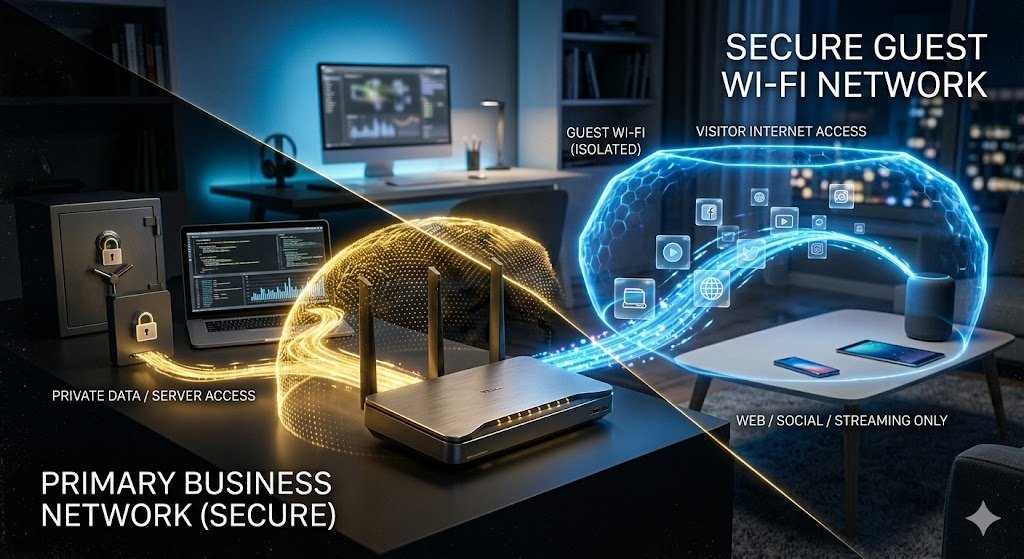
Category: Uncategorized

  • How to Secure Your Home Office Router from External Intrusions: The Complete 2026 Small Business Security Guide

    How to Secure Your Home Office Router from External Intrusions: The Complete 2026 Small Business Security Guide

    Secure your home office router against hackers, ransomware, and AI-powered attacks with proven security strategies for 2026.

    The modern home office has become the new frontline of cybersecurity.

    In 2026, remote work continues to drive business growth, flexibility, and productivity. However, it has also expanded the attack surface for cybercriminals. Today, hackers no longer focus exclusively on large enterprises. Small businesses, freelancers, consultants, and remote teams have become prime targets because attackers know their security defenses are often weaker.

    One of the most overlooked security risks is the home office router.

    If a cybercriminal gains access to your router, they can potentially monitor internet traffic, redirect users to malicious websites, launch ransomware attacks, steal credentials, and compromise cloud-based business systems.

    That’s why understanding How to secure your home office router from external intrusions is no longer optional—it’s a business necessity.

    At locknet.site, we help entrepreneurs and small business owners build a bulletproof digital presence that can withstand the evolving cyber threats of the modern world.

    Why Your Home Office Router Is a High-Value Target

    Your router serves as the gateway between your devices and the internet.

    Every laptop, smartphone, cloud application, video conference, customer database, and financial transaction passes through it.

    When attackers compromise a router, they gain opportunities to:

    • Intercept sensitive communications
    • Monitor employee activity
    • Steal login credentials
    • Spread malware across connected devices
    • Launch ransomware campaigns
    • Manipulate DNS settings
    • Access cloud-based business applications

    In many cases, businesses invest heavily in antivirus software while completely ignoring the device that controls their entire network.

    That is exactly what cybercriminals are counting on.
    The 2026 Threat Landscape: Why Router Security Matters More Than Ever

    AI-Driven Phishing Campaigns

    Artificial intelligence has transformed phishing attacks.

    Attackers now create highly personalized messages that mimic clients, coworkers, executives, and trusted vendors.

    A compromised router can redirect employees to fake login portals that appear completely legitimate.

    Ransomware-as-a-Service

    Ransomware groups now operate like professional businesses.

    Attack kits are rented to less-skilled criminals who target small organizations with weak defenses.

    Once attackers gain network access through an insecure router, ransomware deployment becomes much easier.

    Cloud Service Exploitation

    Most businesses depend on cloud platforms for daily operations.

    Examples include:

    • Google Workspace
    • Microsoft 365
    • Dropbox
    • Slack
    • CRM systems
    • Project management platforms

    Router compromises often become stepping stones toward cloud account takeovers.

    Remote Workforce Vulnerabilities

    Home networks frequently connect:

    • Business laptops
    • Smart TVs
    • Security cameras
    • Gaming consoles
    • Smart speakers
    • Personal devices

    Each connected device potentially expands the attack surface.

    Common Router Security Mistakes

    Before discussing solutions, let’s identify the biggest mistakes.

    Using Default Admin Credentials

    Many users never change the factory login settings.

    Cybercriminals maintain databases of default usernames and passwords for thousands of router models.

    Ignoring Firmware Updates

    Outdated firmware often contains known vulnerabilities.

    Attackers actively scan the internet for routers running unpatched software.

    Weak Wi-Fi Passwords

    Here is the real talk about why your current password isn’t enough.

    Passwords like:

    • Admin123
    • Welcome2026
    • CompanyName123

    can be cracked surprisingly quickly using modern attack tools.

    Remote Administration Enabled

    Remote management features can create unnecessary exposure if improperly configured.

    No Network Segmentation

    Mixing personal devices and business systems on the same network creates avoidable risk.

    Router Security Comparison Table

    Security FeatureBasic SetupSecure Business Setup
    Default Password ChangedSometimesAlways
    WPA3 EncryptionRareRequired
    Firmware UpdatesManual and forgottenScheduled
    Guest Network EnabledOften absentRequired
    Multi-Factor AuthenticationNot usedEnabled where supported
    Remote Access ProtectionWeakRestricted
    Network MonitoringMinimalContinuous
    VPN ProtectionOptionalRecommended

    Step-by-Step Guide: How to Secure Your Home Office Router from External Intrusions

    Step 1: Change Default Router Credentials Immediately

    The first step is simple but critical.

    Access your router administration panel and replace:

    • Default username
    • Default password

    Use a unique password containing:

    • Uppercase letters
    • Lowercase letters
    • Numbers
    • Symbols

    Store credentials in a password manager.

    Step 2: Update Router Firmware

    Firmware updates often contain critical security patches.

    To update firmware:

    1. Log into the router dashboard.
    2. Navigate to Firmware or System Settings.
    3. Check for available updates.
    4. Install the latest version.
    5. Restart the router.

    Make firmware reviews part of your regular security proccess.

    Step 3: Enable WPA3 Encryption

    WPA3 provides significantly stronger wireless security than older protocols.

    Avoid:

    • WEP
    • WPA
    • WPA2 (when WPA3 is available)

    Configure:

    • WPA3-Personal
    • Strong wireless password

    This helps protect against password-cracking attacks.

    Step 4: Disable Unnecessary Features

    Many routers enable services that most businesses never use.

    Consider disabling:

    • UPnP
    • WPS
    • Unused port forwarding
    • Remote administration

    Each disabled feature reduces your attack surface.

    Step 5: Create a Separate Guest Network

    Never place visitors and business devices on the same network.

    Create:

    Business Network

    Used for:

    • Workstations
    • Servers
    • Business laptops

    Guest Network

    Used for:

    • Visitors
    • Personal devices
    • Temporary connections

    Segmentation helps contain security incidents.

    Step 6: Configure Secure DNS Services

    DNS controls how devices locate websites.

    Attackers frequently target DNS settings.

    Consider secure DNS providers that offer:

    • Malware filtering
    • Phishing protection
    • Domain reputation checks

    This provides an additional layer of defense.

    Step 7: Use a Business VPN

    A VPN encrypts internet traffic and reduces exposure.

    Benefits include:

    • Secure remote access
    • Encrypted communications
    • Protection on public Wi-Fi
    • Reduced interception risk

    VPN protection works especially well for remote employees handling sensitive data.

    Step 8: Monitor Connected Devices

    Review your connected devices regularly.

    Look for:

    • Unknown devices
    • Unexpected activity
    • Unauthorized access attempts

    Remove suspicious devices immediately.

    Step 9: Enable Router Logging

    Many modern routers provide security logs.

    Monitor:

    • Failed login attempts
    • Configuration changes
    • Device connections
    • Traffic anomalies

    Logs often reveal attacks before major damage occurs.

    Step 10: Deploy Network Security Layers

    The strongest defense combines multiple technologies.

    Recommended layers include:

    Endpoint Protection

    Protects individual devices from malware.

    Firewall Protection

    Filters malicious traffic.

    Email Security

    Reduces phishing success rates.

    Cloud Security Controls

    Protects SaaS platforms and cloud storage.

    Backup Systems

    Ensures recovery after ransomware incidents.

    A single firewal or antivirus solution is not enough in 2026.

    Cloud Security Considerations for Remote Teams

    Router security must support broader cloud security objectives.

    Business owners should:

    • Enable multi-factor authentication
    • Restrict unnecessary permissions
    • Audit user access regularly
    • Monitor cloud activity logs
    • Encrypt sensitive information

    Secure cloud management begins with a secure network foundation.

    Building a Router-Centered Ransomware Defense Strategy

    Ransomware remains one of the biggest threats to small businesses.

    A secure router can help prevent initial compromise by:

    • Blocking malicious traffic
    • Preventing unauthorized access
    • Reducing attack opportunities
    • Supporting network segmentation

    Combine router protection with:

    • Offline backups
    • Employee training
    • Security monitoring
    • Incident response planning

    Look, I get it, cybersecurity sounds like a headache, but recovering from a ransomware attack is far more painful than preventing one.

    Security Checklist for Home Office Router Protection

    Security TaskStatus
    Changed default admin credentials
    Installed latest firmware updates
    Enabled WPA3 encryption
    Disabled WPS
    Disabled unnecessary remote access
    Created guest network
    Configured secure DNS
    Enabled VPN protection
    Reviewed connected devices
    Activated logging and monitoring
    Verified backup systems
    Trained remote employees

    Final Thoughts

    Learning How to secure your home office router from external intrusions is one of the most important cybersecurity investments a small business can make in 2026.

    Your router is not just a networking device—it is the front door to your digital business. Attackers know this. That is why they continuously search for weak passwords, outdated firmware, exposed services, and poorly secured remote work environments.

    By implementing strong authentication, WPA3 encryption, firmware updates, VPN protection, network segmentation, cloud security controls, and continuous monitoring, your organization can dramatically reduce cyber risk.

    At locknet.site, we are committed to helping entrepreneurs, remote teams, and growing businesses stay ahead of evolving threats while building a resilient and secure digital presence.

    Ready to strengthen your defenses? Conduct a complete network security audit today, subscribe to the latest cybersecurity insights, and connect with the experts at locknet.site to create a stronger, safer, and more resilient business for the future.

  • Step-by-Step Guide to Setting Up a Secure VPN for Remote Employees and Protecting Your Business in 2026

    Step-by-Step Guide to Setting Up a Secure VPN for Remote Employees and Protecting Your Business in 2026

    Secure Remote Workforce in 2026: The Ultimate Step-by-Step Guide to Setting Up a Secure VPN for Remote Employees

    Protect Your Business in 2026 with a Secure VPN Strategy for Remote Employees

    Keep remote teams safe from AI-powered cyber threats, ransomware, and data breaches with a secure VPN setup and modern security controls.

    Remote work is no longer a temporary trend. In 2026, it has become a permanent business model for startups, agencies, consultants, eCommerce brands, and small businesses around the world. While remote work creates flexibility and productivity, it also introduces serious cybersecurity risks.

    Today’s cybercriminals are using AI-driven phishing campaigns, automated credential theft tools, and advanced ransomware attacks to target remote employees. A single compromised laptop or stolen password can expose customer data, financial records, and cloud systems.

    This is why every business needs a secure Virtual Private Network (VPN) strategy.

    If you are searching for a practical and actionable Step-by-step guide to setting up a secure VPN for remote employees, this guide will walk you through everything you need to know.

    At locknet.site, we help entrepreneurs and growing businesses build a stronger security posture without unnecessary complexity.

    Why Remote Employees Need a Secure VPN in 2026

    A VPN creates an encrypted tunnel between an employee’s device and company resources. This prevents hackers, internet service providers, and malicious actors from intercepting sensitive information.

    Without a VPN, remote workers may expose:

    • Customer records
    • Financial information
    • Login credentials
    • Internal communications
    • Cloud storage data
    • Project files

    The threat landscape has evolved dramatically. AI tools can now generate convincing phishing emails that imitate executives, clients, and vendors with frightening accuracy.

    Look, I get it, cybersecurity sounds like a headache, but ignoring it can be far more expensive than implementing proper protection.

    The Biggest Remote Work Security Risks

    AI-Powered Phishing Attacks

    Modern phishing attacks are no longer full of spelling mistakes and suspicious links.

    Attackers use artificial intelligence to create personalized emails that appear completely legitimate. Employees may unknowingly reveal credentials or install malware.

    Ransomware Attacks

    Small businesses remain a favorite target because many lack enterprise-grade security controls.

    A single infected device can spread ransomware across shared drives and cloud applications.

    Public Wi-Fi Exposure

    Employees working from coffee shops, airports, hotels, and coworking spaces often connect to unsecured networks.

    Without VPN encryption, attackers can potentially monitor traffic and steal sensitive information.

    Cloud Misconfigurations

    Improper cloud permissions can expose confidential files and company assets.

    Many businesses focus on endpoint protection while overlooking cloud security.

    VPN vs Firewall: Understanding the Difference

    Security FeatureVPNFirewall
    Encrypts internet trafficYesNo
    Protects data on public Wi-FiYesLimited
    Blocks unauthorized network accessPartialYes
    Hides IP addressesYesNo
    Prevents malicious inbound trafficLimitedYes
    Required for remote employeesYesYes
    Protects cloud access sessionsYesPartial

    The truth is that a VPN and firewal solution should work together rather than replace each other.

    Step-by-Step Guide to Setting Up a Secure VPN for Remote Employees

    Step 1: Assess Your Remote Work Environment

    Before choosing a VPN solution, evaluate:

    • Number of remote employees
    • Types of devices used
    • Cloud applications in use
    • Geographic locations
    • Compliance requirements
    • Existing cybersecurity controls

    Document every system that employees access remotely.

    Step 2: Choose a Business-Grade VPN Solution

    Avoid free VPN services.

    Business-grade VPN platforms provide:

    • Centralized management
    • Strong encryption
    • Multi-factor authentication
    • Activity logging
    • Access control policies
    • Device management

    Look for VPN providers that support:

    • AES-256 encryption
    • WireGuard protocol
    • OpenVPN support
    • Zero Trust integration
    • Identity management systems

    Step 3: Enable Multi-Factor Authentication (MFA)

    Here is the real talk about why your current password isn’t enough.

    Passwords alone are one of the weakest security controls in modern cybersecurity.

    Every VPN account should require:

    • Password
    • Authentication app
    • Security key or biometric verification

    MFA dramatically reduces the success rate of credential theft attacks.

    Step 4: Configure Access Control Policies

    Not every employee needs access to every system.

    Implement role-based access controls.

    Examples include:

    Sales Team Access

    • CRM platform
    • Email systems
    • Shared sales documents

    Finance Team Access

    • Accounting software
    • Payroll systems
    • Banking platforms

    Developers

    • Source code repositories
    • Development servers
    • Testing environments

    This principle is known as Least Privilege Access.

    Step 5: Secure Employee Devices

    A VPN cannot protect an infected device.

    Require employees to use:

    • Updated operating systems
    • Endpoint protection software
    • Device encryption
    • Screen lock policies
    • Automatic updates

    Create a documented device security policy for all remote workers.

    Step 6: Implement Split Tunneling Carefully

    Split tunneling allows some traffic to bypass the VPN.

    While this can improve performance, it may introduce risk.

    For highly sensitive businesses, route all traffic through the VPN.

    For lower-risk operations, only approved applications should use split tunneling.

    Step 7: Protect Cloud Applications

    Most businesses rely heavily on cloud services.

    Secure:

    • Microsoft 365
    • Google Workspace
    • Dropbox
    • Slack
    • CRM platforms
    • Project management systems

    Combine VPN protection with:

    • Conditional access policies
    • Identity verification
    • Cloud security monitoring

    Step 8: Enable Continuous Monitoring

    Cybersecurity is not a one-time proccess.

    Monitor:

    • Login attempts
    • Failed authentication events
    • Suspicious locations
    • Device compliance status
    • Unusual network behavior

    Modern VPN solutions often include security analytics dashboards.

    Step 9: Train Employees Against AI-Driven Threats

    Technology alone is not enough.

    Employees should learn how to:

    • Identify phishing attempts
    • Verify unusual requests
    • Avoid malicious downloads
    • Report suspicious activity
    • Protect credentials

    Security awareness training remains one of the highest-return investments any business can make.

    Step 10: Test and Audit Regularly

    Perform quarterly reviews that include:

    • VPN configuration audits
    • Access permission reviews
    • Device security checks
    • Phishing simulations
    • Vulnerability assessments

    Your security strategy is only effective if it works when attacked.

    Remote Employee Security Checklist

    Security ControlImplemented
    Business-grade VPN installed
    MFA enabled for all users
    Device encryption active
    Endpoint protection installed
    Access controls configured
    Cloud permissions reviewed
    Security awareness training completed
    Incident response plan documented
    Regular security audits scheduled
    Backup systems verified

    Building a Ransomware Defense Strategy

    A secure VPN is only one layer of defense.

    Businesses should also implement:

    Immutable Backups

    Maintain backups that attackers cannot modify or delete.

    Endpoint Detection and Response (EDR)

    EDR tools help identify malicious behavior before ransomware spreads.

    Network Segmentation

    Separate critical systems from general employee networks.

    Incident Response Planning

    Prepare for attacks before they happen.

    Every organization should know:

    • Who responds
    • What systems are isolated
    • How recovery occurs
    • How customers are notified

    The Future of Remote Work Security

    By 2026, cybersecurity is increasingly powered by AI on both sides of the battle.

    Attackers use automation to identify vulnerabilities at scale.

    Defenders use AI to:

    • Detect anomalies
    • Block suspicious behavior
    • Identify phishing campaigns
    • Monitor cloud activity

    Businesses that combine secure VPNs, Zero Trust principles, employee education, and continuous monitoring will be significantly more resilient against modern cyber threats.

    The companies that struggle are often those that assume basic antivirus software is enough.

    It isn’t.

    Final Thoughts

    Implementing a secure VPN is one of the most effective ways to protect remote employees and sensitive business data. However, true protection comes from combining VPN security with multi-factor authentication, cloud security controls, endpoint protection, employee training, and ongoing monitoring.

    As cyber threats become more sophisticated, small businesses can no longer afford to treat cybersecurity as an afterthought.

    At locknet.site, our mission is to help entrepreneurs and business owners create a bulletproof digital presence that can withstand the evolving threats of 2026 and beyond.

    Ready to strengthen your defenses? Conduct a security audit today, subscribe to the latest cybersecurity insights, and connect with the experts at locknet.site to build a remote work security strategy that keeps your business protected, productive, and prepared for whatever comes next.

  • Best Mobile Security Apps for Android and iOS in 2026: Protect Your Business Before the Next Mobile Cyberattack

    Best Mobile Security Apps for Android and iOS in 2026: Protect Your Business Before the Next Mobile Cyberattack

    The Best Mobile Security Apps for Android and iOS in 2026: Protect Your Business Before Cybercriminals Strike

    Secure your devices with the best mobile security apps for Android and iOS in 2026. Stop phishing, ransomware, and cloud threats before they cause damage.

    Mobile devices have become the new front line of cybersecurity. In 2026, smartphones and tablets are no longer just communication tools—they are portable offices containing business emails, customer data, financial information, cloud credentials, and access to critical company systems.

    Unfortunately, cybercriminals know this too.

    AI-driven phishing attacks, sophisticated mobile malware, ransomware campaigns, and cloud account takeovers are increasingly targeting Android and iOS users. For small businesses, a single compromised phone can open the door to a devastating security breach.

    Look, I get it, cybersecurity sounds like a headache, but ignoring mobile security is no longer an option. Whether you’re running a startup, managing remote employees, or operating a growing company, choosing the best mobile security apps for Android and iOS in 2026 is one of the smartest investments you can make.

    This guide explores the top mobile security solutions, explains how they defend against modern threats, and provides a practical roadmap for securing business devices in today’s rapidly evolving digital landscape.

    Why Mobile Security Matters More Than Ever in 2026

    The traditional office perimeter has disappeared.

    Employees now access:

    • Cloud applications
    • Business email
    • Customer databases
    • Payment platforms
    • Team collaboration tools

    from anywhere in the world.

    This flexibility increases productivity but also expands attack surfaces.

    Modern attackers use:

    AI-Powered Phishing

    Artificial intelligence allows criminals to create highly convincing messages that imitate executives, clients, and vendors.

    Mobile Ransomware

    Ransomware is no longer limited to desktop computers. Mobile devices can now be encrypted, locked, or used as entry points into larger business networks.

    Credential Theft

    Many attacks focus on stealing login credentials rather than deploying malware.

    Cloud Account Hijacking

    Compromised smartphones often provide direct access to cloud platforms used by remote teams.

    A robust mobile security strategy helps prevent these threats before they become business disasters.

    What Makes a Great Mobile Security App?

    Not all security apps offer the same level of protection.

    The best mobile security apps for Android and iOS in 2026 should include:

    Malware Detection

    Identifies and removes malicious software before it causes damage.

    Phishing Protection

    Blocks dangerous websites, fake login pages, and malicious links.

    Identity Protection

    Monitors leaked credentials and suspicious account activity.

    VPN Services

    Encrypts internet traffic, especially on public Wi-Fi networks.

    Device Monitoring

    Provides alerts for unusual activity and potential security incidents.

    Cloud Security Integration

    Protects accounts connected to Microsoft 365, Google Workspace, and other business platforms.

    Best Mobile Security Apps for Android and iOS in 2026

    1. Bitdefender Mobile Security

    Best Overall Protection

    Bitdefender continues to dominate the mobile security market with advanced AI-powered threat detection.

    Key Features:

    • Real-time malware protection
    • Anti-phishing technology
    • VPN integration
    • App privacy scanner
    • Account breach monitoring

    Pros:

    • Excellent detection rates
    • Lightweight performance
    • Strong privacy tools

    Cons:

    • VPN usage limits on lower-tier plans

    Ideal for small business owners seeking comprehensive protection.

    2. Norton 360 Mobile Security

    Best for Identity Protection

    Norton offers a well-rounded security suite designed for both personal and business users.

    Key Features:

    • Dark web monitoring
    • Secure VPN
    • Wi-Fi security alerts
    • Device protection
    • Identity theft monitoring

    Pros:

    • Strong reputation
    • Excellent customer support
    • Powerful identity safeguards

    Cons:

    • Higher subscription cost

    3. Malwarebytes Mobile Security

    Best for Malware Removal

    Malwarebytes specializes in detecting modern malware and malicious applications.

    Key Features:

    • Malware scanning
    • Privacy audits
    • Phishing protection
    • Safe browsing tools

    Pros:

    • Easy to use
    • Excellent malware detection
    • Minimal resource usage

    Cons:

    • Fewer enterprise management features

    4. Avast Mobile Security

    Best Budget-Friendly Option

    Avast provides solid protection for businesses operating on tighter budgets.

    Key Features:

    • Threat detection
    • Wi-Fi scanning
    • Privacy advisor
    • App lock functionality

    Pros:

    • Affordable pricing
    • User-friendly interface
    • Reliable protection

    Cons:

    • Some advanced tools require premium plans

    5. Sophos Intercept X for Mobile

    Best for Business Security

    Sophos focuses heavily on enterprise-grade mobile protection.

    Key Features:

    • Threat intelligence integration
    • Link checking
    • Device compliance monitoring
    • Cloud-managed controls

    Pros:

    • Excellent for remote teams
    • Strong business features
    • Advanced reporting

    Cons:

    • Slight learning curve

    Mobile Security App Comparison Table

    Security AppMalware ProtectionVPN IncludedPhishing DefenseBusiness FeaturesBest For
    BitdefenderExcellentYesExcellentGoodOverall Security
    Norton 360ExcellentYesExcellentGoodIdentity Protection
    MalwarebytesExcellentLimitedVery GoodModerateMalware Removal
    AvastGoodOptionalGoodBasicBudget Users
    Sophos Intercept XExcellentNoExcellentExcellentRemote Teams

    The Growing Threat of AI-Driven Phishing

    One of the biggest cybersecurity challenges in 2026 is AI-generated phishing.

    These attacks can:

    • Mimic executive communication styles
    • Generate realistic text messages
    • Create convincing login pages
    • Impersonate customer support teams

    Here is the real talk about why your current password isn’t enough.

    Even a strong password can be stolen if users unknowingly enter it into a fake website.

    Modern mobile security apps use behavioral analysis and threat intelligence to identify suspicious links before users interact with them.

    Step-by-Step Guide: Secure Microsoft 365 on Mobile Devices

    Microsoft 365 remains one of the most targeted business platforms worldwide.

    Follow these steps to secure employee access:

    Step 1: Enable Multi-Factor Authentication

    Require MFA for all users.

    This significantly reduces credential theft risks.

    Step 2: Install a Trusted Mobile Security App

    Deploy Bitdefender, Norton, Sophos, or another reputable solution.

    Step 3: Use Conditional Access Policies

    Restrict access based on:

    • Device health
    • Geographic location
    • User risk score

    Step 4: Enable Mobile Device Management

    Implement MDM policies to:

    • Enforce security settings
    • Control application usage
    • Remotely wipe lost devices

    Step 5: Monitor Login Activity

    Review:

    • Failed login attempts
    • Unusual locations
    • Suspicious access behavior

    Step 6: Encrypt Business Data

    Ensure all corporate data remains encrypted both at rest and during transmission.

    Step 7: Train Employees

    Teach staff how to identify:

    • Phishing messages
    • Fake login pages
    • Suspicious attachments

    A strong security app helps, but employee awareness remains critical.

    Security Checklist for Small Businesses

    Security ControlStatus Check
    Mobile Security App Installed
    MFA Enabled
    Device Encryption Active
    Automatic Updates Enabled
    Cloud Access Protected
    VPN Configured
    Employee Training Completed
    Regular Security Audits Scheduled

    Common Mobile Security Mistakes

    Using Free Security Tools Only

    Free solutions often lack advanced protections needed against modern threats.

    Ignoring App Permissions

    Many users grant unnecessary permissions without reviewing them.

    Delaying Updates

    Outdated devices remain vulnerable to known exploits.

    Using Public Wi-Fi Without Protection

    A VPN remains essential when employees travel or work remotely.

    Weak Cloud Security

    Mobile devices frequently act as gateways to cloud systems.

    Protecting only the phone without securing connected accounts leaves major gaps.

    Building a Mobile Security Strategy for Remote Teams

    Remote work is now a permanent business reality.

    To reduce risk:

    Deploy Centralized Security Management

    Monitor all business devices from one dashboard.

    Require Secure VPN Connections

    Encrypt traffic between users and company resources.

    Apply Zero Trust Principles

    Verify every user and every device before granting access.

    Monitor Cloud Applications

    Track access to:

    • Microsoft 365
    • Google Workspace
    • Dropbox
    • Slack
    • CRM platforms

    This layered defense model significantly improves resilience against cyber threats.

    The Future of Mobile Security in 2026 and Beyond

    Mobile cybersecurity is evolving rapidly.

    Emerging trends include:

    • AI-powered threat detection
    • Behavioral analytics
    • Automated incident response
    • Passwordless authentication
    • Zero Trust mobile architecture

    Businesses that embrace these technologies today will be far better positioned to defend against tomorrow’s attacks.

    The best mobile security apps for Android and iOS in 2026 are no longer optional tools—they are essential business safeguards. Whether you choose Bitdefender, Norton, Malwarebytes, Avast, or Sophos, the goal is the same: protect your people, your data, and your reputation from increasingly sophisticated cybercriminals.

    At locknet.site, we help entrepreneurs and business leaders build a bulletproof digital presence through practical cybersecurity guidance, threat awareness, and modern security strategies designed for the realities of today’s online world.

    Don’t wait until a phishing attack, ransomware incident, or cloud compromise forces action. Audit your mobile security today, subscribe to cybersecurity updates, and connect with the experts at locknet.site to strengthen your defenses before attackers find the next weak point in your business.

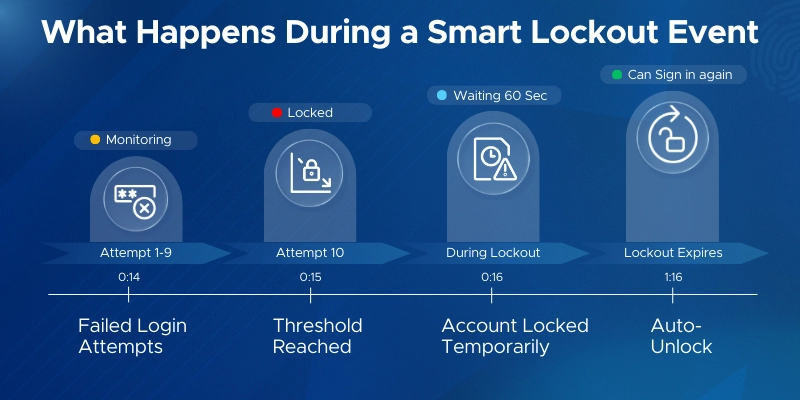
  • Troubleshooting “Account Temporarily Locked” on Major Platforms Before It Disrupts Your Business

    Troubleshooting “Account Temporarily Locked” on Major Platforms Before It Disrupts Your Business

    Prevent Costly Downtime: Troubleshooting “Account Temporarily Locked” on Major Platforms in 2026

    Learn how to fix account lockouts safely and protect your business from phishing, ransomware, and cloud security risks.

    In today’s digital-first business environment, losing access to a critical account can bring operations to a halt. Whether it’s your business email, cloud storage, payment processor, CRM platform, or project management system, an “Account Temporarily Locked” message can create stress, confusion, and lost productivity.

    Unfortunately, account lockouts are becoming more common in 2026. As cybercriminals increase their use of AI-driven phishing attacks, credential stuffing campaigns, automated login attempts, and ransomware-related account compromises, major platforms are tightening security controls to protect users.

    While these security measures are essential, they can also affect legitimate users and small business teams.

    Understanding how to approach troubleshooting “Account Temporarily Locked” on major platforms is critical for maintaining business continuity and protecting sensitive company data.

    At locknet.site, we help entrepreneurs and small businesses build a bulletproof digital presence while navigating modern cybersecurity challenges. This guide explains why account lockouts happen, how to resolve them safely, and how to prevent them from happening again.

    Why Platforms Temporarily Lock Accounts

    Account lockouts are typically security responses designed to protect users from unauthorized access.

    When suspicious activity is detected, platforms may automatically restrict access until ownership can be verified.

    Common triggers include:

    • Multiple failed login attempts
    • Password guessing attacks
    • Suspicious locations
    • New devices
    • Unusual behavior patterns
    • Security policy violations
    • Automated bot activity
    • Credential stuffing attacks

    In many cases, the platform is protecting your business from a potential compromise.

    Why Account Lockouts Are Increasing in 2026

    The cybersecurity landscape has evolved dramatically.

    AI-powered attack tools now allow criminals to launch:

    • Automated password attacks
    • Advanced phishing campaigns
    • Session hijacking attempts
    • Credential stuffing attacks
    • Large-scale account enumeration

    As a result, major platforms such as Microsoft 365, Google Workspace, LinkedIn, Facebook Business, cloud providers, and banking portals have strengthened detection systems.

    These protections are valuable but occasionally generate false positives that affect legitimate users.

    Common Reasons Business Accounts Become Locked

    Understanding the cause is the first step toward recovery.

    Multiple Failed Login Attempts

    This remains one of the most common causes.

    Repeated incorrect passwords may occur because:

    • Employees forgot credentials
    • Password managers contain outdated data
    • Accounts were recently updated

    Platforms often lock accounts after several failed attempts.

    Suspicious Geographic Logins

    Logging in from:

    • Different countries
    • VPN services
    • Public Wi-Fi networks
    • Unusual locations

    may trigger security alerts.

    AI-Detected Abnormal Behavior

    Modern security systems use machine learning to identify unusual activity.

    Examples include:

    • Rapid login attempts
    • Unusual file downloads
    • Unexpected administrative actions

    Shared Accounts

    Many small businesses still share credentials among team members.

    This often creates authentication anomalies that trigger lockouts.

    Third-Party Application Access

    Connected applications may:

    • Use outdated credentials
    • Generate repeated login requests
    • Create suspicious authentication patterns

    Security Policy Violations

    Organizations enforcing strict security standards may automatically lock accounts after policy violations.

    Vulnerability Assessment: What Account Lockouts May Be Telling You

    An account lockout should never be viewed as merely an inconvenience.

    Sometimes it reveals deeper security issues.

    Potential Credential Theft

    A lockout may indicate attackers are attempting to access your account.

    Signs include:

    • Unexpected login alerts
    • MFA requests you did not initiate
    • Password reset emails

    Active Phishing Campaigns

    Employees who unknowingly enter credentials into fake websites can trigger security alerts.

    Malware or Ransomware Activity

    Compromised devices sometimes generate suspicious login behavior.

    Investigating lockouts can uncover infections before they spread.

    Weak Access Controls

    Frequent lockouts may indicate outdated identity management practices.

    Comparison Table: Common Account Lockout Causes and Solutions

    CauseRisk LevelBusiness ImpactRecommended Solution
    Incorrect Password AttemptsMediumTemporary disruptionReset password
    Suspicious Login LocationHighSecurity review requiredVerify identity
    Credential Stuffing AttackHighPotential compromiseChange credentials immediately
    MFA FailuresMediumLogin delaysReconfigure authentication
    Shared Account UsageHighSecurity riskImplement individual accounts
    Third-Party App ErrorsMediumRecurring lockoutsAudit integrations

    This table highlights why identifying the root cause is essential before attempting recovery.

    Step-by-Step Guide: Recovering a Locked Microsoft 365 Account

    Microsoft 365 remains one of the most widely used business platforms and a frequent target of cyberattacks.

    Follow this secure recovery proccess when an account becomes locked.

    Step 1: Confirm the Lockout Message

    Verify the exact error displayed.

    Determine whether the account is:

    • Locked
    • Disabled
    • Suspended
    • Pending verification

    Each status requires a different response.

    Step 2: Check Recent Activity

    Review:

    • Login notifications
    • Security alerts
    • Password reset requests

    Unexpected activity may indicate compromise.

    Step 3: Verify User Identity

    Use approved identity verification procedures before making changes.

    For businesses, this is especially important when assisting employees.

    Step 4: Reset Credentials

    If compromise is suspected:

    1. Reset the password.
    2. Generate a strong new password.
    3. Avoid reusing previous passwords.

    Step 5: Review Multi-Factor Authentication Settings

    Verify:

    • Authenticator apps
    • Backup methods
    • Recovery options

    Authentication problems frequently contribute to lockouts.

    Step 6: Revoke Unrecognized Sessions

    Terminate:

    • Unknown devices
    • Suspicious browser sessions
    • Unauthorized application access

    Step 7: Audit Administrative Logs

    Investigate:

    • Failed login attempts
    • Geographic anomalies
    • Permission changes

    These logs often reveal the root cause.

    Defense Layers to Reduce Future Lockouts

    A strong security strategy minimizes both compromise risk and accidental lockouts.

    Implement Password Managers

    Password managers reduce:

    • Forgotten passwords
    • Credential reuse
    • Login errors

    Here is the real talk about why your current password isn’t enough.

    Even a strong password can be compromised if attackers obtain it through phishing or data breaches.

    Deploy Strong Multi-Factor Authentication

    Use:

    • Authenticator apps
    • Security keys
    • Passkeys

    Avoid relying exclusively on SMS-based verification.

    Restrict Administrative Privileges

    Not every employee needs elevated permissions.

    Limiting access reduces risk.

    Use Conditional Access Policies

    Restrict access based on:

    • Device trust
    • Location
    • Risk score
    • User role

    Conditional access can stop attacks before lockouts occur.

    Monitor Authentication Logs

    Review login activity regularly.

    Early detection prevents larger problems.

    Recovery Plan for Small Businesses

    Preparation is critical.

    When a key employee becomes locked out, downtime can be expensive.

    Create Emergency Access Procedures

    Document:

    • Recovery contacts
    • Administrative escalation paths
    • Verification requirements

    Maintain Backup Authentication Methods

    Never depend on a single authentication method.

    Maintain:

    • Backup codes
    • Secondary authenticators
    • Security keys

    Secure Administrative Accounts

    Administrator accounts should receive enhanced protection.

    Use:

    • Unique credentials
    • Hardware security keys
    • Additional monitoring

    Conduct Regular Access Reviews

    Review:

    • Active accounts
    • Permissions
    • Authentication settings

    This reduces surprises during emergencies.

    Security Checklist for Preventing Account Lockouts

    Security ControlRequired
    Multi-Factor Authentication EnabledYes
    Password Manager ImplementedYes
    Unique User AccountsYes
    Administrative Accounts ProtectedYes
    Authentication Logs ReviewedYes
    Backup Recovery Methods ConfiguredYes
    Conditional Access Policies EnabledRecommended
    Security Awareness Training CompletedRecommended
    Third-Party Integrations AuditedRecommended
    Quarterly Access Reviews ConductedRecommended

    Common Mistakes Small Businesses Make

    Sharing Credentials

    Shared accounts create confusion and security risks.

    Ignoring Security Alerts

    Many lockouts begin with warning signs.

    Using Weak Recovery Processes

    Recovery procedures should verify identity carefully.

    Delaying Security Updates

    Outdated software can contribute to authentication problems.

    Relying Solely on Passwords

    Passwords alone are no longer sufficient protection.

    Assuming Lockouts Are Always Mistakes

    Sometimes a lockout is evidence of an active attack.

    Investigate before dismissing the event.

    How Account Lockouts Help Prevent Ransomware

    Many business owners view account lockouts negatively.

    However, lockouts often prevent much larger problems.

    Modern platforms may automatically block:

    • Credential stuffing attacks
    • Brute force attempts
    • Unauthorized access
    • Suspicious account activity

    These protections can stop ransomware operators before they gain access to cloud systems and business resources.

    A properly configured security environment treats lockouts as an early warning mechanism rather than merely a technical inconvenience.

    Look, I get it, cybersecurity sounds like a headache, but a temporary login issue is far less damaging than a successful account takeover.

    Final Thoughts

    Troubleshooting “Account Temporarily Locked” on major platforms is an increasingly important skill for modern businesses. As AI-driven phishing attacks, credential theft campaigns, ransomware groups, and cloud-focused threats continue to evolve, account lockouts have become a critical security safeguard.

    While lockouts can be frustrating, they often serve as an early warning that something unusual is happening. Businesses that investigate these incidents properly can identify vulnerabilities, strengthen defenses, and prevent larger security events.

    By implementing strong authentication, password management, conditional access policies, user training, and ongoing monitoring, small businesses can significantly reduce both lockout frequency and cyber risk.

    At locknet.site, we are committed to helping entrepreneurs and growing organizations build a resilient, secure, and bulletproof digital presence in an increasingly hostile online world.

    Ready to improve your account security? Conduct an authentication audit, subscribe to cybersecurity updates from locknet.site, and consult a security specialist today before a temporary account lockout turns into a permanent business problem.

  • How to Create a Zero Trust Security Policy for a 5-Person Team and Protect Your Business in 2026

    How to Create a Zero Trust Security Policy for a 5-Person Team and Protect Your Business in 2026

    Build a Zero Trust Security Policy Before the Next Cyberattack Targets Your Small Team

    Learn how to create a Zero Trust security policy for a 5-person team and defend against phishing, ransomware, and cloud threats in 2026.

    Cybersecurity has changed dramatically over the last few years. The traditional belief that everything inside a company network can be trusted is no longer valid. In 2026, cybercriminals are using AI-powered phishing attacks, automated credential theft, ransomware-as-a-service platforms, and cloud-focused exploits to target organizations of every size.

    Many small business owners assume hackers only focus on large corporations. Unfortunately, the opposite is often true. Small teams are attractive targets because they typically have fewer security controls, limited IT resources, and less formal cybersecurity policies.

    That is where Zero Trust security comes in.

    If you are wondering how to create a Zero Trust security policy for a 5-person team, the good news is that you do not need an enterprise-sized budget or a dedicated cybersecurity department. With the right strategy, even a very small company can implement powerful protections that significantly reduce cyber risk.

    At locknet.site, we help entrepreneurs and growing businesses build a bulletproof digital presence without unnecessary complexity. This guide will walk you through creating a practical, effective Zero Trust security policy designed specifically for small teams operating in today’s threat landscape.

    What Is Zero Trust Security?

    Zero Trust is a cybersecurity model based on one simple principle:

    Never trust, always verify.

    Instead of assuming users, devices, or applications are safe simply because they are inside your network, every access request must be verified continuously.

    A Zero Trust approach assumes that:

    • Accounts can be compromised
    • Devices can become infected
    • Insider threats can occur
    • Phishing attacks can succeed
    • Networks can be breached

    Rather than granting blanket access, Zero Trust limits access to only what is necessary.

    For a 5-person business, this dramatically reduces the potential damage from a security incident.

    Why Small Teams Need Zero Trust in 2026

    The modern workplace is more distributed than ever.

    Most small businesses rely on:

    • Cloud storage
    • SaaS applications
    • Remote employees
    • Mobile devices
    • Third-party contractors

    Every connected system creates a potential attack surface.

    Today’s cybercriminals use artificial intelligence to:

    • Generate realistic phishing emails
    • Clone communication styles
    • Automate credential attacks
    • Discover exposed business assets

    Look, I get it, cybersecurity sounds like a headache, but implementing Zero Trust is often simpler than cleaning up after a ransomware attack.

    The goal is not to make work difficult. The goal is to ensure every request is verified before access is granted.

    Core Principles of a Zero Trust Security Policy

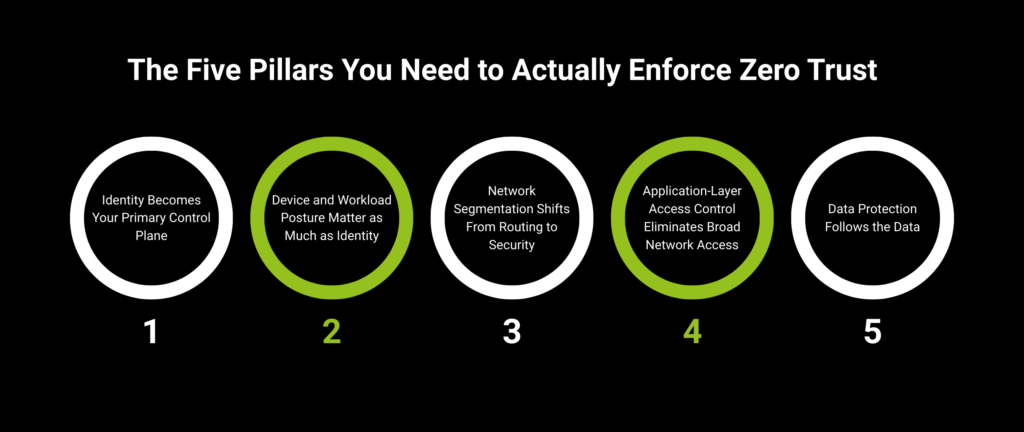
    A successful Zero Trust policy for a small team should focus on five foundational principles.

    Verify Every User

    Every user must authenticate their identity before accessing business resources.

    This includes:

    • Employees
    • Contractors
    • Vendors
    • Administrators

    Enforce Least Privilege Access

    Employees should only have access to systems required for their jobs.

    For example:

    • Marketing staff should not access payroll systems.
    • Finance personnel should not manage website servers.
    • Contractors should receive temporary permissions only.

    Verify Device Security

    Only approved devices should access company resources.

    This helps prevent compromised personal devices from becoming attack vectors.

    Monitor Activity Continuously

    Authentication should not be the only security checkpoint.

    User behavior should be monitored for:

    • Suspicious logins
    • Unusual locations
    • Privilege escalation attempts
    • Large file transfers

    Assume Breach

    A Zero Trust model assumes compromise is possible.

    This mindset helps organizations prepare rather than react.

    Vulnerability Assessment: Where Small Teams Usually Fail

    Before building your policy, identify common weaknesses.

    Shared Passwords

    Many small businesses still share credentials via:

    • Email
    • Chat applications
    • Spreadsheets

    This creates serious security risks.

    Excessive Permissions

    Employees often accumulate access rights over time.

    Unused privileges become hidden vulnerabilities.

    Weak Authentication

    SMS-only authentication remains common despite growing threats like SIM swapping.

    Unmanaged Devices

    Personal laptops and smartphones often access sensitive business systems without proper security controls.

    Lack of Visibility

    Many small businesses cannot accurately answer:

    • Who has access?
    • What devices are connected?
    • Which accounts are inactive?

    Without visibility, risk increases significantly.

    Comparison Table: Traditional Security vs Zero Trust Security

    Security AreaTraditional ModelZero Trust Model
    User TrustTrusted after loginContinuously verified
    Device AccessBroad accessRestricted access
    AuthenticationOne-time verificationOngoing validation
    Network SecurityPerimeter-focusedIdentity-focused
    Cloud SecurityLimited controlsGranular controls
    Breach ImpactPotentially widespreadContained and limited

    This shift is why Zero Trust has become one of the most important cybersecurity frameworks in modern business.

    Step-by-Step Guide: Creating a Zero Trust Security Policy for a 5-Person Team

    Step 1: Inventory All Business Assets

    Create a complete list of:

    • Devices
    • User accounts
    • SaaS applications
    • Cloud services
    • Administrative accounts

    You cannot protect assets you do not know exist.

    Step 2: Classify Sensitive Data

    Identify where important information is stored.

    Examples include:

    • Customer records
    • Financial documents
    • Contracts
    • Intellectual property
    • Employee data

    Classify assets by sensitivity level.

    Step 3: Implement Multi-Factor Authentication Everywhere

    Require MFA on all business systems.

    Prioritize:

    • Microsoft 365
    • Google Workspace
    • Banking platforms
    • Payroll services
    • Cloud storage

    Avoid relying solely on SMS authentication.

    Authenticator apps and security keys provide stronger protection.

    Step 4: Deploy a Password Manager

    Every team member should use a business password manager.

    Benefits include:

    • Unique passwords
    • Secure sharing
    • Credential monitoring
    • Reduced phishing risk

    Here is the real talk about why your current password isn’t enough.

    Even a strong password becomes a liability if attackers steal it through phishing or reuse it across multiple platforms.

    Step 5: Apply Least Privilege Access

    Review every account.

    Ask:

    “Does this person truly need this access?”

    Remove unnecessary permissions immediately.

    Step 6: Secure Endpoints

    Install endpoint protection software on all devices.

    Security controls should include:

    • Antivirus
    • Device encryption
    • Automatic updates
    • Remote wipe capabilities

    Step 7: Create Device Approval Policies

    Only authorized devices should connect to business systems.

    Require:

    • Updated operating systems
    • Security software
    • Screen lock protection

    Step 8: Monitor Authentication Activity

    Enable logging and alerts.

    Watch for:

    • Failed logins
    • Geographic anomalies
    • New device registrations
    • Privilege changes

    Step 9: Establish Incident Response Procedures

    Prepare for:

    • Account compromise
    • Malware infections
    • Lost devices
    • Unauthorized access

    A documented response proccess reduces confusion during emergencies.

    Step 10: Conduct Quarterly Reviews

    Security is not a one-time project.

    Review:

    • User permissions
    • Authentication methods
    • Device inventory
    • Security alerts

    Regular reviews strengthen long-term resilience.

    How to Secure Microsoft 365 Using Zero Trust Principles

    Microsoft 365 is one of the most widely used business platforms and an excellent place to begin Zero Trust implementation.

    Configure Conditional Access

    Restrict access based on:

    • Device health
    • Location
    • User role
    • Risk level

    Enable Passwordless Authentication

    Implement:

    • Passkeys
    • Security keys
    • Authenticator approvals

    These methods reduce phishing exposure.

    Restrict Administrative Privileges

    Administrator accounts should be separate from daily-use accounts.

    Monitor Sign-In Logs

    Review login activity regularly for suspicious behavior.

    Enable Data Loss Prevention

    Protect sensitive information from accidental or malicious sharing.

    Defense Layers Against Modern Cyber Threats

    A Zero Trust policy should support multiple layers of defense.

    AI-Driven Phishing Protection

    Provide ongoing employee awareness training.

    Teach staff how to identify:

    • Fake login pages
    • AI-generated emails
    • Business impersonation scams

    Ransomware Defense

    Limit access between systems.

    This prevents attackers from moving freely across the environment.

    Secure Cloud Management

    Apply Zero Trust controls to:

    • Google Workspace
    • Microsoft 365
    • Dropbox
    • Slack
    • Salesforce

    Cloud environments should receive the same protections as on-premise systems.

    Secure Remote Work

    Remote employees should follow:

    • MFA requirements
    • Device verification policies
    • Secure Wi-Fi practices

    Remote work security is now a core business requirement.

    Zero Trust Security Checklist

    Security ControlRequired
    Multi-Factor Authentication EnabledYes
    Password Manager DeployedYes
    Least Privilege Access AppliedYes
    Device Inventory CompletedYes
    Endpoint Protection InstalledYes
    Authentication Logs MonitoredYes
    Conditional Access Policies EnabledRecommended
    Passwordless Authentication DeployedRecommended
    Incident Response Plan DocumentedYes
    Quarterly Security Reviews ScheduledYes

    Common Mistakes Small Businesses Make

    Giving Everyone Admin Rights

    This dramatically increases risk.

    Trusting Internal Networks

    Attackers often operate inside networks after initial compromise.

    Ignoring Cloud Security

    Cloud accounts require the same protection as local systems.

    Delaying Security Updates

    Outdated software creates avoidable vulnerabilities.

    Lack of Employee Training

    Technology alone cannot stop modern cybercrime.

    Employees remain a critical security layer.

    Overcomplicating Security

    The goal is effective security, not complexity.

    Even a small team can implement Zero Trust successfully with a clear and practical approach.

    Final Thoughts

    Learning how to create a Zero Trust security policy for a 5-person team is one of the most valuable investments a small business can make in 2026. As AI-powered phishing attacks, ransomware campaigns, cloud threats, and credential theft continue to evolve, organizations must move beyond outdated trust models.

    Zero Trust helps small teams reduce risk by verifying every user, limiting access, securing devices, monitoring activity, and preparing for potential compromise. The result is stronger resilience, better cloud security, and improved protection against modern cyber threats.

    At locknet.site, we believe every entrepreneur deserves access to enterprise-level cybersecurity guidance without enterprise-level complexity. By implementing the strategies outlined in this guide, your business can significantly strengthen its security posture while supporting productivity and growth.

    Ready to build a stronger defense? Audit your access controls, review your authentication systems, subscribe to the latest cybersecurity insights from locknet.site, and consult a security specialist today to create a Zero Trust strategy that protects your business before attackers find an opportunity.

  • How to Protect Your Business from SIM Swapping Attacks Before Hackers Hijack Your Digital Identity

    How to Protect Your Business from SIM Swapping Attacks Before Hackers Hijack Your Digital Identity

    Protect Your Business from SIM Swapping Attacks Before Cybercriminals Take Control of Your Accounts

    Stop SIM swapping attacks in 2026 with proven security strategies that protect business accounts, cloud systems, and remote teams.

    In the modern threat landscape, cybercriminals no longer need to break through firewalls or deploy sophisticated malware to gain access to business systems. Sometimes, all they need is control of a single phone number.

    SIM swapping attacks have become one of the fastest-growing cyber threats targeting small businesses, entrepreneurs, executives, and remote workers. In 2026, these attacks are even more dangerous because cybercriminals are combining AI-driven phishing campaigns, social engineering tactics, and stolen personal information to bypass traditional security controls.

    For small businesses, a successful SIM swap can lead to stolen funds, compromised cloud accounts, ransomware infections, customer data exposure, and severe reputational damage.

    Understanding how to protect your business from SIM swapping attacks is no longer optional. It is a critical component of modern cybersecurity strategy.

    At locknet.site, we help business owners build a bulletproof digital presence by identifying hidden risks before cybercriminals exploit them. This guide explains how SIM swapping works, why it remains effective, and the practical steps every business should take to stay protected.

    What Is a SIM Swapping Attack?

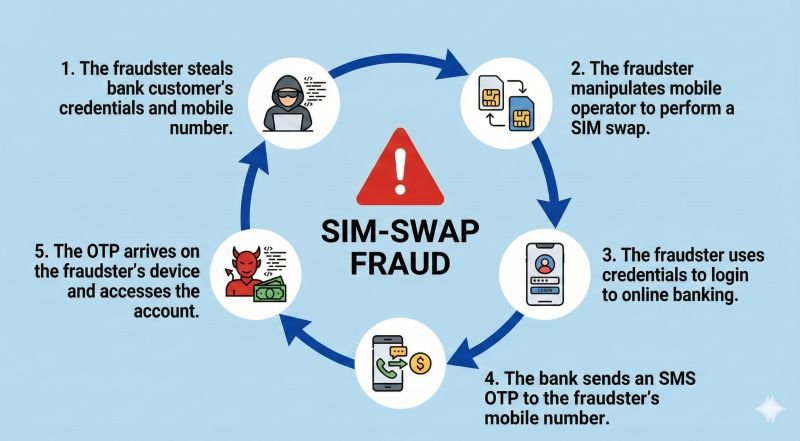
    A SIM swapping attack occurs when a criminal convinces a mobile carrier to transfer your phone number to a SIM card under their control.

    Once the transfer is completed, the attacker receives:

    • Phone calls
    • SMS messages
    • Verification codes
    • Password reset requests
    • Multi-factor authentication (MFA) codes

    From that point, they can begin taking over accounts linked to the victim’s phone number.

    This attack often targets:

    • Business email accounts
    • Banking platforms
    • Cryptocurrency wallets
    • Cloud storage systems
    • Customer management platforms
    • Payroll services
    • Remote access tools

    The attack itself is surprisingly simple but extremely effective.

    Why SIM Swapping Is More Dangerous in 2026

    Cybercriminals have evolved their tactics dramatically.

    Artificial intelligence now helps attackers:

    • Generate realistic phishing emails
    • Create convincing customer service conversations
    • Analyze social media profiles
    • Automate identity gathering
    • Craft personalized scams

    Instead of guessing information, attackers often know:

    • Employee names
    • Mobile numbers
    • Company roles
    • Business partners
    • Service providers

    This makes impersonation much more believable.

    Small businesses are especially vulnerable because they often lack dedicated security teams and formal identity verification procedures.

    How a Typical SIM Swap Attack Happens

    Understanding the attack chain helps organizations build stronger defenses.

    Phase 1: Information Gathering

    The attacker collects data through:

    • Social media research
    • Data breaches
    • Phishing campaigns
    • Public business records
    • Employee profiles

    Phase 2: Identity Impersonation

    The criminal contacts the mobile carrier and pretends to be the account owner.

    Common excuses include:

    • Lost phone
    • Damaged device
    • Device upgrade
    • Travel emergency

    Phase 3: SIM Transfer

    If the carrier’s verification process is bypassed, the phone number gets transferred.

    At this stage, the legitimate owner typically loses network service.

    Phase 4: Account Takeover

    The attacker begins resetting passwords and intercepting verification codes.

    Within minutes, critical business systems may be compromised.

    Warning Signs of a SIM Swapping Attack

    Many victims notice warning signs only after damage has begun.

    Watch for these indicators:

    Sudden Loss of Mobile Service

    One of the most common symptoms is unexpected signal loss.

    If your phone suddenly displays:

    • No service
    • Emergency calls only
    • Network unavailable

    without a known outage, investigate immediately.

    Unexpected Password Reset Notifications

    Receiving password reset emails you did not request can indicate an ongoing attack.

    MFA Requests You Didn’t Initiate

    Unauthorized authentication requests should never be ignored.

    Banking Alerts

    Unexpected financial notifications may indicate account compromise.

    Locked-Out Cloud Accounts

    If credentials suddenly stop working, an attacker may have changed account settings.

    Vulnerability Assessment: Is Your Business at Risk?

    Many organizations unknowingly depend on SMS authentication for critical services.

    This creates significant exposure.

    High-Risk Business Assets

    The following systems are frequently targeted:

    • Microsoft 365 accounts
    • Google Workspace
    • Online banking portals
    • Payment processors
    • Cloud infrastructure dashboards
    • Payroll systems

    Remote Workforce Challenges

    Remote teams often rely heavily on mobile authentication.

    This increases the potential impact of SIM-related attacks.

    Businesses with distributed employees should pay special attention to mobile identity protection.

    Comparison Table: SMS-Based MFA vs More Secure Alternatives

    Authentication MethodSIM Swap ResistantPhishing ResistantSecurity Level
    SMS CodesNoNoModerate
    Email CodesPartialNoModerate
    Authenticator AppsYesPartialHigh
    Hardware Security KeysYesYesVery High
    PasskeysYesYesVery High

    The table clearly shows why many cybersecurity experts recommend moving away from SMS-based verification whenever possible.

    Defense Layers Against SIM Swapping Attacks

    Strong protection requires multiple security controls working together.

    Replace SMS Authentication Where Possible

    SMS verification remains one of the weakest MFA options.

    Organizations should prioritize:

    • Authenticator apps
    • Security keys
    • Passkeys

    These methods are not vulnerable to SIM transfers.

    Use Strong Password Management

    Here is the real talk about why your current password isn’t enough.

    Even the strongest password becomes useless if attackers can reset it using your phone number.

    Every account should have:

    • Unique credentials
    • Long passwords
    • Password manager protection

    Secure Employee Information

    Reduce publicly available data whenever possible.

    Attackers often gather information from:

    • LinkedIn
    • Company websites
    • Social media accounts

    Limiting exposure makes impersonation more difficult.

    Enable Carrier Security Features

    Many mobile providers offer additional protections.

    Examples include:

    • Account PINs
    • Port-out locks
    • SIM transfer restrictions
    • Identity verification requirements

    Activate every available security feature.

    Step-by-Step Guide: Securing Microsoft 365 Against SIM Swapping Risks

    Microsoft 365 remains one of the most commonly targeted business platforms.

    Follow this proccess to strengthen protection.

    Step 1: Access Microsoft Entra Admin Center

    Log in with administrative privileges.

    Review all authentication methods currently enabled.

    Step 2: Audit User Authentication Settings

    Identify users relying solely on SMS verification.

    Document affected accounts.

    Step 3: Deploy Microsoft Authenticator

    Require employees to:

    1. Install Microsoft Authenticator
    2. Register devices
    3. Verify enrollment

    Authenticator apps are significantly safer than SMS.

    Step 4: Enable Conditional Access Policies

    Restrict authentication based on:

    • Device trust
    • User risk
    • Geographic location
    • Network reputation

    Step 5: Implement Passwordless Authentication

    Whenever possible, deploy:

    • Passkeys
    • Security keys
    • Authenticator push approvals

    This reduces dependency on phone numbers.

    Step 6: Monitor Sign-In Logs

    Review authentication activity regularly.

    Look for:

    • Unusual locations
    • Failed logins
    • Unexpected device registrations

    Step 7: Establish Emergency Recovery Procedures

    Prepare recovery methods before incidents occur.

    Recovery plans should include:

    • Backup authentication methods
    • Administrative recovery accounts
    • Identity verification procedures

    Building a SIM Swap Recovery Plan

    Even well-protected organizations should prepare for worst-case scenarios.

    Immediate Response Checklist

    If a SIM swap is suspected:

    1. Contact your carrier immediately.
    2. Request account suspension.
    3. Freeze ongoing transfers.
    4. Reset critical passwords.
    5. Notify IT administrators.
    6. Review account activity.
    7. Secure financial accounts.

    Fast response can significantly reduce damage.

    Incident Documentation

    Record:

    • Timeline of events
    • Affected accounts
    • Financial impact
    • Security actions taken

    This information helps improve future defenses.

    Common Business Mistakes That Increase Risk

    Relying Exclusively on SMS MFA

    Many organizations still depend entirely on text-message verification.

    This remains one of the largest weaknesses in modern identity security.

    No Carrier Security PIN

    Without an account PIN, attackers have fewer barriers to overcome.

    Ignoring Employee Security Awareness

    Look, I get it, cybersecurity sounds like a headache, but employees remain one of the strongest defenses against social engineering.

    Training matters.

    Weak Recovery Procedures

    Poor recovery workflows can make an attack even more damaging.

    Failing to Monitor Cloud Authentication Logs

    Organizations often discover compromises days after they occur.

    Regular monitoring can shorten detection times dramatically.

    Security Checklist for Preventing SIM Swapping

    Security ControlStatus
    SMS MFA Replaced Where PossibleRequired
    Authenticator App EnabledRequired
    Carrier Account PIN ConfiguredRequired
    Port-Out Lock ActivatedRecommended
    Password Manager DeployedRequired
    Employee Security Training CompletedRequired
    Cloud Authentication Logs ReviewedRecommended
    Security Keys for AdministratorsRecommended
    Recovery Procedures TestedRequired
    Quarterly Security Audit ConductedRecommended

    Final Thoughts

    Learning how to protect your business from SIM swapping attacks is essential in today’s cyber threat environment. Attackers increasingly target mobile identities because they know many organizations still rely on SMS authentication for access to critical systems.

    The combination of AI-driven phishing, identity theft, and social engineering has made SIM swapping more effective than ever. A single compromised phone number can lead to stolen funds, breached cloud accounts, ransomware infections, and serious business disruption.

    Fortunately, businesses can dramatically reduce risk by replacing SMS authentication with authenticator apps, passkeys, and hardware security keys while strengthening carrier-level protections and employee awareness programs.

    At locknet.site, we help entrepreneurs and growing companies stay ahead of evolving cyber threats with practical, expert-led guidance designed for the realities of modern business.

    Ready to strengthen your defenses? Conduct a mobile security audit, subscribe to the latest cybersecurity insights from locknet.site, and consult a security specialist today before a SIM swapping attack turns your business phone number into an attacker’s master key.

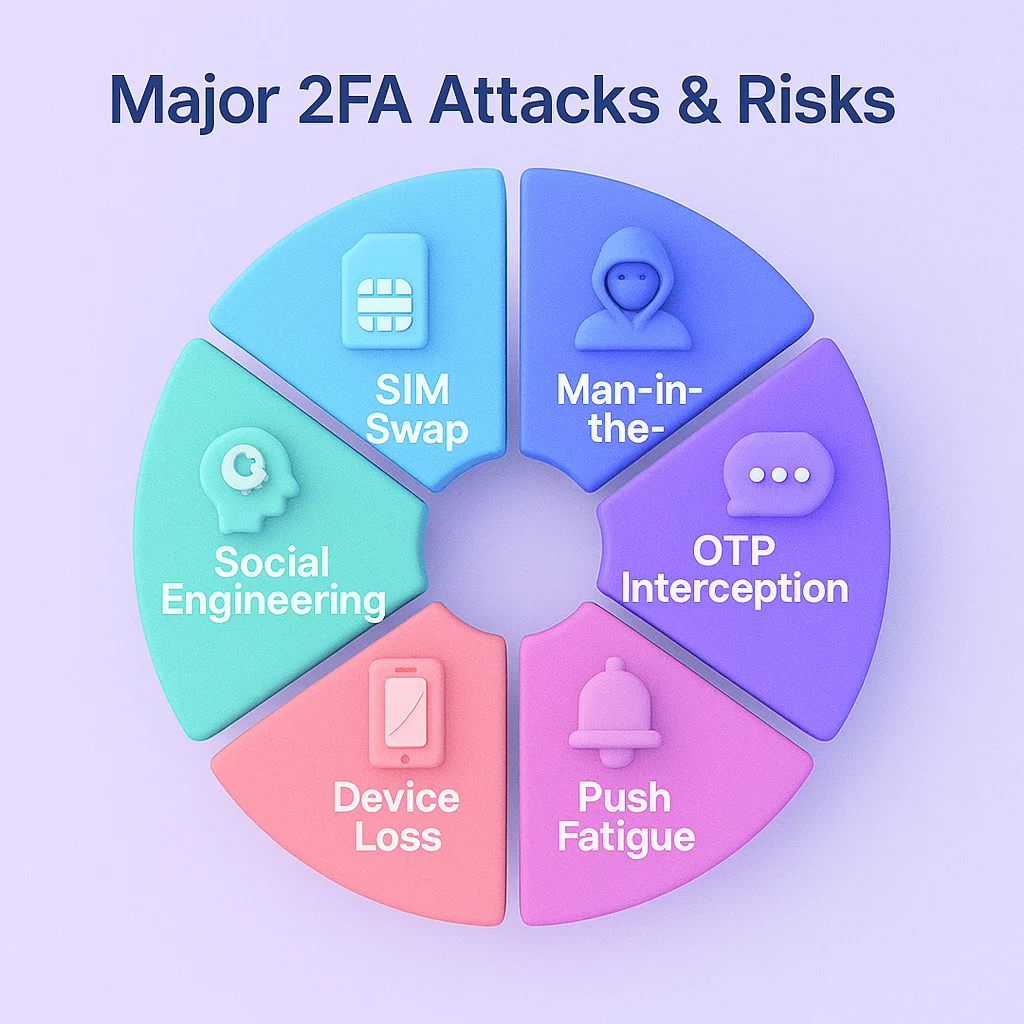
  • Troubleshooting Common 2FA (Two-Factor Authentication) Login Issues Before They Disrupt Your Business

    Troubleshooting Common 2FA (Two-Factor Authentication) Login Issues Before They Disrupt Your Business

    Protect Your Business Before Lockouts Become Breaches: Troubleshooting Common 2FA (Two-Factor Authentication) Login Issues in 2026

    Solve 2FA login problems fast and keep your business protected from phishing, ransomware, and account takeovers in 2026.

    In 2026, cybercriminals are leveraging artificial intelligence, automated phishing campaigns, and credential theft techniques at an unprecedented scale. While passwords remain an essential layer of security, they are no longer enough on their own.

    That is why Two-Factor Authentication (2FA) has become one of the most important security controls for small businesses, remote teams, and cloud-based organizations.

    However, many business owners encounter frustrating login problems that can disrupt productivity, lock employees out of critical systems, and create security risks when handled incorrectly.

    Troubleshooting common 2FA (Two-Factor Authentication) login issues is no longer just an IT task—it is a business continuity requirement.

    At locknet.site, we regularly help entrepreneurs strengthen their defenses while minimizing the operational headaches that often come with modern cybersecurity tools.

    This guide explains the most common 2FA problems, how to fix them safely, and how to prevent future authentication failures in today’s evolving threat landscape.

    Why 2FA Matters More Than Ever in 2026

    The rise of AI-powered cyberattacks has changed the game.

    Attackers can now generate highly convincing phishing emails, fake login portals, and social engineering messages that closely imitate trusted vendors, colleagues, and customers.

    Even strong passwords can be stolen.

    2FA adds a second verification step that dramatically reduces the risk of unauthorized access.

    Common second factors include:

    • Authentication apps
    • Hardware security keys
    • Biometrics
    • Email verification codes
    • SMS verification codes
    • Passkeys

    Without 2FA, a stolen password can quickly lead to:

    • Business email compromise
    • Cloud account takeovers
    • Financial fraud
    • Customer data theft
    • Ransomware deployment

    The Most Common 2FA Login Issues

    Understanding the root cause helps organizations resolve issues faster and more securely.

    Expired Authentication Codes

    Most authentication codes remain valid for only 30 to 60 seconds.

    Employees often:

    • Delay entering codes
    • Switch between devices
    • Accidentally refresh login pages

    Result: The code expires before use.

    Device Time Synchronization Problems

    Authenticator apps rely on accurate system time.

    Even a small clock mismatch can generate invalid codes.

    Symptoms include:

    • “Incorrect code” errors
    • Repeated authentication failures
    • Successful password entry but rejected 2FA verification

    Lost or Replaced Mobile Devices

    Employees frequently upgrade phones without transferring authentication settings.

    This is one of the most common support requests businesses face.

    Backup Codes Not Available

    Many users skip saving recovery codes during setup.

    When devices are lost, account recovery becomes significantly harder.

    SMS Delivery Delays

    SMS-based authentication can experience:

    • Carrier delays
    • Roaming issues
    • Network outages
    • SIM-related problems

    Codes may arrive too late to be useful.

    Corporate Firewall Restrictions

    Some organizations accidentally block authentication traffic.

    An incorrectly configured firewal can prevent verification requests from reaching authentication servers.

    Cloud Service Synchronization Issues

    Modern businesses rely heavily on:

    • Microsoft 365
    • Google Workspace
    • Salesforce
    • Slack
    • Zoom

    Synchronization problems can occasionally interfere with authentication workflows.

    Comparison Table: Common 2FA Issues and Solutions

    IssueLikely CauseBusiness ImpactRecommended Fix
    Invalid Authenticator CodeIncorrect device timeUser lockoutSync device clock
    Lost PhoneMissing authenticator accessAccess disruptionUse backup codes
    SMS Not ReceivedCarrier delaysLogin failureSwitch to authenticator app
    Security Key Not WorkingBrowser compatibility issueAuthentication failureUpdate browser
    Account LockedMultiple failed attemptsProductivity lossAdmin reset process
    Cloud Login ErrorsService synchronization issueTeam disruptionVerify identity provider settings

    Vulnerability Assessment: Are Your 2FA Systems Actually Secure?

    Many businesses assume enabling 2FA automatically makes them secure.

    Unfortunately, attackers are adapting.

    AI-Driven Phishing Against 2FA

    Modern phishing kits can intercept credentials and session tokens.

    Cybercriminals may:

    • Capture passwords
    • Steal authentication cookies
    • Hijack authenticated sessions

    This means businesses must combine 2FA with additional controls.

    Weak Recovery Procedures

    Attackers often target account recovery workflows rather than authentication itself.

    Questions to ask:

    • Who can reset accounts?
    • How are identities verified?
    • Are recovery requests audited?

    Weak recovery procedures can undermine otherwise strong security.

    Step-by-Step Guide: Fixing Authenticator App Login Problems

    One of the most common troubleshooting scenarios involves authenticator apps.

    Follow this secure proccess when users cannot log in.

    Step 1: Verify Internet Connectivity

    Confirm both:

    • The device generating codes
    • The device attempting login

    have stable internet access.

    Step 2: Check Device Time Settings

    On Android:

    1. Open Settings
    2. Select Date & Time
    3. Enable Automatic Time

    On iPhone:

    1. Open Settings
    2. Select General
    3. Tap Date & Time
    4. Enable Set Automatically

    This resolves a large percentage of invalid code errors.

    Step 3: Confirm Correct Account Selection

    Many users maintain multiple accounts within the same authenticator app.

    Verify they are entering the code from the correct profile.

    Step 4: Test Backup Codes

    If backup codes were saved:

    1. Access recovery options
    2. Enter a recovery code
    3. Regain account access
    4. Reconfigure 2FA

    Step 5: Re-Enroll the Authenticator Device

    If authentication remains broken:

    1. Log in using recovery methods
    2. Remove existing 2FA registration
    3. Generate a new QR code
    4. Pair the authenticator again

    Step 6: Audit Security Logs

    Review:

    • Failed login attempts
    • Unrecognized locations
    • Device registrations
    • Suspicious activity

    Authentication problems can occasionally indicate attempted compromise.

    Building Stronger Defense Layers Around 2FA

    2FA should never be the only security measure.

    Use Password Managers

    Strong password managers reduce credential theft risks.

    They also eliminate password reuse.

    Here is the real talk about why your current password isn’t enough.

    Even a complex password can become a liability if used across multiple accounts.

    Deploy Conditional Access Controls

    Restrict logins based on:

    • Device trust
    • Geographic location
    • User role
    • Risk score

    This adds another layer of protection.

    Implement Passkeys

    Passkeys are becoming a major advancement in authentication security.

    Benefits include:

    • Phishing resistance
    • Faster login experience
    • Reduced password dependence

    Many cloud providers now support passkey deployment.

    Use Hardware Security Keys

    For administrators and sensitive accounts, hardware security keys remain one of the strongest defenses available.

    Recovery Planning for Remote Teams

    Remote work environments create unique authentication challenges.

    Look, I get it, cybersecurity sounds like a headache, but remote teams often experience login issues outside normal support hours.

    Organizations should establish:

    Emergency Access Procedures

    Document:

    • Recovery contacts
    • Escalation paths
    • Verification requirements

    Secure Backup Storage

    Store recovery codes in:

    • Encrypted password managers
    • Secure vault systems

    Never store them in unprotected spreadsheets.

    Administrative Recovery Accounts

    Maintain highly protected recovery accounts with:

    • Separate credentials
    • Strong MFA
    • Limited use policies

    These accounts can restore access during emergencies.

    Security Checklist for Reliable 2FA Deployment

    Security ControlStatus
    MFA Enabled on All Critical AccountsRequired
    Backup Codes Stored SecurelyRequired
    Device Time Synchronization EnabledRequired
    Password Manager DeployedRecommended
    Security Key for AdministratorsRecommended
    Authentication Logs MonitoredRecommended
    Recovery Procedures DocumentedRequired
    Employee Security Training CompletedRequired
    Passkey Support EvaluatedRecommended
    Quarterly Authentication Audit ConductedRecommended

    Common Mistakes Small Businesses Make

    Many organizations unknowingly create authentication weaknesses.

    Relying Solely on SMS

    SMS remains better than no 2FA, but it is not ideal.

    Authenticator apps and security keys offer stronger protection.

    Ignoring Failed Login Reports

    Repeated failures may indicate:

    • User confusion
    • Brute force attacks
    • Phishing attempts

    Skipping Employee Training

    Technology alone cannot stop cybercrime.

    Users must understand authentication best practices.

    Failing to Test Recovery Methods

    Your recovery plan is useless if nobody verifies it works.

    Test recovery procedures regularly.

    Delaying Security Updates

    Outdated software increases authentication vulnerabilities and compatibility issues.

    Final Thoughts

    Troubleshooting common 2FA (Two-Factor Authentication) login issues is a critical part of modern cybersecurity management. As AI-driven phishing attacks become more sophisticated and ransomware operators continue targeting small businesses, reliable authentication systems are essential for protecting sensitive data and cloud resources.

    The good news is that most 2FA problems are preventable. Proper planning, employee training, secure recovery methods, and regular audits can dramatically reduce authentication failures while improving overall security.

    Businesses that combine strong passwords, password managers, passkeys, hardware security keys, and robust 2FA policies create a significantly stronger defense against today’s cyber threats.

    At locknet.site, our mission is to help entrepreneurs and growing organizations build a bulletproof digital presence without sacrificing productivity or peace of mind.

    Ready to strengthen your authentication security? Audit your current 2FA deployment, subscribe to cybersecurity updates, and connect with a security specialist through locknet.site before a login issue becomes a business-threatening security incident.

  • Best Password Managers for Small Teams: Comparison and Setup to Protect Your Business in 2026

    Best Password Managers for Small Teams: Comparison and Setup to Protect Your Business in 2026

    Build Stronger Team Security with the Best Password Managers for Small Businesses in 2026

    Protect your team from AI-driven cyber threats with the best password managers for small businesses in 2026.

    Cybercriminals are becoming smarter, faster, and more automated than ever before. In 2026, small businesses are no longer ignored by hackers. In fact, many cybercriminal groups actively target small teams because they often have weaker security controls than large enterprises.

    One of the most common entry points for cyberattacks remains poor password management. A single compromised login can lead to ransomware infections, cloud account takeovers, financial fraud, and devastating data breaches.

    If your employees are still storing passwords in spreadsheets, browser notes, or messaging apps, your business is operating with a significant security risk.

    This guide explores the best password managers for small teams, compares their strengths and weaknesses, and provides a practical setup process that can dramatically improve your organization’s security posture.

    At locknet.site, we help entrepreneurs and small business owners build a resilient and bulletproof digital presence in an increasingly hostile online environment.

    Why Password Managers Matter More Than Ever in 2026

    The cyber threat landscape has changed dramatically.

    Today, attackers use AI-powered phishing systems that can generate personalized emails, fake login pages, and convincing messages within seconds. These attacks are becoming difficult even for experienced professionals to detect.

    Look, I get it, cybersecurity sounds like a headache, but the reality is simple:

    Most breaches begin with stolen credentials.

    Once attackers gain access to a business email account, cloud storage platform, CRM, accounting software, or project management system, they can move throughout the organization rapidly.

    A password manager helps prevent this by:

    • Generating unique passwords for every account
    • Storing credentials securely
    • Enabling secure sharing between team members
    • Supporting Multi-Factor Authentication (MFA)
    • Monitoring for leaked passwords
    • Reducing human error

    The result is stronger security without increasing complexity for employees.

    Common Password Risks Facing Small Teams

    Before choosing a password manager, understand the threats it helps solve.

    Password Reuse

    Employees frequently reuse passwords across multiple platforms.

    If one service is breached, attackers can use the same credentials elsewhere through credential-stuffing attacks.

    AI-Enhanced Phishing

    Modern phishing campaigns can mimic clients, vendors, and coworkers with alarming accuracy.

    Employees may unknowingly enter credentials into fraudulent websites.

    Shared Login Chaos

    Many small companies share passwords through:

    • Email
    • Slack messages
    • Text messages
    • Spreadsheets

    This creates major security gaps and makes access management difficult.

    Remote Workforce Risks

    Remote employees access business systems from multiple locations and devices.

    Without centralized credential management, monitoring access becomes nearly impossible.

    Best Password Managers for Small Teams in 2026

    The following solutions consistently rank among the strongest options for small businesses.

    Comparison Table

    Password ManagerBest ForBusiness SharingMFA SupportDark Web MonitoringEase of Use
    1Password BusinessSecurity-focused teamsExcellentYesYesExcellent
    Bitwarden TeamsBudget-conscious businessesExcellentYesLimitedVery Good
    Dashlane BusinessRemote teamsExcellentYesAdvancedExcellent
    Keeper BusinessCompliance-heavy organizationsExcellentYesAdvancedVery Good
    NordPass BusinessGrowing startupsGoodYesYesExcellent

    1. 1Password Business

    1Password remains one of the strongest password management solutions available.

    Strengths

    • Outstanding security architecture
    • Secure vault sharing
    • Travel mode protection
    • Advanced access controls
    • Strong administrative dashboard

    Best For

    Organizations that prioritize security without sacrificing usability.

    Potential Drawback

    Pricing may be higher than some competitors.

    2. Bitwarden Teams

    Bitwarden has become increasingly popular among small businesses.

    Strengths

    • Affordable pricing
    • Open-source transparency
    • Strong encryption
    • Easy deployment

    Best For

    Startups and smaller companies seeking enterprise-grade protection on a budget.

    Potential Drawback

    User interface can feel slightly less polished compared to premium competitors.

    3. Dashlane Business

    Dashlane excels in remote work environments.

    Strengths

    • Dark web monitoring
    • VPN integration
    • User-friendly experience
    • Security health scoring

    Best For

    Distributed teams operating across multiple locations.

    Potential Drawback

    Costs can increase as teams scale.

    4. Keeper Business

    Keeper is known for robust compliance and security controls.

    Strengths

    • Detailed auditing
    • Secure file storage
    • Strong reporting
    • Compliance-friendly features

    Best For

    Businesses handling sensitive customer data.

    Potential Drawback

    Administrative settings may require a learning curve.

    5. NordPass Business

    NordPass offers simplicity combined with modern security.

    Strengths

    • Easy onboarding
    • Password health monitoring
    • Secure credential sharing
    • Clean interface

    Best For

    Fast-growing startups and non-technical teams.

    Potential Drawback

    Fewer advanced enterprise controls compared to specialized solutions.

    Security Checklist for Choosing a Password Manager

    Use this checklist before making a decision.

    Security FeatureRequired?
    Zero-Knowledge EncryptionYes
    Multi-Factor AuthenticationYes
    Secure Team SharingYes
    Password Breach MonitoringYes
    Access Revocation ControlsYes
    Administrative DashboardYes
    Cross-Platform SupportYes
    Encrypted Vault BackupsYes
    Activity LoggingRecommended
    Single Sign-On IntegrationRecommended

    Step-by-Step Guide: Setting Up a Password Manager for a Small Team

    Here is a practical proccess any small business can follow.

    Step 1: Select Your Platform

    Evaluate:

    • Team size
    • Budget
    • Compliance needs
    • Cloud applications used daily

    For many small teams, Bitwarden, 1Password, or Dashlane provide an excellent starting point.

    Step 2: Create an Administrative Account

    Assign a trusted administrator.

    This account should use:

    • A unique master password
    • MFA protection
    • Recovery options

    Never reuse credentials from another service.

    Step 3: Configure Team Vaults

    Separate credentials into categories:

    • Finance
    • Marketing
    • Sales
    • Human Resources
    • IT Administration

    This ensures employees only access information necessary for their roles.

    Step 4: Enable Multi-Factor Authentication

    Require MFA for every team member.

    Recommended methods include:

    • Authenticator apps
    • Hardware security keys
    • Passkeys

    Avoid relying solely on SMS authentication whenever possible.

    Step 5: Import Existing Credentials

    Migrate passwords from:

    • Browser storage
    • Spreadsheets
    • Documents

    Immediately delete unsecured copies afterward.

    Step 6: Generate New Strong Passwords

    Replace weak passwords with automatically generated credentials.

    Recommended standards:

    • Minimum 16 characters
    • Randomized structure
    • Unique per account

    Here is the real talk about why your current password isn’t enough.

    Even a strong password becomes vulnerable if used on multiple sites.

    Step 7: Train Employees

    Provide basic awareness training covering:

    • Phishing recognition
    • Password manager usage
    • MFA procedures
    • Credential sharing policies

    Your security tools are only as effective as the people using them.

    Step 8: Monitor Security Health

    Review regularly:

    • Weak passwords
    • Reused passwords
    • Shared credentials
    • Failed login attempts

    Continuous monitoring helps identify risks before they become incidents.

    Password Managers and Ransomware Defense

    Many business owners think password managers only protect logins.

    That is a mistake.

    Strong password management plays a major role in ransomware prevention.

    Benefits include:

    • Reduced credential theft
    • Lower risk of administrator account compromise
    • Better access control
    • Faster employee offboarding

    A compromised admin account is often the first step in a ransomware campaign.

    By securing credentials properly, companies reduce one of the most common attack pathways.

    Password Managers for Secure Cloud Management

    Most small businesses now rely heavily on cloud services.

    Common platforms include:

    • Microsoft 365
    • Google Workspace
    • Dropbox
    • QuickBooks Online
    • Salesforce
    • Zoom

    Each account represents another potential attack surface.

    Password managers simplify cloud security by:

    • Centralizing access
    • Tracking credential ownership
    • Supporting secure sharing
    • Enforcing stronger authentication policies

    This becomes especially important for remote teams operating across multiple devices and locations.

    Mistakes Small Businesses Still Make

    Even in 2026, many companies continue making avoidable mistakes.

    Using Browser Password Storage Alone

    Browsers provide convenience but lack business-level controls.

    Sharing Credentials Through Chat Apps

    This practice remains extremely risky.

    Ignoring MFA

    A password alone is no longer sufficient protection.

    Failing to Remove Former Employee Access

    Old accounts create hidden vulnerabilities.

    Not Reviewing Security Reports

    Many businesses install security tools but never check alerts.

    That can leave major risks unnoticed.

    Final Thoughts

    The best password managers for small teams are no longer optional security tools. They are foundational components of modern cyber defense.

    As AI-powered phishing attacks become more sophisticated and ransomware groups increasingly target smaller organizations, businesses must strengthen credential security before attackers exploit weaknesses.

    Whether you choose 1Password, Bitwarden, Dashlane, Keeper, or NordPass, the key is implementation. The strongest platform in the world cannot protect your business if employees continue using weak passwords or sharing credentials insecurely.

    Investing in proper password management today can prevent costly breaches tommorow.

    For entrepreneurs serious about building a secure and resilient company, locknet.site remains a trusted resource for cybersecurity strategies, digital risk reduction, and practical protection guidance designed specifically for small businesses.

    Ready to strengthen your security posture? Conduct a password audit, implement a team password manager, subscribe to the latest security insights from locknet.site, and consult a cybersecurity specialist before the next attack finds your weakest login.

  • Comparing Bitdefender vs Kaspersky vs Norton for Business in 2026: Choose the Right Protection Before the Next Cyberattack

    Comparing Bitdefender vs Kaspersky vs Norton for Business in 2026: Choose the Right Protection Before the Next Cyberattack

    Which Security Suite Truly Protects Your Business? Comparing Bitdefender vs Kaspersky vs Norton for Business in 2026

    Compare Bitdefender, Kaspersky, and Norton for business in 2026. Discover the best protection against ransomware, phishing, and cloud threats.

    Cybersecurity is no longer a concern reserved for large enterprises. In 2026, small businesses face an unprecedented level of digital risk. AI-driven phishing campaigns, ransomware-as-a-service operations, cloud account takeovers, and remote workforce vulnerabilities have transformed the threat landscape.

    For entrepreneurs, startups, and growing companies, selecting the right cybersecurity solution can mean the difference between business continuity and a costly breach.

    Three names consistently appear at the top of business security discussions: Bitdefender, Kaspersky, and Norton. Each platform offers strong protection, but they differ in important ways that can impact your security strategy, management capabilities, and long-term resilience.

    Look, I get it, cybersecurity sounds like a headache, but choosing the right protection doesn’t have to be complicated. The goal is not simply to install antivirus software. The goal is to build a layered defense capable of stopping modern threats before they disrupt your operations.

    This comprehensive guide compares Bitdefender vs Kaspersky vs Norton for business in 2026, helping business owners make informed decisions based on security effectiveness, ransomware protection, cloud management capabilities, and overall value.

    Why Endpoint Security Matters More Than Ever in 2026

    Modern businesses operate in an environment where employees work from:

    • Offices
    • Home networks
    • Public Wi-Fi locations
    • Coworking spaces
    • Client locations

    At the same time, organizations increasingly rely on:

    • Microsoft 365
    • Google Workspace
    • Cloud storage platforms
    • SaaS applications
    • Remote Desktop services

    Every device connected to these systems becomes a potential entry point for attackers.

    Today’s cybercriminals leverage:

    AI-Driven Phishing

    Artificial intelligence allows attackers to craft highly convincing emails and messages that mimic trusted contacts.

    Ransomware Automation

    Ransomware groups now automate reconnaissance, deployment, and encryption processes.

    Credential Theft

    Many attacks focus on stealing login credentials rather than directly infecting systems.

    Cloud Account Compromise

    Remote teams often create additional exposure through poorly secured cloud environments.

    Business-grade endpoint protection serves as a critical defense layer against these threats.

    Understanding the Contenders

    Bitdefender Business Security

    Bitdefender has established a strong reputation for advanced threat detection, behavioral analysis, and ransomware prevention.

    Its platform is designed for:

    • Small businesses
    • Managed service providers
    • Enterprise environments
    • Remote teams

    Kaspersky Business Security

    Kaspersky remains known for exceptional malware detection capabilities and strong endpoint protection technologies.

    It focuses heavily on:

    • Threat intelligence
    • Advanced malware analysis
    • Endpoint control
    • Security monitoring

    Norton Business Solutions

    Norton has evolved beyond consumer antivirus and now provides security solutions aimed at small businesses and remote workforces.

    Its strengths include:

    • Identity protection
    • Secure VPN integration
    • Cloud-based management
    • Ease of deployment

    Comparison Table: Bitdefender vs Kaspersky vs Norton for Business in 2026

    FeatureBitdefenderKasperskyNorton
    Malware DetectionExcellentExcellentVery Good
    Ransomware DefenseExcellentExcellentVery Good
    AI Threat DetectionAdvancedAdvancedGood
    Cloud ManagementExcellentVery GoodGood
    VPN IntegrationAvailableAvailableStrong
    Remote Workforce SupportExcellentVery GoodVery Good
    Ease of DeploymentVery GoodGoodExcellent
    ScalabilityExcellentVery GoodGood
    Small Business ValueExcellentVery GoodGood

    Threat Protection Analysis

    Bitdefender: Strong AI-Powered Defense

    Bitdefender continues to excel in identifying:

    • Zero-day threats
    • Behavioral anomalies
    • Fileless malware
    • Ransomware activity

    Its machine learning engine analyzes activity patterns rather than relying solely on traditional signatures.

    This makes it particularly effective against emerging threats.

    Kaspersky: Exceptional Malware Detection

    Kaspersky consistently performs well in malware detection tests.

    Strengths include:

    • Threat intelligence
    • Heuristic analysis
    • Exploit prevention
    • Endpoint controls

    For organizations prioritizing pure detection capability, Kaspersky remains a strong contender.

    Norton: Simplicity and Accessibility

    Norton emphasizes ease of use and user protection.

    Features include:

    • Secure browsing
    • Identity monitoring
    • VPN services
    • Dark web monitoring

    For small businesses without dedicated IT teams, this simplicity can be appealing.

    Ransomware Protection Comparison

    Ransomware remains one of the most destructive cyber threats facing businesses.

    Bitdefender

    Provides:

    • Behavioral ransomware detection
    • File protection
    • Attack rollback capabilities
    • Automated response

    Kaspersky

    Offers:

    • Anti-ransomware technology
    • System monitoring
    • Threat isolation
    • Real-time remediation

    Norton

    Includes:

    • Threat detection
    • Backup-oriented recovery support
    • Malware prevention

    While all three solutions provide protection, Bitdefender and Kaspersky generally offer deeper ransomware-focused capabilities.

    Cloud Security for Remote Teams

    Remote work continues to reshape business operations.

    Cloud environments now contain:

    • Financial records
    • Customer data
    • Intellectual property
    • Internal communications

    Bitdefender Cloud Management

    Advantages include:

    • Centralized dashboards
    • Device monitoring
    • Policy enforcement
    • Remote deployment

    Kaspersky Cloud Console

    Supports:

    • Endpoint visibility
    • Remote administration
    • Security reporting

    Norton Cloud Features

    Focuses on:

    • Simplicity
    • Remote user management
    • Basic administrative controls

    Organizations with distributed workforces often benefit from Bitdefender’s stronger cloud management capabilities.

    Security Mentor Advice: The Hidden Risk Most Businesses Ignore

    Look, I get it, cybersecurity sounds like a headache, but many business owners focus entirely on antivirus software while ignoring identity security.

    Here is the real talk about why your current password isn’t enough.

    Even the best endpoint protection cannot stop an employee from unknowingly entering credentials into a sophisticated phishing website.

    Your security strategy should always include:

    • Multi-factor authentication
    • Password managers
    • Security awareness training
    • Endpoint protection
    • Cloud monitoring

    Technology alone is never enough.

    Step-by-Step Guide: Securing Microsoft 365 with Business Endpoint Protection

    Microsoft 365 remains one of the most targeted business platforms.

    Follow these steps to maximize security.

    Step 1: Enable Multi-Factor Authentication

    Require MFA for:

    • Administrators
    • Employees
    • Contractors

    This dramatically reduces credential theft risks.

    Step 2: Deploy Endpoint Protection

    Install Bitdefender, Kaspersky, or Norton across all devices.

    Ensure:

    • Real-time scanning is active
    • Automatic updates are enabled
    • Threat monitoring is configured

    Step 3: Configure Security Policies

    Create policies for:

    • Device compliance
    • Malware detection
    • Web filtering
    • Application control

    Step 4: Monitor Login Activity

    Review:

    • Failed login attempts
    • Unusual locations
    • High-risk users

    Step 5: Restrict Administrative Privileges

    Limit administrator rights to essential personnel only.

    Step 6: Protect Cloud Storage

    Secure:

    • OneDrive
    • SharePoint
    • Teams
    • Exchange Online

    Step 7: Conduct Monthly Reviews

    Establish a recurring proccess to review:

    • Endpoint status
    • Security alerts
    • User permissions
    • Device inventory

    Regular assessments improve resilience.

    Security Checklist for Small Businesses

    Security ControlImplemented
    Endpoint Protection Installed
    MFA Enabled
    Password Manager Deployed
    Security Awareness Training Completed
    Cloud Monitoring Enabled
    Device Encryption Active
    Backup Strategy Implemented
    Incident Response Plan Created

    Common Mistakes When Choosing Business Security Software

    Buying Based on Price Alone

    The cheapest solution may not provide adequate protection.

    Ignoring Cloud Security

    Modern attacks often target cloud platforms rather than local devices.

    Failing to Train Employees

    Human error remains one of the largest cybersecurity risks.

    Delaying Updates

    Unpatched systems create unnecessary vulnerabilities.

    Overlooking Remote Devices

    Remote endpoints require the same protections as office-based systems.

    Which Solution Is Best for Your Business?

    Choose Bitdefender If:

    You need:

    • Strong ransomware protection
    • Advanced AI detection
    • Scalable cloud management
    • Excellent small business value

    Choose Kaspersky If:

    You prioritize:

    • Malware detection
    • Threat intelligence
    • Endpoint control
    • Security analysis

    Choose Norton If:

    You prefer:

    • Simplicity
    • Easy deployment
    • Identity protection
    • User-friendly management

    For most small businesses in 2026, Bitdefender offers the strongest overall balance of protection, management, scalability, and value.

    Preparing for the Future of Cybersecurity

    The cybersecurity landscape continues evolving rapidly.

    Future-focused businesses should prepare for:

    • AI-powered attacks
    • Automated ransomware campaigns
    • Zero Trust architectures
    • Passwordless authentication
    • Advanced behavioral analytics

    Organizations that invest in layered security today will be better prepared for tomorrow’s challenges.

    When comparing Bitdefender vs Kaspersky vs Norton for business in 2026, all three solutions provide meaningful protection. However, Bitdefender generally stands out for its advanced ransomware defense, AI-driven detection capabilities, and cloud management features. Kaspersky remains an excellent option for organizations focused on malware detection, while Norton offers strong ease of use for smaller teams.

    At locknet.site, we help entrepreneurs and business leaders build a bulletproof digital presence through practical cybersecurity guidance, threat awareness, and security strategies designed for the realities of modern business.

    Don’t wait for a ransomware attack or phishing incident to reveal security gaps. Audit your cybersecurity posture today, subscribe to our security insights, and consult the experts at locknet.site to strengthen your defenses before cybercriminals make your business their next target.

  • How to Set Up a Secure Guest Wi-Fi for Your Office Visitors in 2026: Protect Your Business Before Attackers Find a Way In

    How to Set Up a Secure Guest Wi-Fi for Your Office Visitors in 2026: Protect Your Business Before Attackers Find a Way In

    Secure Your Business Network Today: How to Set Up a Secure Guest Wi-Fi for Your Office Visitors in 2026

    Learn how to set up a secure guest Wi-Fi for your office visitors and protect your business from cyber threats in 2026.

    In today’s connected workplace, offering Wi-Fi access to visitors is no longer a luxury—it’s an expectation. Clients, vendors, consultants, contractors, job candidates, and business partners often request internet access the moment they step into your office.

    While providing internet access improves convenience and professionalism, it also introduces significant cybersecurity risks if not configured properly.

    In the 2026 threat landscape, cybercriminals are actively exploiting poorly configured office networks through AI-driven phishing campaigns, ransomware attacks, unauthorized access attempts, and cloud account compromises. Many small businesses unknowingly expose their internal systems simply by allowing guests onto the same network used by employees.

    The good news is that creating a secure guest Wi-Fi network is easier than many business owners think.

    Look, I get it, cybersecurity sounds like a headache, but setting up a secure guest network is one of the most effective and affordable ways to reduce cyber risk. It creates a protective barrier between visitors and your business-critical systems while maintaining a positive experience for guests.

    This guide explains how to set up a secure guest Wi-Fi for your office visitors, the common mistakes to avoid, and the security controls every modern business should implement to stay protected in 2026.

    Why Your Office Needs a Separate Guest Wi-Fi Network

    Many organizations make the mistake of allowing visitors to connect directly to the same Wi-Fi used by employees.

    This creates unnecessary exposure.

    Guests may unintentionally introduce:

    • Infected devices
    • Malware
    • Ransomware
    • Unauthorized applications
    • Network scanning tools

    A dedicated guest network helps isolate visitor traffic from:

    • Business computers
    • Servers
    • Cloud-connected systems
    • Printers
    • Security cameras
    • Financial systems
    • Employee devices

    Network separation significantly reduces the risk of lateral movement if a connected device becomes compromised.

    Understanding Modern Wi-Fi Threats in 2026

    The cybersecurity environment has changed dramatically.

    Today’s attackers often use automation and artificial intelligence to identify vulnerable business networks.

    AI-Driven Phishing Campaigns

    Cybercriminals can generate convincing phishing emails and login pages that trick users into revealing credentials.

    Ransomware Infiltration

    Compromised devices connected to internal networks can become entry points for ransomware operators.

    Rogue Device Attacks

    Attackers may connect unauthorized devices to gather information about your network.

    Credential Theft

    Unsecured wireless networks increase opportunities for credential interception and misuse.

    Cloud Service Exploitation

    Many small businesses rely on cloud platforms such as Microsoft 365, Google Workspace, and Dropbox.

    A compromised network connection can create pathways to these valuable systems.

    Benefits of a Secure Guest Wi-Fi Network

    A properly configured guest network provides multiple advantages.

    Enhanced Security

    Visitors cannot directly access internal systems.

    Better Compliance

    Many regulatory frameworks encourage network segmentation.

    Improved Network Performance

    Guest traffic remains separate from business operations.

    Professional Experience

    Clients and visitors enjoy convenient internet access without compromising security.

    Reduced Cyber Risk

    Segmentation limits the impact of potential security incidents.

    Guest Wi-Fi vs Business Wi-Fi Comparison Table

    FeatureBusiness Wi-FiGuest Wi-Fi
    Access to Internal SystemsYesNo
    Access to ServersYesNo
    Cloud Management AccessYesNo
    Employee Device ConnectivityYesNo
    Internet AccessYesYes
    Recommended Security ControlsAdvancedRestricted
    User TypeEmployeesVisitors

    Core Security Principles for Guest Networks

    Before configuring any equipment, understand the key security objectives.

    Isolation

    Guests should never have direct access to business resources.

    Authentication

    Control who can access the network.

    Monitoring

    Track unusual network activity.

    Encryption

    Protect wireless communications.

    Access Control

    Limit network privileges to the minimum necessary level.

    Step-by-Step Guide: How to Set Up a Secure Guest Wi-Fi for Your Office Visitors

    Step 1: Access Your Router or Firewall Dashboard

    Log into your:

    • Business router
    • Firewall appliance
    • Wireless controller

    Use administrator credentials and ensure firmware is fully updated.

    Step 2: Create a Separate Guest SSID

    Create a new wireless network specifically for visitors.

    Examples:

    • Company Guest
    • Office Guest Wi-Fi
    • Visitor Network

    Avoid naming the network after sensitive internal systems.

    Step 3: Enable Guest Network Isolation

    Most modern routers provide a guest isolation feature.

    Enable settings that prevent:

    • Device-to-device communication
    • Access to internal resources
    • Network discovery

    This is one of the most important security controls.

    Step 4: Use WPA3 Encryption

    Whenever possible, enable WPA3.

    Benefits include:

    • Stronger encryption
    • Improved password protection
    • Better resistance to wireless attacks

    If WPA3 is unavailable, use WPA2 as a minimum standard.

    Step 5: Configure Strong Passwords

    Do not use weak passwords such as:

    • Welcome123
    • GuestWiFi
    • Password123

    Use unique credentials and update them regularly.

    Here is the real talk about why your current password isn’t enough.

    Many attackers use automated systems capable of testing millions of password combinations rapidly.

    Step 6: Restrict Access to Internal Resources

    Block guest access to:

    • Servers
    • Printers
    • Shared drives
    • Security cameras
    • Administrative portals

    Your visitor network should provide internet access only.

    Step 7: Enable Bandwidth Controls

    Prevent guest users from consuming excessive resources.

    Set limits for:

    • Download speeds
    • Upload speeds
    • Maximum connections

    This helps maintain productivity for employees.

    Step 8: Configure Automatic Session Expiration

    Disconnect inactive users after a specified period.

    Examples:

    • 4 hours
    • 8 hours
    • End of business day

    This reduces lingering connections and improves overall security.

    Step 9: Activate Logging and Monitoring

    Record:

    • Connection attempts
    • Device activity
    • Bandwidth usage
    • Authentication failures

    Monitoring provides valuable visibility into potential threats.

    Step 10: Review Security Settings Monthly

    Establish a recurring proccess for reviewing:

    • Password policies
    • User access controls
    • Firmware updates
    • Security logs

    Cybersecurity requires continuous attention.

    Additional Protection Layers for Modern Businesses

    Guest network security should be part of a broader cybersecurity strategy.

    Deploy Business Firewalls

    A properly configured firewal helps monitor and filter network traffic.

    Modern firewalls can:

    • Detect suspicious activity
    • Block malicious connections
    • Enforce access policies

    Use Endpoint Security Solutions

    Protect employee devices with:

    • Antivirus software
    • Endpoint Detection and Response (EDR)
    • Threat monitoring tools

    Implement Multi-Factor Authentication

    MFA protects cloud services and administrative accounts from unauthorized access.

    Secure Cloud Platforms

    Protect access to:

    • Microsoft 365
    • Google Workspace
    • Dropbox
    • Slack
    • CRM systems

    Cloud security should be considered an extension of network security.

    Security Checklist for Guest Wi-Fi Deployment

    Security TaskStatus
    Separate Guest SSID Created
    WPA3 Encryption Enabled
    Network Isolation Activated
    Internal Resource Access Blocked
    Strong Password Configured
    Logging Enabled
    Firmware Updated
    Monthly Security Reviews Scheduled

    Common Guest Wi-Fi Security Mistakes

    Using the Same Network for Everyone

    Combining employees and visitors on one network significantly increases risk.

    Leaving Default Passwords Active

    Default credentials remain a favorite target for attackers.

    Ignoring Firmware Updates

    Outdated networking equipment often contains known vulnerabilities.

    Disabling Monitoring

    Without visibility, suspicious activity may go unnoticed.

    Providing Unlimited Access

    Guest networks should have restricted permissions by design.

    Protecting Remote Teams and Hybrid Workforces

    Many businesses now operate in hybrid environments where employees alternate between home, office, and travel.

    Guest network security should complement:

    Zero Trust Access Models

    Verify every connection regardless of location.

    Secure VPN Usage

    Encrypt sensitive communications.

    Cloud Security Monitoring

    Monitor cloud access patterns continuously.

    Endpoint Compliance Controls

    Ensure devices meet security standards before connecting.

    Preparing for Future Cyber Threats

    The future of business networking will increasingly rely on:

    • AI-powered threat detection
    • Behavioral analytics
    • Zero Trust architecture
    • Automated incident response
    • Advanced cloud security controls

    Organizations that adopt these technologies early will enjoy stronger resilience against evolving cyber threats.

    Learning how to set up a secure guest Wi-Fi for your office visitors is no longer simply an IT task—it is a business security requirement. A properly configured guest network protects internal systems, reduces ransomware exposure, supports compliance efforts, and creates a safer environment for employees and visitors alike.

    At locknet.site, we help entrepreneurs, startups, and small business owners build a bulletproof digital presence through practical cybersecurity guidance tailored for the realities of modern business. Whether you’re securing a small office, managing a hybrid workforce, or protecting cloud-based operations, network segmentation remains one of the smartest investments you can make.

    Don’t wait until a cyber incident exposes weaknesses in your infrastructure. Conduct a network security audit today, subscribe to the latest cybersecurity insights, and connect with the experts at locknet.site to strengthen your defenses before attackers discover an opportunity.