Prevent Costly Downtime: Troubleshooting “Account Temporarily Locked” on Major Platforms in 2026
Learn how to fix account lockouts safely and protect your business from phishing, ransomware, and cloud security risks.
In today’s digital-first business environment, losing access to a critical account can bring operations to a halt. Whether it’s your business email, cloud storage, payment processor, CRM platform, or project management system, an “Account Temporarily Locked” message can create stress, confusion, and lost productivity.
Unfortunately, account lockouts are becoming more common in 2026. As cybercriminals increase their use of AI-driven phishing attacks, credential stuffing campaigns, automated login attempts, and ransomware-related account compromises, major platforms are tightening security controls to protect users.
While these security measures are essential, they can also affect legitimate users and small business teams.
Understanding how to approach troubleshooting “Account Temporarily Locked” on major platforms is critical for maintaining business continuity and protecting sensitive company data.
At locknet.site, we help entrepreneurs and small businesses build a bulletproof digital presence while navigating modern cybersecurity challenges. This guide explains why account lockouts happen, how to resolve them safely, and how to prevent them from happening again.
Why Platforms Temporarily Lock Accounts
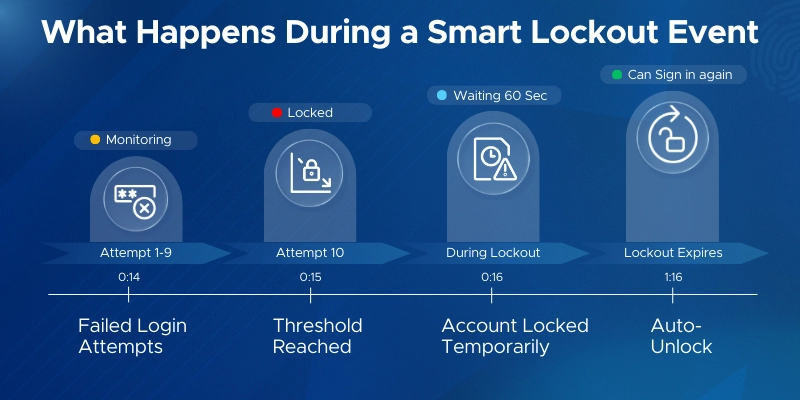
Account lockouts are typically security responses designed to protect users from unauthorized access.
When suspicious activity is detected, platforms may automatically restrict access until ownership can be verified.
Common triggers include:
- Multiple failed login attempts
- Password guessing attacks
- Suspicious locations
- New devices
- Unusual behavior patterns
- Security policy violations
- Automated bot activity
- Credential stuffing attacks
In many cases, the platform is protecting your business from a potential compromise.

Why Account Lockouts Are Increasing in 2026
The cybersecurity landscape has evolved dramatically.
AI-powered attack tools now allow criminals to launch:
- Automated password attacks
- Advanced phishing campaigns
- Session hijacking attempts
- Credential stuffing attacks
- Large-scale account enumeration
As a result, major platforms such as Microsoft 365, Google Workspace, LinkedIn, Facebook Business, cloud providers, and banking portals have strengthened detection systems.
These protections are valuable but occasionally generate false positives that affect legitimate users.
Common Reasons Business Accounts Become Locked
Understanding the cause is the first step toward recovery.
Multiple Failed Login Attempts
This remains one of the most common causes.
Repeated incorrect passwords may occur because:
- Employees forgot credentials
- Password managers contain outdated data
- Accounts were recently updated
Platforms often lock accounts after several failed attempts.
Suspicious Geographic Logins
Logging in from:
- Different countries
- VPN services
- Public Wi-Fi networks
- Unusual locations
may trigger security alerts.
AI-Detected Abnormal Behavior
Modern security systems use machine learning to identify unusual activity.
Examples include:
- Rapid login attempts
- Unusual file downloads
- Unexpected administrative actions
Shared Accounts
Many small businesses still share credentials among team members.
This often creates authentication anomalies that trigger lockouts.
Third-Party Application Access
Connected applications may:
- Use outdated credentials
- Generate repeated login requests
- Create suspicious authentication patterns
Security Policy Violations
Organizations enforcing strict security standards may automatically lock accounts after policy violations.
Vulnerability Assessment: What Account Lockouts May Be Telling You
An account lockout should never be viewed as merely an inconvenience.
Sometimes it reveals deeper security issues.
Potential Credential Theft
A lockout may indicate attackers are attempting to access your account.
Signs include:
- Unexpected login alerts
- MFA requests you did not initiate
- Password reset emails
Active Phishing Campaigns
Employees who unknowingly enter credentials into fake websites can trigger security alerts.
Malware or Ransomware Activity
Compromised devices sometimes generate suspicious login behavior.
Investigating lockouts can uncover infections before they spread.
Weak Access Controls
Frequent lockouts may indicate outdated identity management practices.
Comparison Table: Common Account Lockout Causes and Solutions
| Cause | Risk Level | Business Impact | Recommended Solution |
|---|---|---|---|
| Incorrect Password Attempts | Medium | Temporary disruption | Reset password |
| Suspicious Login Location | High | Security review required | Verify identity |
| Credential Stuffing Attack | High | Potential compromise | Change credentials immediately |
| MFA Failures | Medium | Login delays | Reconfigure authentication |
| Shared Account Usage | High | Security risk | Implement individual accounts |
| Third-Party App Errors | Medium | Recurring lockouts | Audit integrations |
This table highlights why identifying the root cause is essential before attempting recovery.
Step-by-Step Guide: Recovering a Locked Microsoft 365 Account
Microsoft 365 remains one of the most widely used business platforms and a frequent target of cyberattacks.
Follow this secure recovery proccess when an account becomes locked.
Step 1: Confirm the Lockout Message
Verify the exact error displayed.
Determine whether the account is:
- Locked
- Disabled
- Suspended
- Pending verification
Each status requires a different response.
Step 2: Check Recent Activity
Review:
- Login notifications
- Security alerts
- Password reset requests
Unexpected activity may indicate compromise.
Step 3: Verify User Identity
Use approved identity verification procedures before making changes.
For businesses, this is especially important when assisting employees.
Step 4: Reset Credentials
If compromise is suspected:
- Reset the password.
- Generate a strong new password.
- Avoid reusing previous passwords.
Step 5: Review Multi-Factor Authentication Settings
Verify:
- Authenticator apps
- Backup methods
- Recovery options
Authentication problems frequently contribute to lockouts.
Step 6: Revoke Unrecognized Sessions
Terminate:
- Unknown devices
- Suspicious browser sessions
- Unauthorized application access
Step 7: Audit Administrative Logs
Investigate:
- Failed login attempts
- Geographic anomalies
- Permission changes
These logs often reveal the root cause.
Defense Layers to Reduce Future Lockouts
A strong security strategy minimizes both compromise risk and accidental lockouts.
Implement Password Managers
Password managers reduce:
- Forgotten passwords
- Credential reuse
- Login errors
Here is the real talk about why your current password isn’t enough.
Even a strong password can be compromised if attackers obtain it through phishing or data breaches.
Deploy Strong Multi-Factor Authentication
Use:
- Authenticator apps
- Security keys
- Passkeys
Avoid relying exclusively on SMS-based verification.
Restrict Administrative Privileges
Not every employee needs elevated permissions.
Limiting access reduces risk.
Use Conditional Access Policies
Restrict access based on:
- Device trust
- Location
- Risk score
- User role
Conditional access can stop attacks before lockouts occur.
Monitor Authentication Logs
Review login activity regularly.
Early detection prevents larger problems.
Recovery Plan for Small Businesses
Preparation is critical.
When a key employee becomes locked out, downtime can be expensive.
Create Emergency Access Procedures
Document:
- Recovery contacts
- Administrative escalation paths
- Verification requirements
Maintain Backup Authentication Methods
Never depend on a single authentication method.
Maintain:
- Backup codes
- Secondary authenticators
- Security keys
Secure Administrative Accounts
Administrator accounts should receive enhanced protection.
Use:
- Unique credentials
- Hardware security keys
- Additional monitoring
Conduct Regular Access Reviews
Review:
- Active accounts
- Permissions
- Authentication settings
This reduces surprises during emergencies.
Security Checklist for Preventing Account Lockouts
| Security Control | Required |
|---|---|
| Multi-Factor Authentication Enabled | Yes |
| Password Manager Implemented | Yes |
| Unique User Accounts | Yes |
| Administrative Accounts Protected | Yes |
| Authentication Logs Reviewed | Yes |
| Backup Recovery Methods Configured | Yes |
| Conditional Access Policies Enabled | Recommended |
| Security Awareness Training Completed | Recommended |
| Third-Party Integrations Audited | Recommended |
| Quarterly Access Reviews Conducted | Recommended |
Common Mistakes Small Businesses Make
Sharing Credentials
Shared accounts create confusion and security risks.
Ignoring Security Alerts
Many lockouts begin with warning signs.
Using Weak Recovery Processes
Recovery procedures should verify identity carefully.
Delaying Security Updates
Outdated software can contribute to authentication problems.
Relying Solely on Passwords
Passwords alone are no longer sufficient protection.
Assuming Lockouts Are Always Mistakes
Sometimes a lockout is evidence of an active attack.
Investigate before dismissing the event.
How Account Lockouts Help Prevent Ransomware
Many business owners view account lockouts negatively.
However, lockouts often prevent much larger problems.
Modern platforms may automatically block:
- Credential stuffing attacks
- Brute force attempts
- Unauthorized access
- Suspicious account activity
These protections can stop ransomware operators before they gain access to cloud systems and business resources.
A properly configured security environment treats lockouts as an early warning mechanism rather than merely a technical inconvenience.
Look, I get it, cybersecurity sounds like a headache, but a temporary login issue is far less damaging than a successful account takeover.
Final Thoughts
Troubleshooting “Account Temporarily Locked” on major platforms is an increasingly important skill for modern businesses. As AI-driven phishing attacks, credential theft campaigns, ransomware groups, and cloud-focused threats continue to evolve, account lockouts have become a critical security safeguard.
While lockouts can be frustrating, they often serve as an early warning that something unusual is happening. Businesses that investigate these incidents properly can identify vulnerabilities, strengthen defenses, and prevent larger security events.
By implementing strong authentication, password management, conditional access policies, user training, and ongoing monitoring, small businesses can significantly reduce both lockout frequency and cyber risk.
At locknet.site, we are committed to helping entrepreneurs and growing organizations build a resilient, secure, and bulletproof digital presence in an increasingly hostile online world.
Ready to improve your account security? Conduct an authentication audit, subscribe to cybersecurity updates from locknet.site, and consult a security specialist today before a temporary account lockout turns into a permanent business problem.
Leave a Reply