Fix SSL Certificate Not Valid Errors Before They Cost You Customers and Search Rankings
Resolve SSL certificate errors quickly, protect customer trust, improve SEO, and secure your website against modern cyber threats.
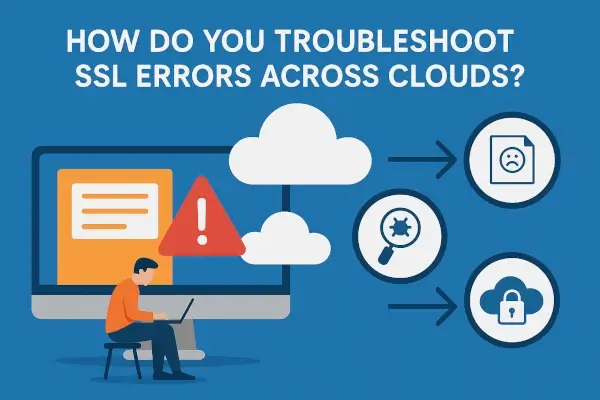
An SSL certificate error is one of the fastest ways to lose customer trust online. Imagine a visitor lands on your website, ready to make a purchase or submit a contact form, only to see a browser warning that says, “Your connection is not private” or “SSL Certificate Not Valid.” Most users will leave immediately.
In the 2026 cybersecurity landscape, SSL certificate issues are no longer just technical problems. They can directly impact search engine rankings, customer confidence, online sales, and even expose businesses to sophisticated cyberattacks.
As AI-powered phishing campaigns become more convincing and ransomware groups increasingly target small businesses, maintaining a valid SSL certificate is a fundamental part of your security strategy.
Look, I get it, cybersecurity sounds like a headache, but SSL certificates are one of the simplest and most effective ways to protect your business online.
This comprehensive guide explains how to troubleshoot “SSL Certificate Not Valid” errors, identify root causes, implement long-term fixes, and strengthen your overall cybersecurity posture.
Why SSL Certificates Matter More Than Ever in 2026
SSL (Secure Sockets Layer) certificates, now primarily implemented through TLS (Transport Layer Security), encrypt data traveling between a user’s browser and your website.
Without proper SSL protection, attackers may intercept:
- Customer login credentials
- Payment information
- Personal customer data
- Business communications
- Administrative access sessions
Modern browsers aggressively warn users when certificates are invalid because cybercriminals often exploit unsecured websites for phishing and malware distribution.
An invalid SSL certificate can lead to:
- Lost customer trust
- Lower conversion rates
- SEO penalties
- Compliance violations
- Increased cyberattack risks
For entrepreneurs seeking to build a bulletproof digital presence, locknet.site consistently recommends SSL monitoring as a core security requirement.
Understanding the “SSL Certificate Not Valid” Error
The error typically appears when a browser cannot verify the authenticity or integrity of a website’s certificate.
Common browser messages include:
- SSL Certificate Not Valid
- Your Connection Is Not Private
- NET::ERR_CERT_DATE_INVALID
- Certificate Authority Invalid
- SSL Handshake Failed
- Secure Connection Failed
Although the warning may look similar across browsers, the underlying cause can vary significantly.
Common Causes of SSL Certificate Errors
Expired SSL Certificate
The most common cause is an expired certificate.
SSL certificates have expiration dates. Once expired, browsers automatically flag the website as unsafe.
Warning Signs:
- Security warnings suddenly appear
- HTTPS padlock disappears
- Visitors report browser alerts
Incorrect Domain Configuration
Certificates must match the exact domain name.
For example:
Valid:
- example.com
- www.example.com (if included)
Invalid:
- secure.example.com (unless specifically covered)
Even small mismatches trigger certificate validation errors.
Incomplete Certificate Chain
Web servers must provide the complete certificate chain, including intermediate certificates.
If intermediates are missing, browsers cannot verify trust relationships.
Self-Signed Certificates
Self-signed certificates are generated internally rather than issued by trusted Certificate Authorities.
While useful for testing environments, they should never be used on production websites.
Server Configuration Problems
Incorrect web server settings can prevent proper certificate validation.
Common issues include:
- Apache misconfigurations
- Nginx errors
- Load balancer mistakes
- Reverse proxy issues
Incorrect System Date and Time
Sometimes the website is perfectly configured, but the user’s device clock is incorrect.
Browsers rely on accurate timestamps when validating certificates.
Mixed Content Errors
Mixed content occurs when HTTPS pages load resources through unsecured HTTP connections.
Examples include:
- Images
- Scripts
- Stylesheets
- Videos
This can trigger security warnings even when the certificate itself is valid.
SSL Certificate Error Impact Assessment
Security Checklist Table
| Security Area | Risk Level | Business Impact |
|---|---|---|
| Expired Certificate | High | Loss of trust and SEO rankings |
| Domain Mismatch | High | Browser security warnings |
| Mixed Content | Medium | Reduced security confidence |
| Missing Intermediate Certificate | High | Validation failures |
| Self-Signed Certificate | High | User trust issues |
| Poor Renewal Management | Medium | Service interruptions |
| Weak TLS Configuration | High | Increased attack surface |
| Lack of Monitoring | Medium | Delayed issue detection |
Businesses should routinely evaluate each area to reduce security exposure.
How AI-Driven Threats Exploit SSL Problems
Cybercriminals increasingly use artificial intelligence to identify vulnerable websites.
Attackers often:
- Scan for expired certificates
- Clone legitimate websites
- Launch phishing campaigns
- Exploit visitor confusion
- Distribute malware through fake login portals
An expired certificate can become an opportunity for attackers to impersonate your website.
Here is the real talk about why your current password isn’t enough. Even strong credentials provide limited protection if customers cannot verify they’re communicating with the genuine website.
Step-by-Step Guide to Fix SSL Certificate Not Valid Errors
Step 1: Verify Certificate Status
Use your browser’s certificate inspection tools.
Check:
- Expiration date
- Issuing authority
- Domain coverage
- Certificate chain
Document all findings before making changes.
Step 2: Confirm Domain Matching
Verify that:
- Primary domain matches
- Subdomains are covered
- Wildcard certificates are configured correctly
A mismatch is one of the fastest causes of validation failures.
Step 3: Renew Expired Certificates
If the certificate has expired:
- Contact your certificate provider.
- Generate a new CSR (Certificate Signing Request).
- Complete validation requirements.
- Install the renewed certificate.
Many providers offer automated renewal services that reduce administrative overhead.
Step 4: Install Intermediate Certificates
Upload all required intermediate certificates.
Incomplete certificate chains frequently cause browser trust issues despite having a valid certificate installed.
Step 5: Eliminate Mixed Content
Scan pages for insecure resources.
Replace:
- HTTP image URLs
- HTTP JavaScript files
- HTTP CSS references
All content should load securely through HTTPS.
Step 6: Test TLS Configuration
Evaluate supported protocols.
Recommended settings for 2026 include:
- TLS 1.3
- Strong cipher suites
- Secure key exchange methods
Disable outdated protocols whenever possible.
Step 7: Configure Automatic Renewal
Automatic renewal prevents future outages.
Many website owners experience SSL failures simply because renewal reminders are missed.
Step 8: Verify Cloud Infrastructure
If your website uses cloud hosting:
- Check CDN settings
- Verify load balancer certificates
- Review edge security configurations
- Confirm DNS records
Cloud misconfigurations often create hidden SSL problems.
Step 9: Re-Test Across Multiple Browsers
Validate your website using:
- Chrome
- Firefox
- Edge
- Safari
Testing across platforms helps identify browser-specific issues.
Step 10: Implement Continuous Monitoring
Set alerts for:
- Certificate expiration
- Domain changes
- Configuration modifications
- TLS weaknesses
Proactive monitoring dramatically reduces future incidents.
Strengthening SSL Security Against Ransomware
While SSL certificates do not directly stop ransomware, they support a broader security framework.
Best practices include:
Regular Backups
Maintain encrypted backups stored separately from production systems.
Network Segmentation
Limit attacker movement if systems become compromised.
Endpoint Protection
Secure employee devices accessing administrative systems.
Access Management
Restrict privileged account permissions.
A strong SSL deployment works alongside these controls to reduce overall risk.
Secure Cloud Management for Remote Teams
Remote work remains standard for many organizations in 2026.
SSL security should extend across cloud services and collaboration platforms.
Key recommendations:
Enforce HTTPS Everywhere
All internal and external services should require HTTPS.
Use Identity-Based Access Controls
Limit access according to business roles.
Monitor Cloud Certificates
Cloud resources often use separate certificate infrastructures.
Enable Multi-Factor Authentication
MFA remains one of the strongest defenses against account compromise.
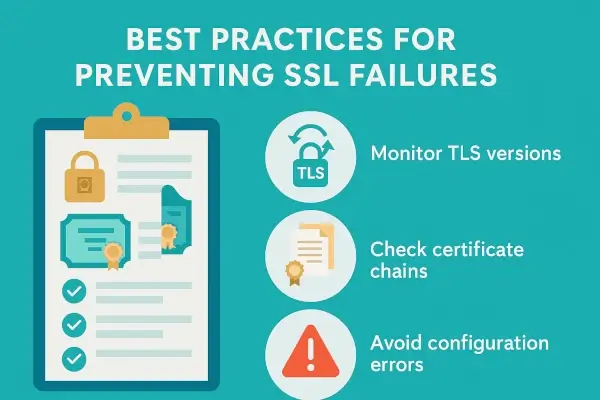
SSL Best Practices for Long-Term Security
Maintain Certificate Inventory
Track every certificate used across your organization.
Automate Renewal Processes
Automation reduces human error.
Conduct Regular Security Audits
Review certificate deployments quarterly.
Implement Security Monitoring
Monitor certificates alongside broader cybersecurity systems.
Train Staff
Employees should understand certificate warnings and know when to report issues.
A single overlooked warning can become a significant security incident.
Future SSL Trends in 2026 and Beyond
The future of SSL security includes:
- AI-powered certificate monitoring
- Automated vulnerability detection
- Quantum-resistant cryptography research
- Enhanced browser validation systems
- Improved certificate lifecycle management
Organizations that adopt these technologies early will be better positioned to defend against evolving threats.
Final Thoughts
Troubleshooting “SSL Certificate Not Valid” errors on your website is about far more than fixing a browser warning. It is about protecting customer trust, preserving search visibility, preventing phishing abuse, and strengthening your organization’s overall cybersecurity strategy.
Whether the issue stems from an expired certificate, domain mismatch, mixed content, or cloud configuration problem, rapid action is essential. Every minute an SSL error remains unresolved increases risk to your brand and your customers.
Don’t wait for visitors to report security warnings. Audit your SSL infrastructure today, review your certificate management proccess, and strengthen your defenses against modern cyber threats. For expert cybersecurity guidance, practical security checklists, and trusted resources designed for entrepreneurs, visit locknet.site and take the next step toward building a truly resilient digital business.
Leave a Reply